Game Boy Pixel Effect Tutorial in Photoshop

Game Boy Pixel Effect Tutorial in Photoshop

The distinctive monochrome pixelated aesthetic of the original Game Boy has become an iconic visual style that evokes powerful nostalgia for classic handheld gaming. This technique transforms ordinary photographs into high-contrast, pixelated artwork that mimics the characteristic black and white display of Nintendo's legendary portable console.

The process combines subject isolation, filter effects, and custom brush creation to achieve an authentic retro gaming look that works particularly well with portraits and character images.

Watch the Video

Video by Photoshop Arthouse. Any links or downloads mentioned by the creator are available only on YouTube

Practical Tips

Master the Game Boy pixel effect with these essential techniques from the tutorial:

  • Set image resolution to 300 pixels per inch before starting to ensure proper pixel grid alignment
  • Use the Photocopy filter with 50% opacity to create the initial high-contrast foundation
  • Apply Mosaic filter with 30-square cell size, then create matching custom brushes for cleanup work
  • Adjust Threshold settings based on your image's tonal characteristics rather than using default values
  • Create separate layers for black and white squares to maintain precise control over the final pixel pattern

Explore more retro pixel effects and vintage screen simulations:
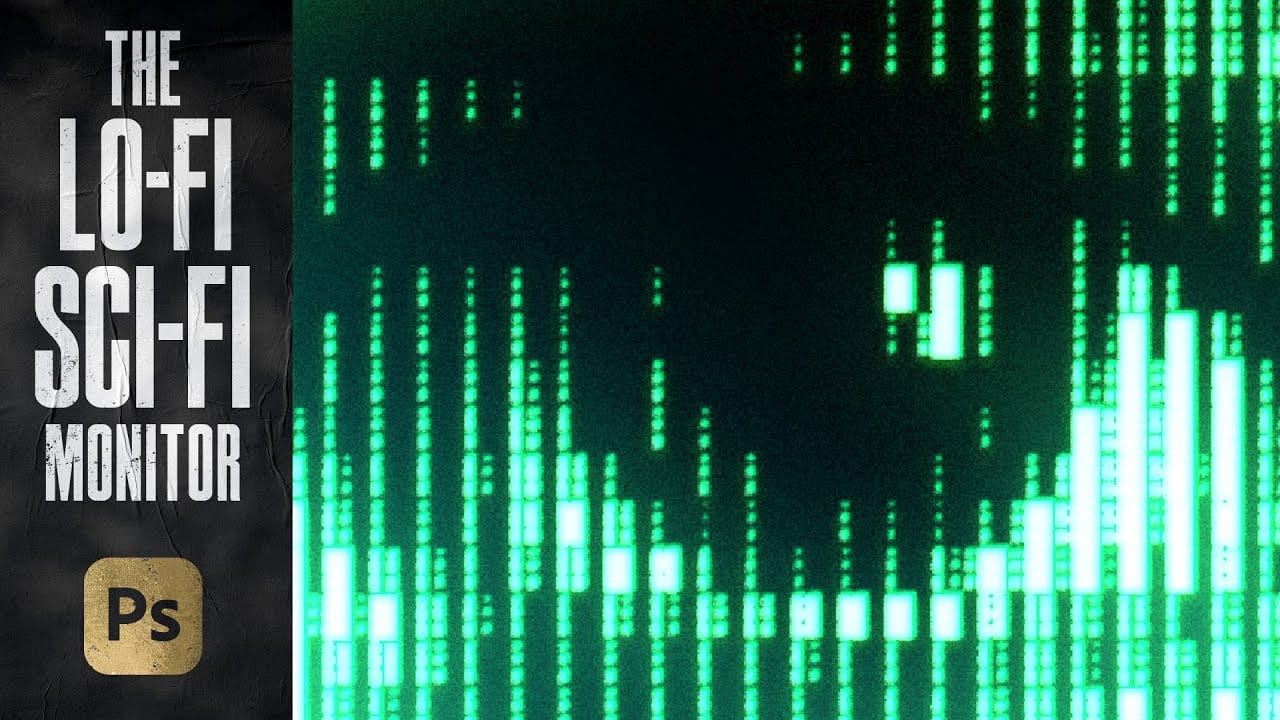
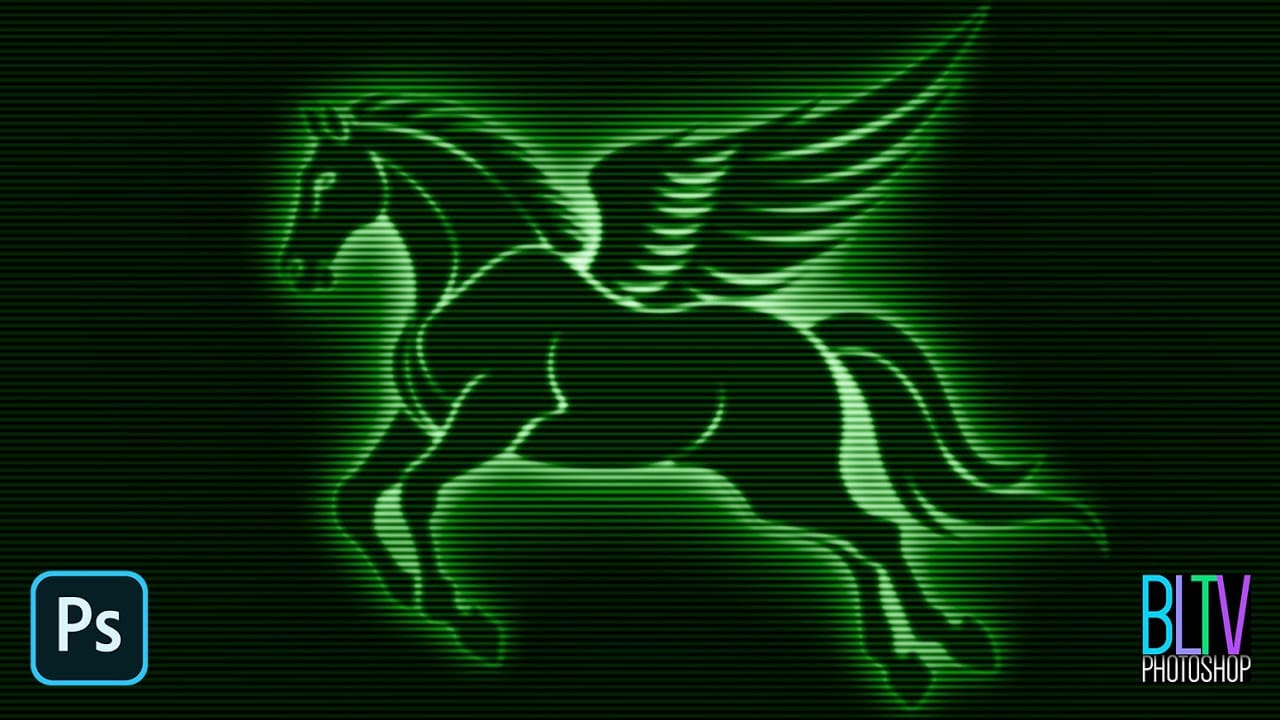
Create an Analog Retro-Futuristic Monitor Effect in Photoshop
The distinctive glow of vintage computer monitors carries a powerful nostalgic appeal that transcends generations. Those chunky green pixels, flickering displays, and analog imperfections define an entire era of sci-fi aesthetics. From classic arcade games to retro-futuristic films, this visual language continues to captivate designers and artists. This tutorial demonstrates how to simulate an authentic pixelated monitor effect in Photoshop using custom patterns and advanced blending techniques
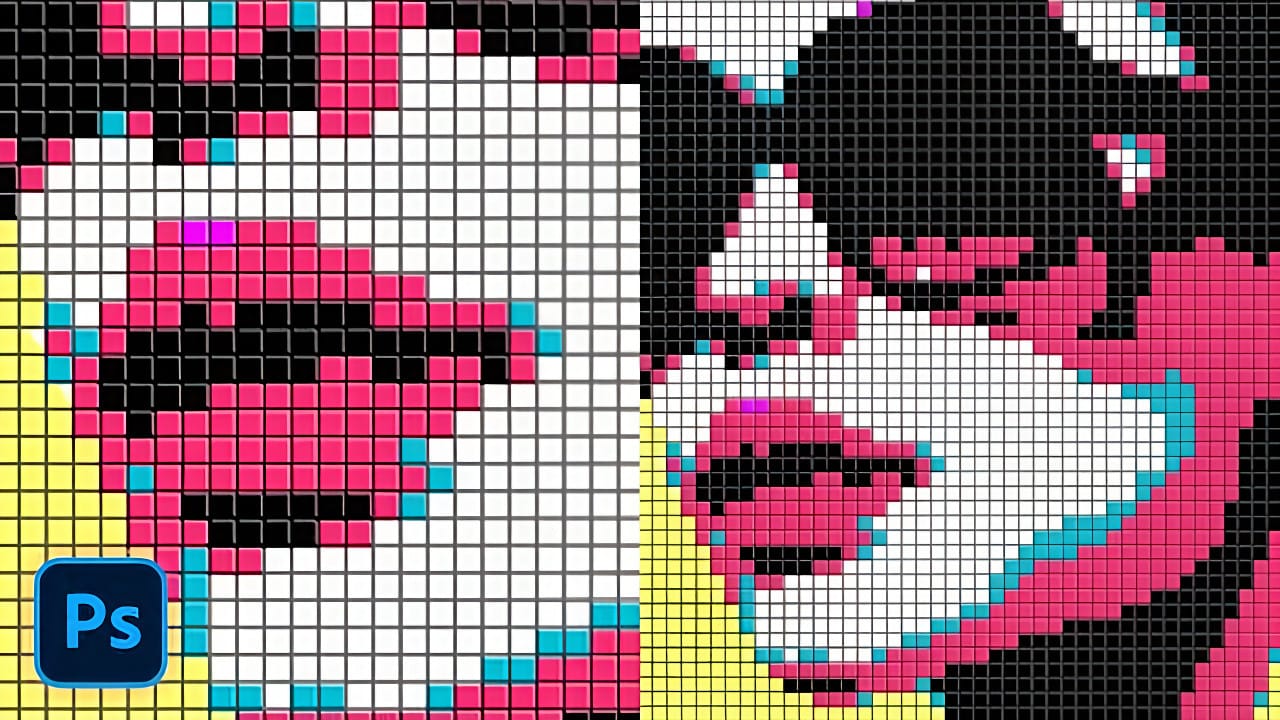
Creating a Colorful Pixelated Effect in Photoshop
The colorful pixelated effect transforms ordinary photographs into vibrant, retro-style artwork reminiscent of 8-bit video games and digital pop art. This distinctive visual style combines traditional mosaic filtering with advanced color manipulation to create bold, simplified imagery that captures attention. This technique works particularly well for portraits, creating striking poster-like results that blend nostalgic pixel aesthetics with modern design sensibilities. Watch the Tutorial U
Create a Classic Retro CRT Monitor Effect in Photoshop
In an age dominated by high-definition displays and vibrant color palettes, the distinctive aesthetic of vintage CRT monitors continues to hold a unique appeal. Their characteristic glow, scanlines, and limited color range evoke a sense of nostalgia, making them a popular choice for artists and designers aiming to infuse their work with a retro or futuristic vibe. This tutorial will guide you through the process of recreating the iconic look of graphics displayed on a classic green phosphor mon
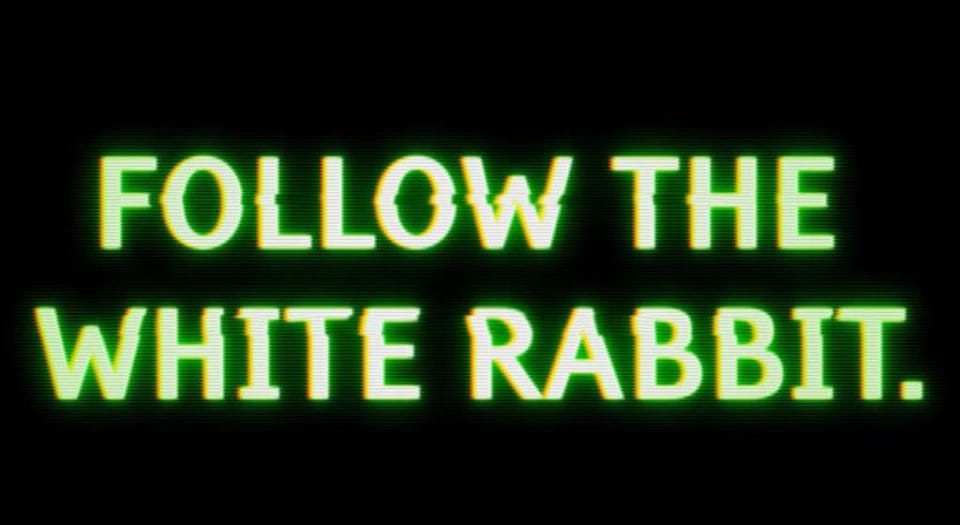
Create an awesome grainy scan-line text effect in Photoshop
In this tutorial by Blue Lightning TV, you'll learn how to create an awesome CRT scan-line text effect with digital glitches from scratch using Adobe Photoshop. The tutorial guides you through a few easy steps to achieve this retro and glitchy aesthetic. You'll explore techniques to simulate CRT monitor scan-lines, add digital glitches, and apply effects to text, creating a unique and visually dynamic result Whether you're nostalgic for retro tech aesthetics or looking to add a futuristic glit
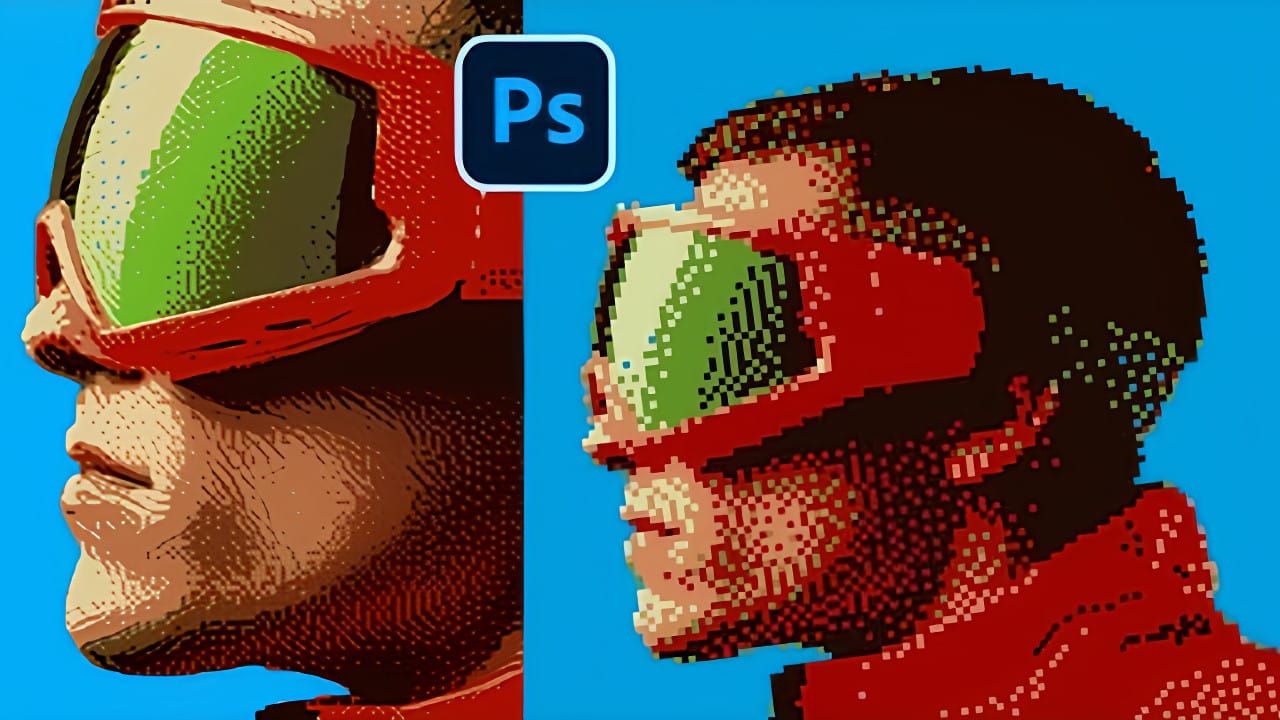
Creating Pixelated Dither Effects in Photoshop
The pixelated dither effect transforms modern photographs into retro-inspired artwork reminiscent of early video games and vintage computer graphics. This distinctive visual style uses controlled color reduction and strategic pixelation to create images that balance nostalgic charm with contemporary design appeal. The technique relies on Photoshop's export settings and specific file format workflows to achieve authentic dithering patterns. By manipulating resolution, color depth, and dithering
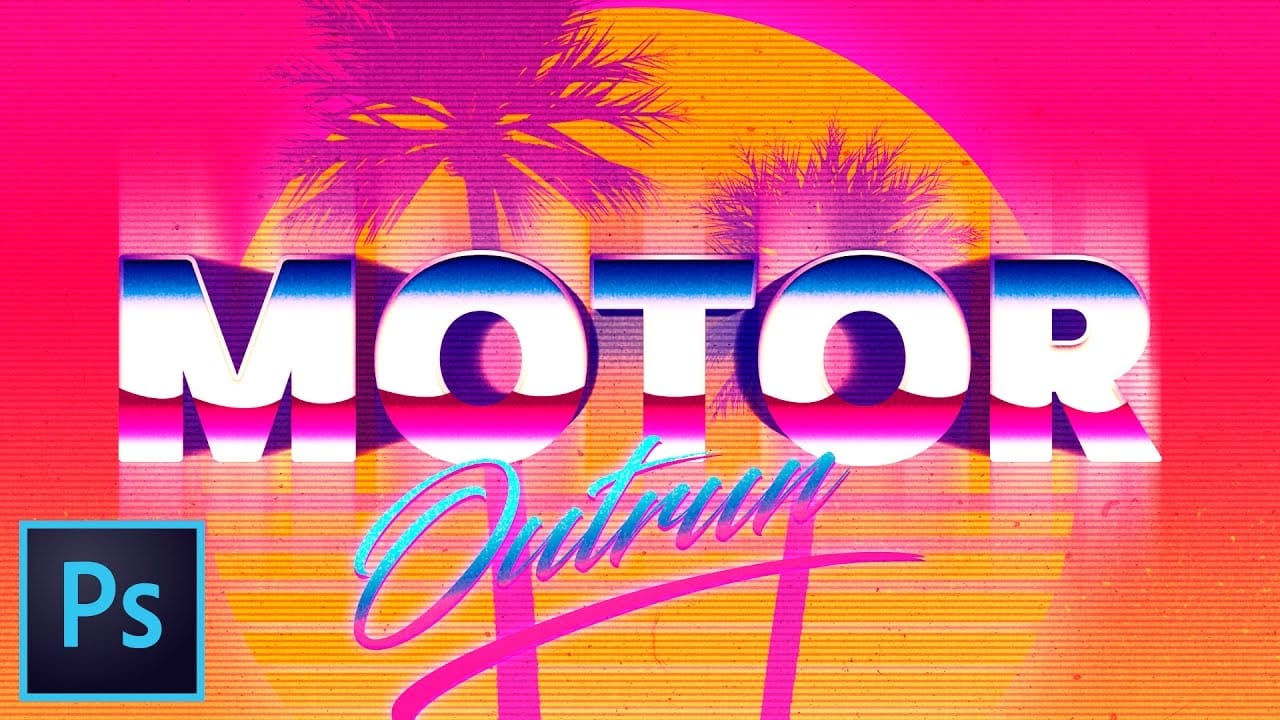
Create an Outrun-style retro text effect in Photoshop
Captivate with the vibrant aesthetic of Outrun retro-futurism. This Photoshop tutorial guides you through creating stunning pixel-based artwork and text effects, capturing the iconic 80s style. You will learn to combine gradients, textures, and custom shapes to achieve a rich, colorful, and unique design. Watch the Tutorial Practical Tips for Outrun Text Effects Achieve the distinct Outrun aesthetic with these essential techniques from the video. * Download the free gradient pack (Outrun
Create a 50s Retro TV Show Text Effect in Photoshop
In this Photoshop tutorial by Marty Geller from Blue Lightning TV, you will learn how to create a striking black and white 50s retro TV show text effect. This guide is designed for users at any skill level, making it accessible and easy to follow. You'll start by adding vintage-style text, setting the stage for a nostalgic look. The tutorial walks you through incorporating scan lines and signal interference, elements that will enhance the retro feel. Each step is demonstrated clearly, ensuring
Create a Vintage CRT Text Effect in Photoshop
The distinctive visual qualities of vintage CRT monitors—with their characteristic color separation, scanlines, and analog blur—have become a powerful design element in modern digital art. These old television and computer displays created a unique aesthetic through their phosphor-based technology and analog signal processing. This technique recreates that nostalgic CRT look by building custom RGB color channels and applying specific blur effects to simulate the analog nature of cathode ray tub
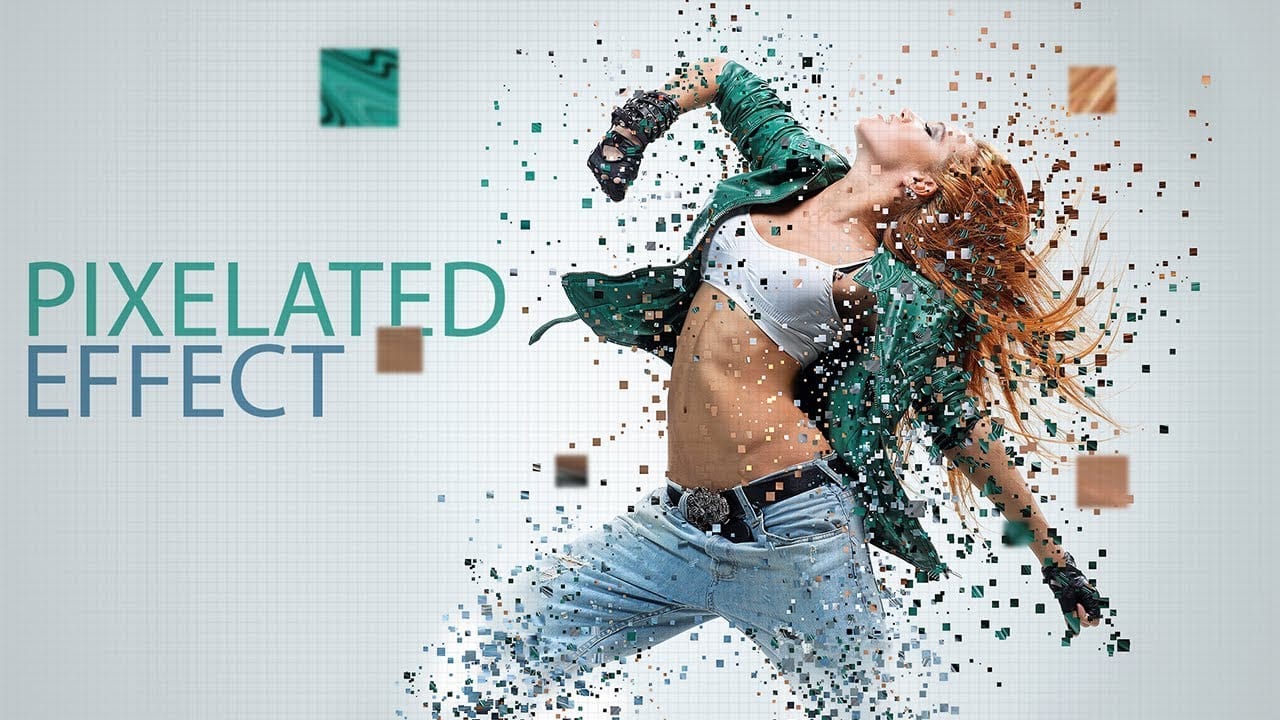
Create a pixelated dispersion effect in Photoshop
Transform ordinary photos into striking digital artwork using Photoshop's pixel manipulation techniques. This tutorial reveals how to deconstruct images into bold, geometric designs that capture the essence of digital pop art and retro gaming aesthetics. Watch the Video Practical Tips for Pixel Art Effects Master the art of digital pixel transformations with these key techniques: * Create custom pixel brushes to control size, spacing, and randomness of pixel elements * Use Liquify filter
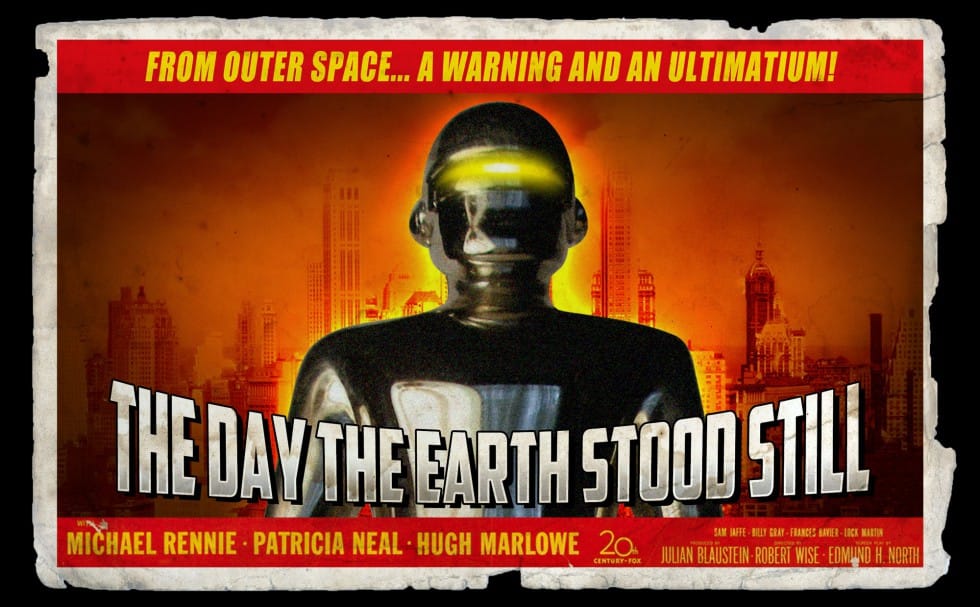
Create a retro '50s Sci-Fi poster in Photoshop
Achieving a distinct vintage sci-fi aesthetic often involves intricate color manipulation beyond simple desaturation. This tutorial demonstrates a surprising approach to color grading, using specific color balance adjustments across shadows, midtones, and highlights to infuse a retro tone. For instance, cyan/red is pushed to +100 in all three tones, while yellow/blue is consistently set to -100. This precise method, combined with the Diffuse Glow filter and careful Brightness/Contrast settings,

Get tutorials & freebies delivered to you.

Subscribe to the Photoshop Roadmap newsletter, a weekly roundup of new tutorials, insights and quality downloads, trusted by 6500+ readers.

You might also like

How to Create Realistic Lighting Effects and Dust Particles in Photoshop

Creating convincing lighting effects requires more than just adding a bright spot to your image. The key to realism lies in ensuring your subject already has highlights that match the direction of your artificial light source, making the effect appear natural and believable. This technique combines a simple soft brush...

How to Set Up Mouse Scroll Zoom in Photoshop for Faster Navigation

Constantly reaching for the magnify tool or right-clicking to access zoom options disrupts your creative flow and slows down detailed work. Most users don't realize that Photoshop includes powerful scroll wheel zoom features that aren't enabled by default. These simple preference settings transform navigation into smooth,...

How to Fix Layer Panel Thumbnails Showing the Full Canvas in Photoshop

When working with complex layered files, layer thumbnails that display the entire canvas instead of just the layer content make it difficult to identify specific layers at a glance. This common issue occurs when the layers panel is set to show the "entire document" rather than focusing on...

How to Cut Out Trees Using Blend If in Photoshop

Trees with complex branching patterns challenge traditional selection tools, often leaving messy edges and incomplete cutouts. The Blend If feature offers a powerful alternative for extracting trees from contrasting backgrounds by targeting specific color channels rather than attempting pixel-by-pixel selection. This technique works particularly well when trees are photographed against...

Should You Use Photoshop's New AI Credit System or Stick to Traditional Tools

Adobe's credit-based AI system is creating a dilemma for photographers and digital artists. With 250 monthly credits that can disappear after just a few generative fill operations, many are questioning whether these new tools are worth the investment or if traditional skills remain more valuable. This perspective from...

How to Use Point Color in Photoshop's Camera Raw Filter for Precise Color Adjustments

Point Color, hidden within Photoshop's Camera Raw filter, offers unprecedented control over individual colors in your images. This powerful tool lets you target specific color ranges with precision, adjusting hue, saturation, luminance, variance, and range for each selected area. Unlike traditional color adjustment methods, Point Color uses an...

You’ve successfully subscribed to Photoshop Roadmap
Welcome back! You’ve successfully signed in.
Great! You’ve successfully signed up.
Success! Your email is updated.
Your link has expired
Success! Check your email for magic link to sign-in.