Photoshop's Generative Fill makes it possible to add realistic clothing and accessories to your photos with simple selections and text prompts. This AI-powered technique can transform outfits, add jewelry, or create entirely new looks that match your image's lighting and style.
The process works by selecting the area where you want to add items, then using descriptive prompts to generate realistic additions that blend seamlessly with the original photo.
Watch the Video
Practical Tips
These key techniques will help you get the best results when adding clothing and accessories:
- Make selections slightly larger than needed to give the AI enough space to work with realistic proportions and edges
- Use descriptive prompts that match existing colors and style elements in your photo for cohesive results
- Combine multiple selection tools like lasso and elliptical marquee to create precise areas for different accessories
- Generate multiple variations to compare options before settling on your final choice
- Work on separate layers so you can modify or regenerate individual elements without affecting others
Related Articles and Tutorials
Explore more AI-powered editing techniques and workflows to enhance your photo editing skills.
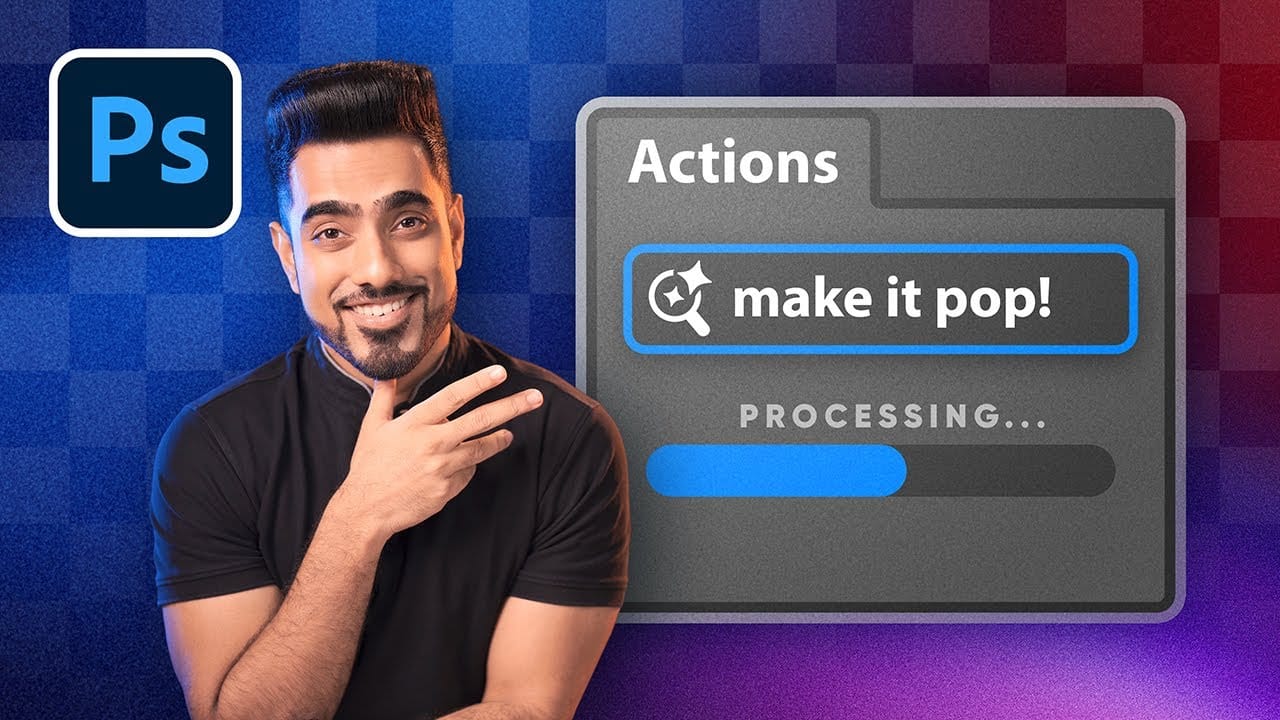
How to Use Photoshop's New AI-Powered Actions Panel
Photoshop's actions just became significantly smarter with AI integration. The new Actions panel understands natural language searches, automatically suggests relevant effects based on your image content, and provides live previews before you commit to changes.
This revolutionary update transforms how designers work with automated processes. Instead of browsing through countless preset names, you can simply type "make it pop" or "remove haze" and watch AI deliver exactly what you need.
Watch
10 Ways AI Completely Transformed My Photoshop Techniques
Repetitive tasks like making complex selections, removing unwanted objects, and cleaning up blemishes can consume hours of an editor's time. While traditional Photoshop methods offer precise control, they are often slow and require significant technical skill for what should be simple fixes.
This guide demonstrates how to integrate modern AI features into your daily workflow. You will learn practical techniques for everything from one-click selections and generative fills to automated retouchin
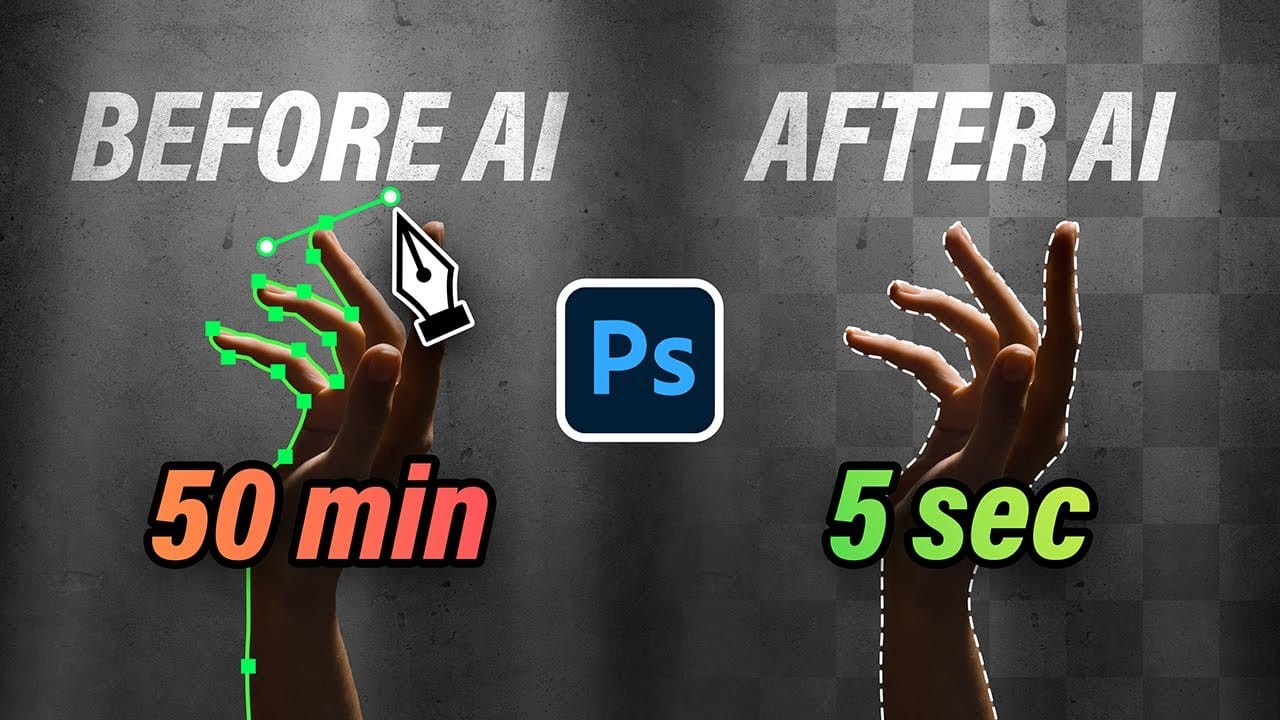
New Photoshop AI Features – Smarter, Faster, and More Efficient Tools!
Editing detailed selections, adjusting colors, and removing backgrounds in Photoshop can be tedious, especially when working with complex edges like hair or challenging objects. Manual work often stalls creative flow and makes it tough to achieve clean, professional results on tight deadlines.
This article introduces essential, time-saving features in the latest Photoshop update—including advanced AI-powered selection, color, and removal tools. Learn how these updates streamline everyday editin
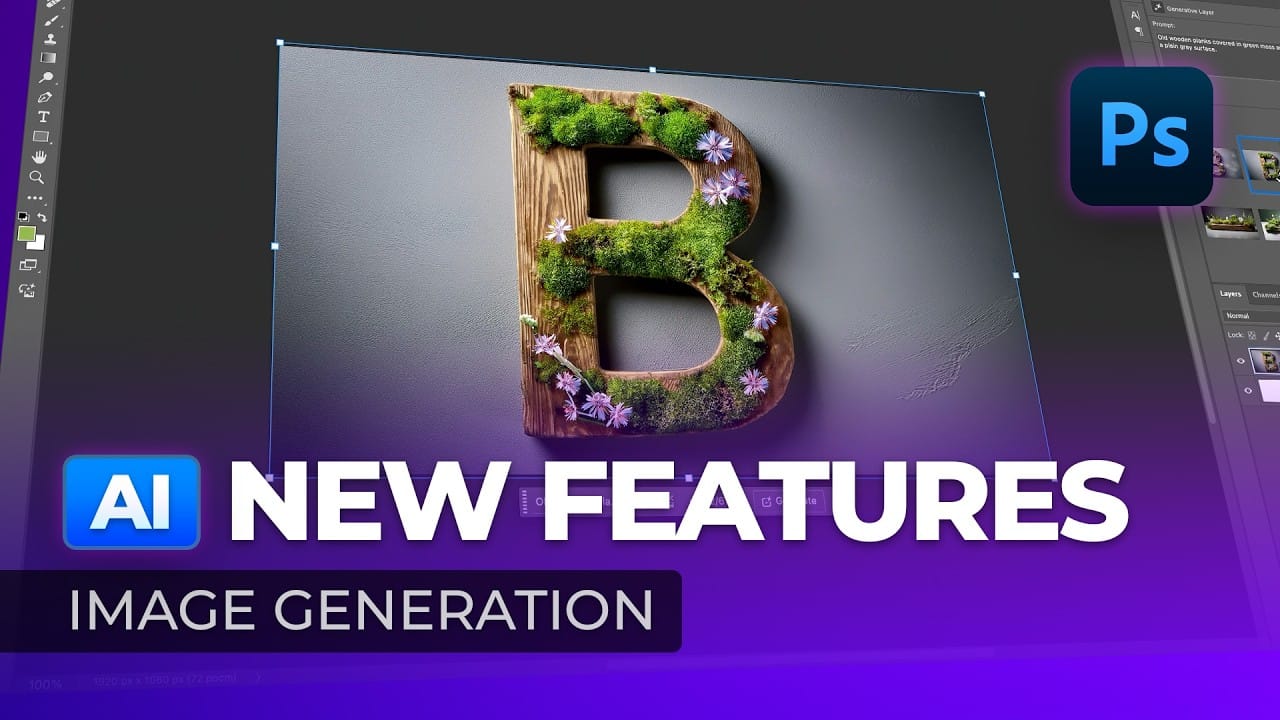
Strategic Guide to Photoshop's AI Tools: Which Tool, When, and Why
Over the past few years, Adobe has been strategically integrating AI-powered features that are redefining what's possible in image editing, positioning Photoshop at the forefront of the generative AI revolution.
Rather than simply adding standalone AI tools, Adobe is thoughtfully weaving intelligence into Photoshop's core workflows, creating something far more sophisticated than the typical AI feature additions we see elsewhere. But here's the challenge: having all these options doesn't automat

Discover Hidden Photoshop AI Tools to Transform Your Photos
Transform ordinary photographs into captivating works of art using advanced Generative AI features in Photoshop. This guide reveals a powerful, often overlooked technique to unlock incredible artistic potential from your images.
Discover how to apply stunning styles, from delicate watercolors to bold Art Deco and futuristic visions, by mastering a subtle yet impactful control within Photoshop's AI capabilities.
Watch the Video
Understanding Generative AI's Creative Control
Generative AI to
Creating AI-Enhanced Autumn Fantasy Images in Photoshop
Fantasy imagery comes alive when artificial intelligence meets traditional photo manipulation techniques. AI-generated backgrounds provide the perfect foundation for creating moody, atmospheric scenes that would be difficult or impossible to capture with a camera alone.
This approach combines the creative potential of AI image generation with Photoshop's precise editing tools to craft compelling visual narratives. The result is a seamless blend of imagination and technical skill that transforms
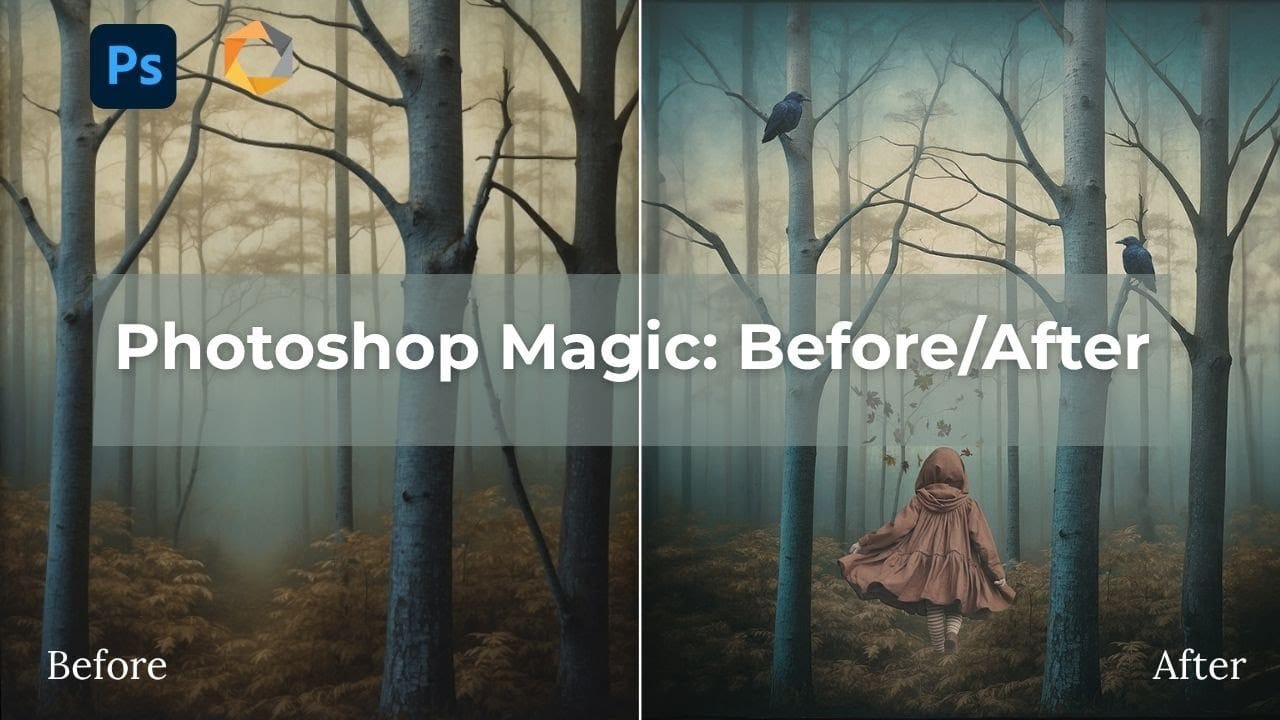
How to Remove Objects from Photos Using AI Tools in Photoshop
Photoshop's AI-powered object removal tools can eliminate unwanted distractions from your photos with minimal effort. The Remove Tool and Generative Fill feature automated detection for common distractions like people and wires, plus manual painting options for custom removals.
These tools work on separate layers, preserving your original image while giving you complete control over what gets removed and how the final result looks.
Watch the Video
Practical Tips
These key techniques will h
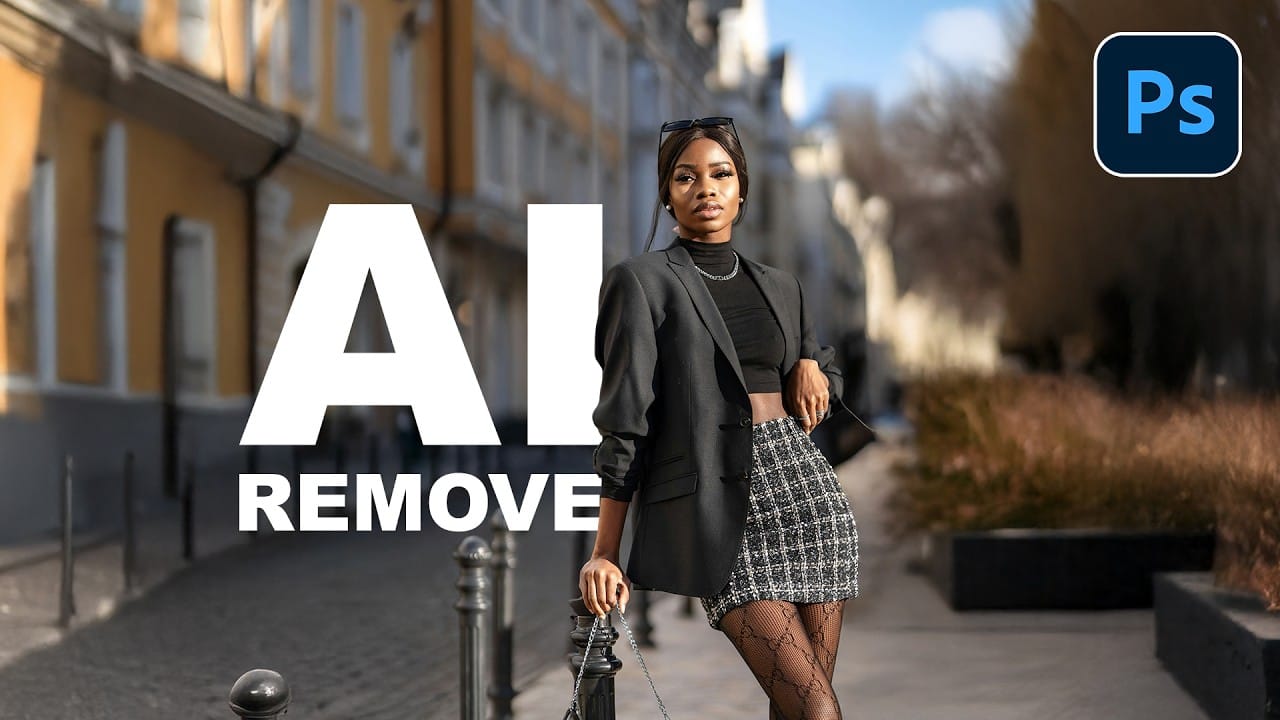
How to Add Objects to Photos Using Photoshop's Generative Fill
Photoshop's Generative Fill transforms photo editing by letting you add realistic objects using simple text descriptions. This AI-powered feature creates seamless additions that match your image's lighting, perspective, and style.
The process requires just a basic selection and a descriptive prompt to generate professional-looking results in seconds.
Watch the Tutorial
Essential Tips for Generative Fill Success
* Make your selection slightly larger than the object you want to generate — t
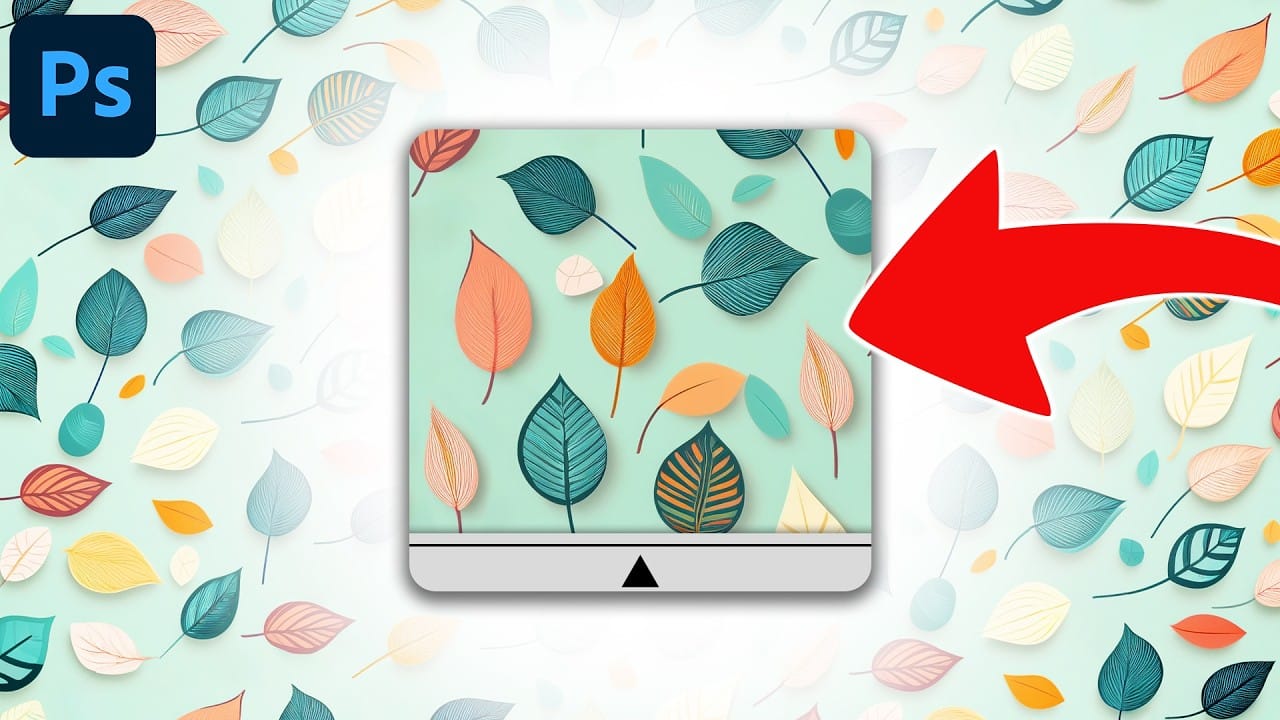
Using AI to Create Seamless Patterns For Photoshop
Creating beautiful, endless patterns for your design projects just got easier with the power of artificial intelligence. This tutorial explores an efficient workflow to generate intricate designs and transform them into perfectly tiling patterns.
Discover how to leverage AI tools to craft unique starting points, then refine them within Photoshop to achieve professional, seamless results. This process offers a creative boost for backgrounds, textiles, and other visual assets.
Watch the Full Tu