How to Change Object Colors in Photoshop Using Hue/Saturation

How to Change Object Colors in Photoshop Using Hue/Saturation

Changing the color of specific objects in your photos requires precision and the right technique. The key is creating an accurate selection and using a targeted adjustment layer that affects only your chosen subject while preserving the rest of the image.

This method combines the Object Selection tool with Hue/Saturation adjustment layers to achieve professional color changes. The technique works by isolating your subject with a layer mask, then using targeted color adjustments to transform hues naturally and accurately.

Watch the Video

Video by Photoshop Arthouse. Any links or downloads mentioned by the creator are available only on YouTube

Practical Tips

Master this color-changing technique with these essential workflow tips:

  • Use the Object Selection tool first, then refine with Quick Selection tool by holding Alt to subtract unwanted areas
  • Click the On Image Adjustment tool and click directly on the color you want to change for automatic slider targeting
  • Adjust the transition triangle sliders to control how harsh or smooth the color blending appears
  • Fine-tune the Saturation slider to control color intensity and the Lightness slider for brightness adjustments
  • Save time by using pre-made alpha channels when working with complex selections repeatedly

Explore more advanced color manipulation techniques and specialized methods for different scenarios:

Basic Photoshop techniques you really need to learn
Photoshop hasn’t changed as much as it looks. New features come and go, but the same core techniques keep showing up in real work. If you skip them, everything feels harder than it should. This post focuses on those basics, not as isolated tricks, but as skills you’ll
12 Visually Striking Photoshop Effects You’ll Want to Add to Your Portfolio Right Now
Most people learning Photoshop quit way too early. Here’s why: You start with excitement. Finally getting your hands on the world’s most powerful image editing software. ‘You’ll create amazing things with just one click’, they said. You eagerly dive into generative fill, experiment with artistic brushes, play with those magical
The easiest way to change any color in Photoshop
Changing the color of specific elements within an image can often be a frustrating challenge for designers and photographers. Achieving a precise color shift without affecting surrounding areas, or dealing with complex selections, often leads to a time-consuming and imperfect process. This guide introduces a highly efficient method utilizing Photoshop's latest updates, specifically the "Adjust Colors" feature found in the contextual taskbar. This technique simplifies accurate color manipulation
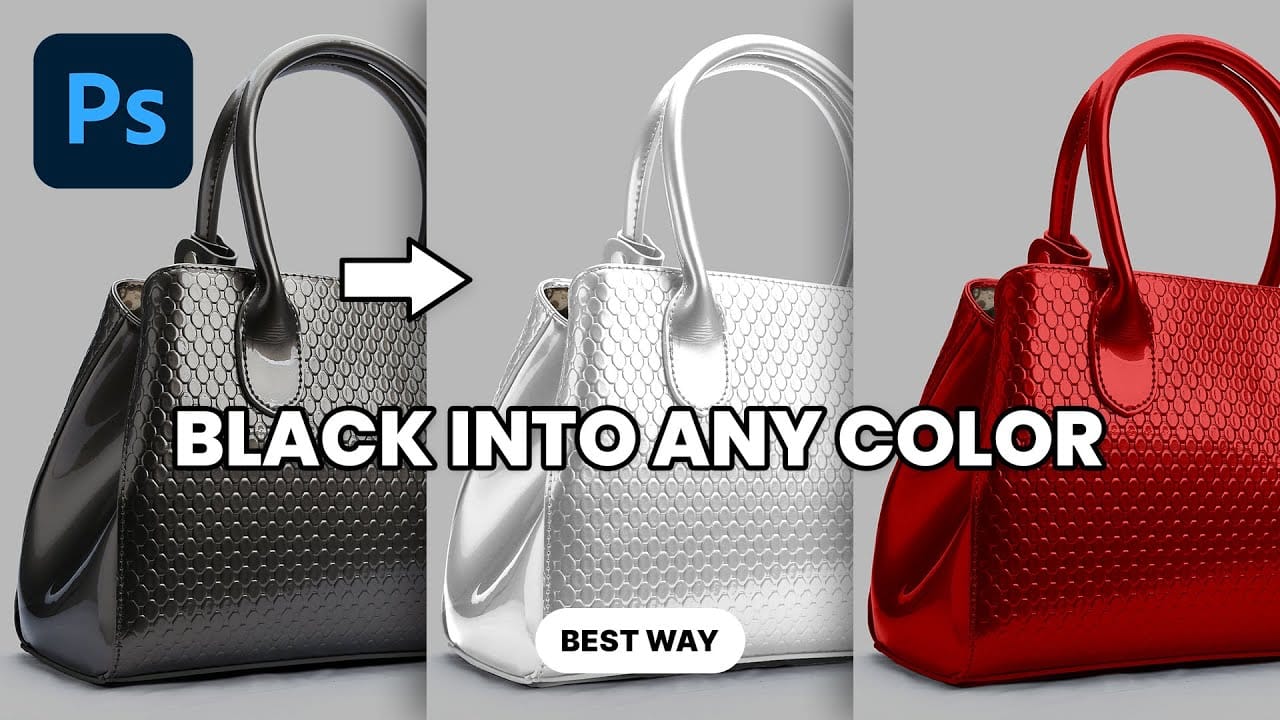
Transform Black to Any Color in Photoshop, Including White: Best Method
Changing the color of a black object in Photoshop can be a surprisingly frustrating task. Standard color adjustment tools often fail because pure black contains no hue or saturation data to manipulate, leaving designers and retouchers searching for a more effective solution. This tutorial demonstrates a powerful and flexible method for recoloring black objects, allowing you to turn them into any color you choose—even solid white. By learning this non-destructive technique, you can gain precise
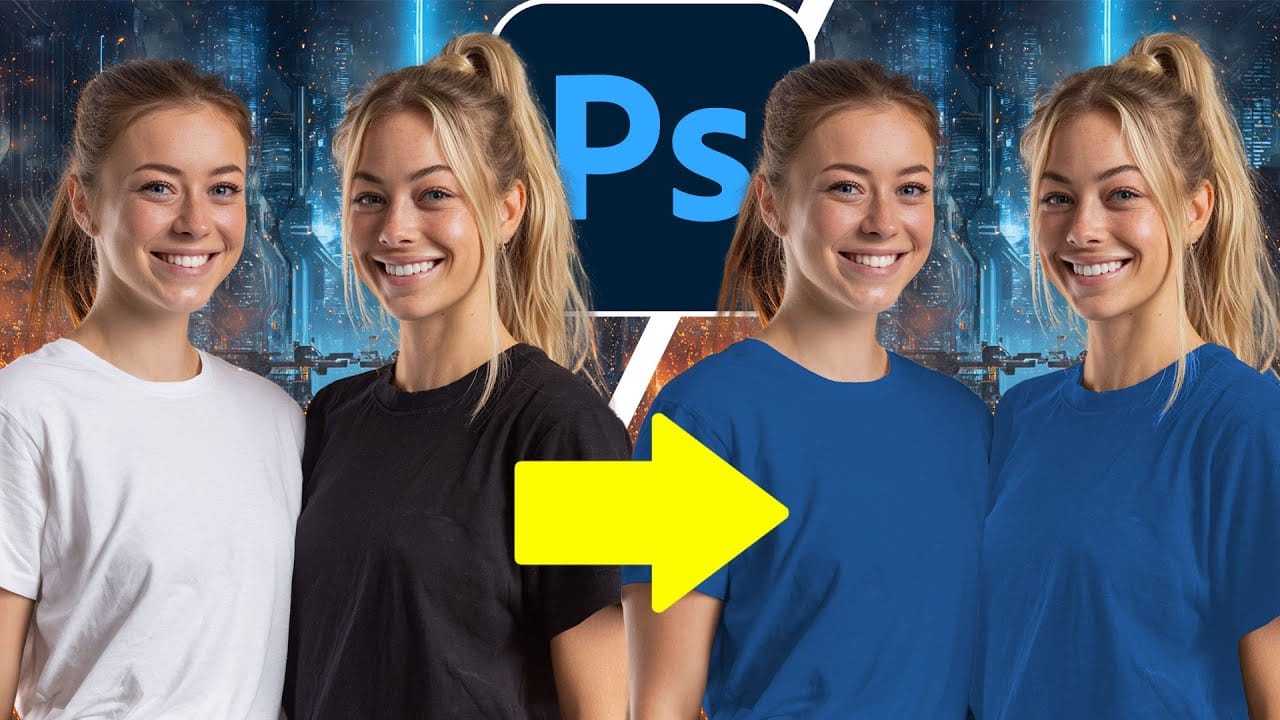
How to Change Black and White to Any Color in Photoshop
Standard color adjustment tools fail when you try to change pure black or white elements in your photos. These neutral tones lack the hue and saturation data that typical color replacement methods require. This technique uses Hue/Saturation adjustment layers with strategic lightness modifications to transform both black and white areas into any color you need. Watch the Tutorial Essential Tips for Changing Black and White Colors * Use the Object Selection tool with rectangle mode for fast
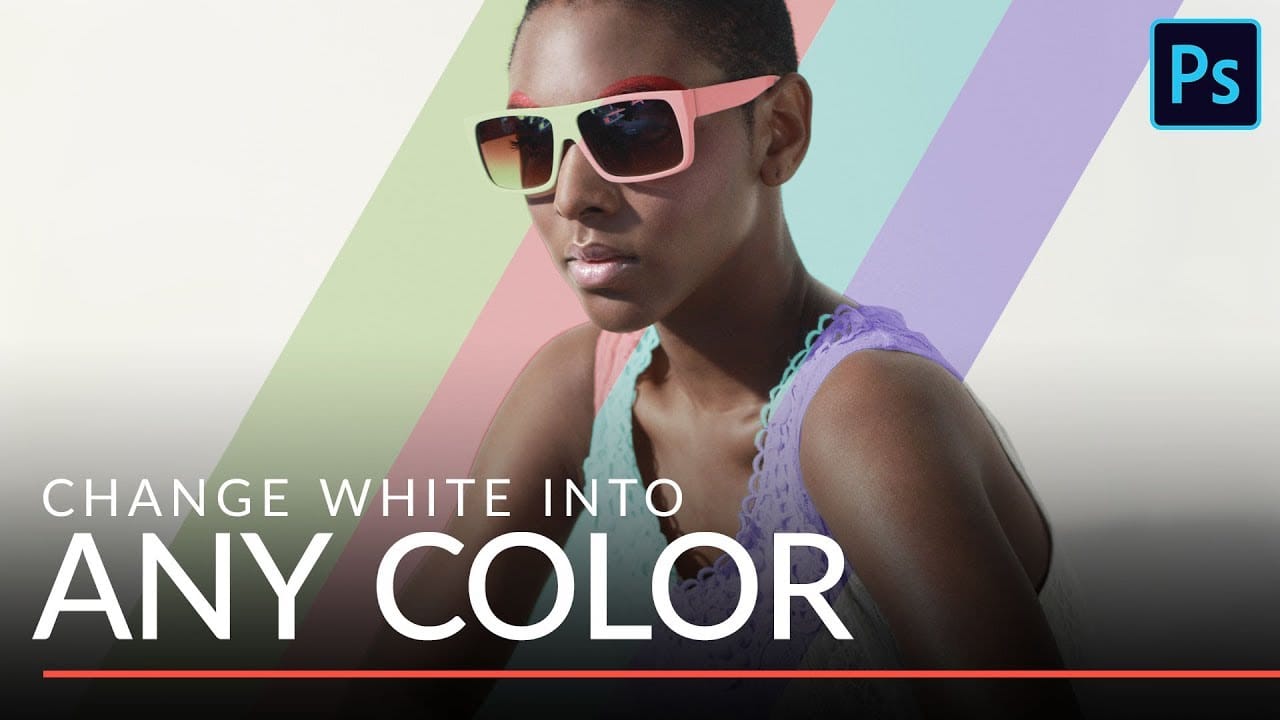
Change white into any color in Photoshop
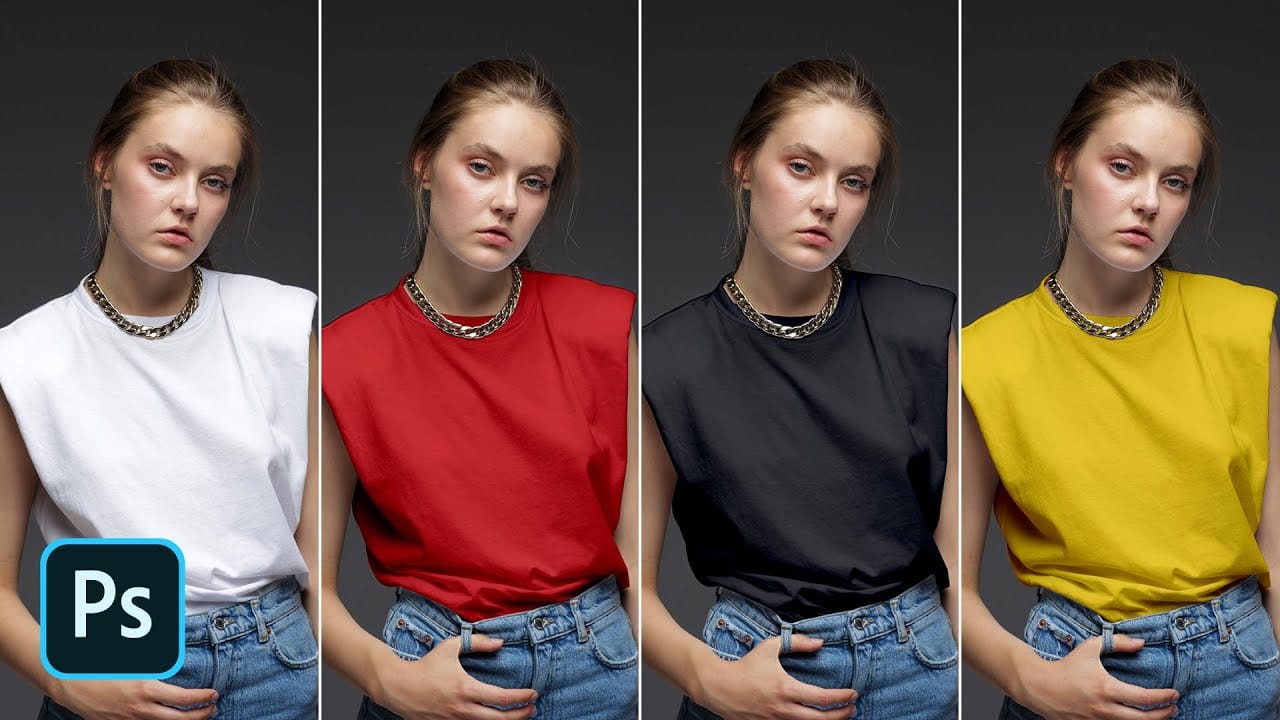
In this tutorial Aaron Nace from Phlearn, will show you how to make insanely accurate selections and use them to change white clothes and a white background into any color that you want. This incredibly versatile technique will allow you to change any white elements in an image to any other color. You will learn how to make extremely accurate selections using Channels and then how to use those selections in combination with a Hue/Saturation Adjustment Layer to replace any color that you want.
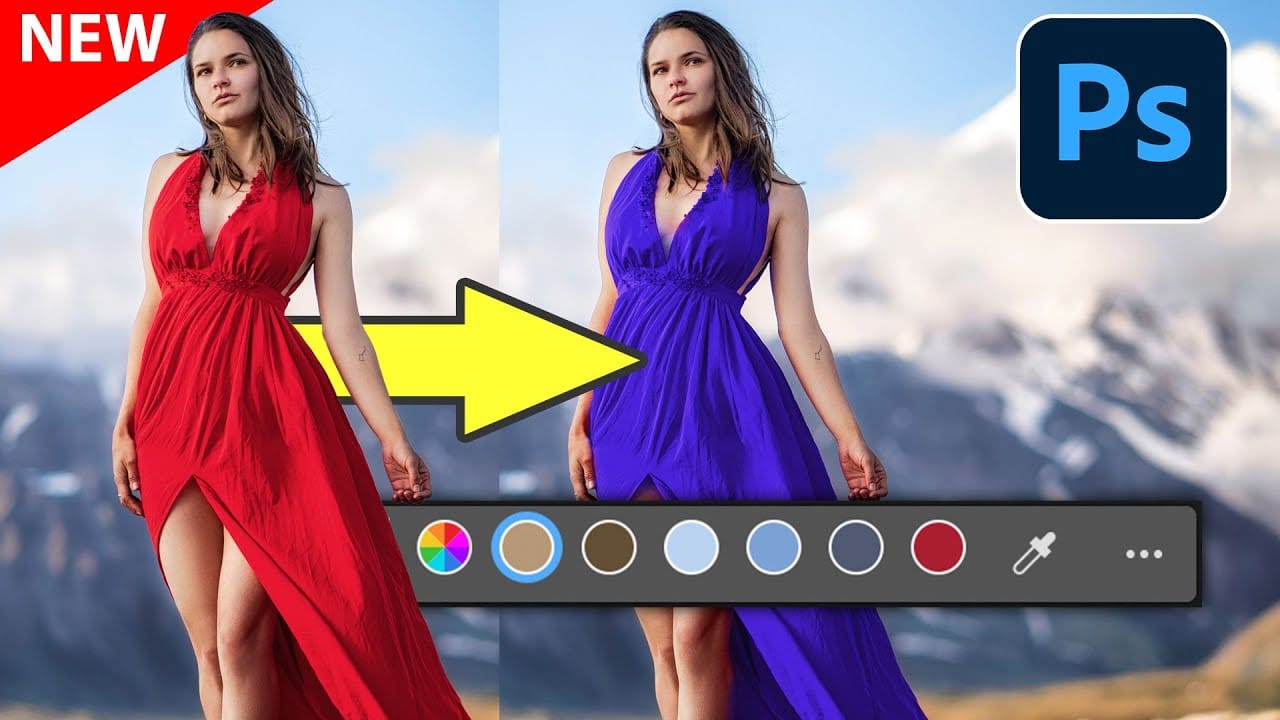
New Photoshop Feature for Changing Colors
Working on the color palette of an image is a fundamental task in photo editing, enabling designers and photographers to evoke different moods, correct imbalances, or simply reimagine visual elements. While Photoshop has long offered robust tools for color manipulation, achieving precise and natural-looking changes often required a multi-step workflow and a deep understanding of complex adjustments. This video introduces a groundbreaking new feature in Photoshop's beta version, designed to stre
Turn White into Any Color in Photoshop
In this tutorial, WebFlippy demonstrates how to effortlessly transform white areas into any color using blending modes in Photoshop. This technique is especially useful for photo retouching and product photography, allowing for versatile color adjustments without affecting the overall image quality. The tutorial provides a straightforward approach to applying this method, ensuring that you can quickly adapt white elements in your photos to match your desired color scheme. With clear instruction
How to Change Black into Any Color in Photoshop
In this tutorial, Aaron Nace demonstrates how to transform black elements in your images into any color using Photoshop. This technique involves utilizing Levels and Hue/Saturation Adjustment Layers to achieve the desired color changes. Aaron guides you through the process of adjusting these settings to effectively modify black areas in your photos. This method is particularly useful for fashion and product photo retouching, allowing you to customize colors for creative or branding purposes. T
How to Change Hair Color in Photoshop
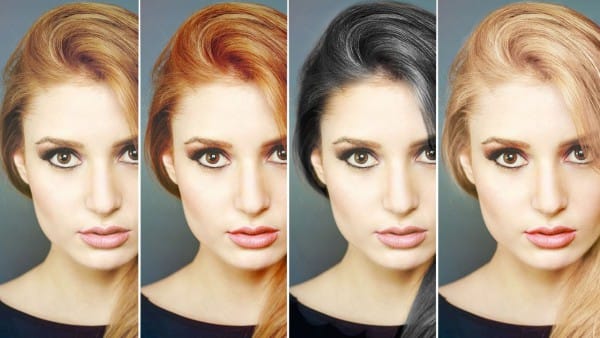
There are many reasons why you may want to change hair color in Photoshop. Perhaps your subject has recently dyed their hair and it doesn't look natural. Perhaps you want to see what you would look like with dark hair. Changing Hair color in Photoshop is much easier than doing it in real life and by the time this tutorial is over you will be on your way to color city! It is much easier to make hair dark than light. If you are starting out with a blonde and want to make her a brunette, not too
Change Eye Color in Photoshop
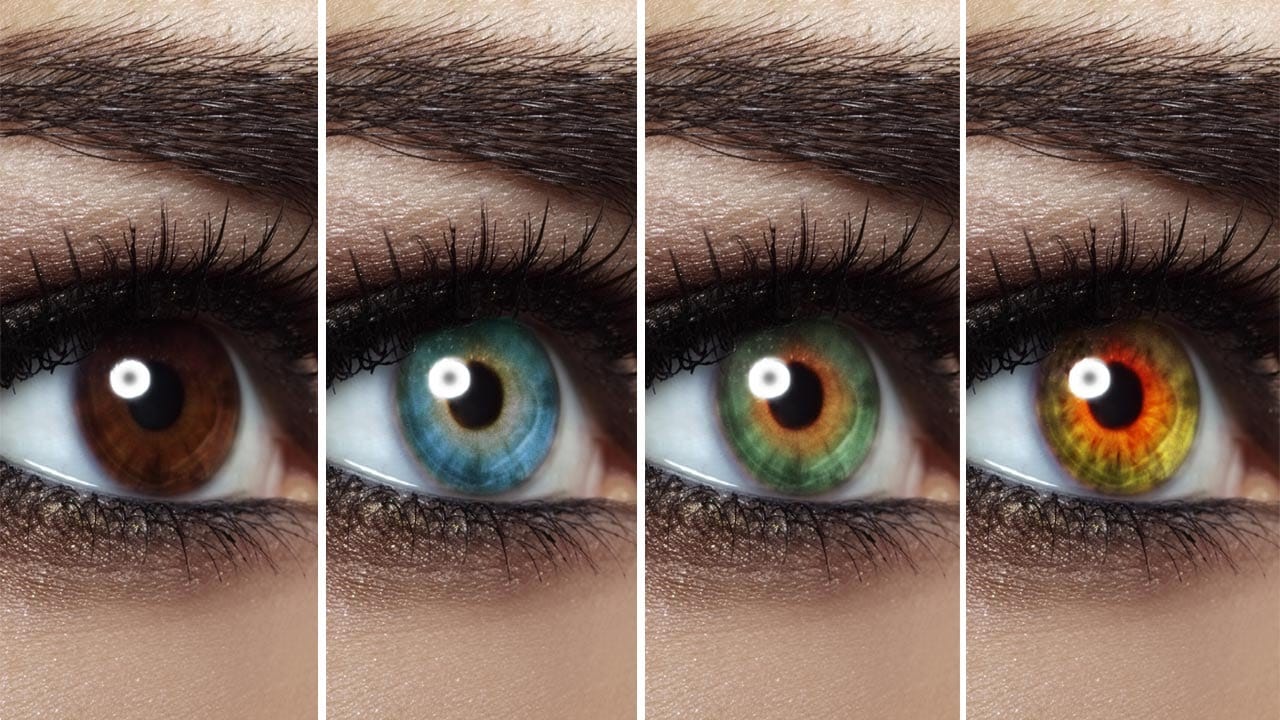
In this tutorial by Aaron Nace from Phlearn, discover how to transform eye colors effortlessly using Photoshop. Aaron demonstrates techniques to precisely select and adjust eye colors using adjustment layers and masks. Learn to create realistic eye color changes by refining selections and applying hue adjustments. This tutorial is essential for photographers and digital artists looking to enhance portraits with eye-catching eye color variations, showcasing the versatility and creative possibili
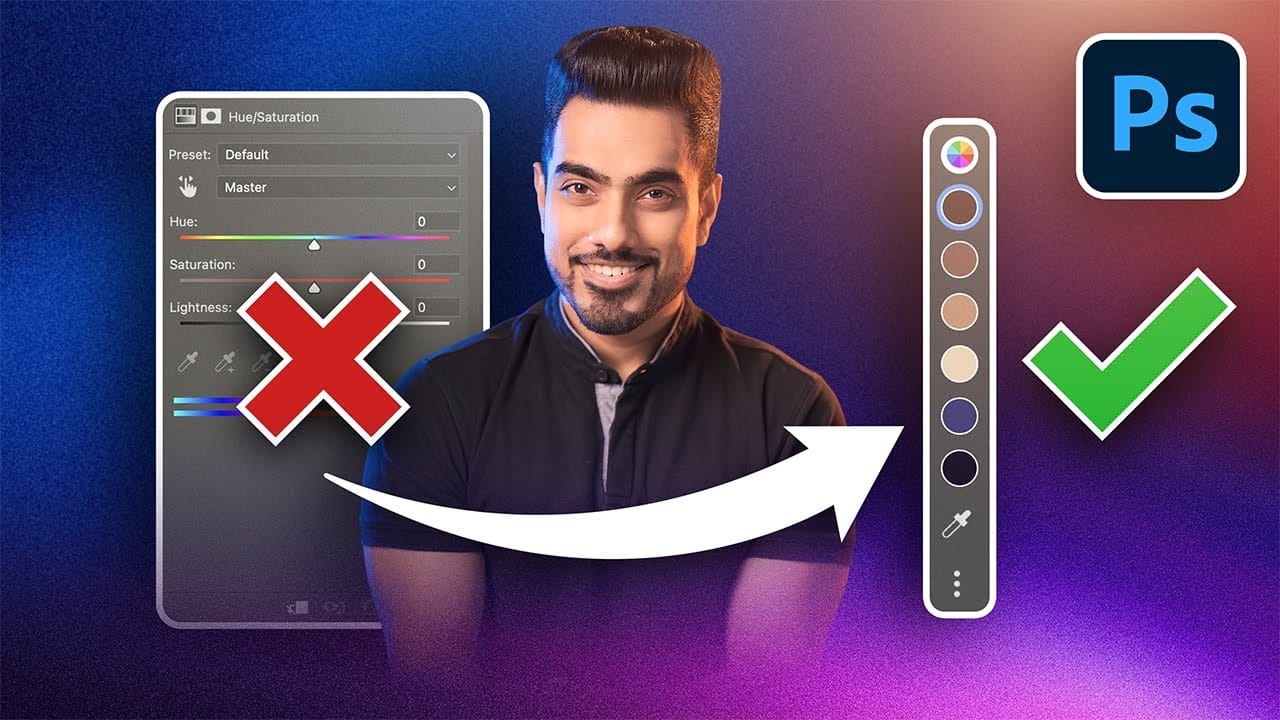
Photoshop's New Adjust Colors Feature vs Traditional Hue/Saturation
Color adjustments just became dramatically simpler in Photoshop. The new Adjust Colors feature automatically detects the six most prominent colors in any image, letting you target and modify specific hues with a single click. No more guessing which color range to select or struggling with imprecise selections. This intuitive approach transforms what used to be a multi-step process into an instant workflow. Traditional hue/saturation adjustments often missed their target or required extensive fi

Get tutorials & freebies delivered to you.

Subscribe to the Photoshop Roadmap newsletter, a weekly roundup of new tutorials, insights and quality downloads, trusted by 6500+ readers.

You might also like

Create a Distorted Wave Glitch Effect in Photoshop

Digital distortion effects transform ordinary portraits into striking visual art by warping reality through deliberate technical manipulation. This technique uses multiple wave filters layered together to create increasingly complex distortions, while selective masking preserves important facial features from becoming completely unrecognizable. Watch the Video Practical Tips Master the wave distortion...

How to Create Glow Motion Effects with Gradient Maps in Photoshop

Motion blur combined with colorful gradients creates striking visual effects that transform ordinary photos into dynamic, cinematic images. This technique uses gradient maps to automatically color light and dark values, producing flowing color transitions that follow the movement of your subject. The process involves subject isolation, strategic gradient placement, path...

How to Use Reference Images with Generative Fill in Photoshop

Reference images revolutionize how Generative Fill works, letting you guide AI with actual photos instead of text prompts. This feature enables precise clothing swaps, object replacements, and realistic additions by showing the AI exactly what you want rather than describing it. The technique works with everything from custom t-shirts and...

How to Remove Eye Bags Using Dodge and Burn in Photoshop

Eye bags can dramatically age a portrait, making subjects appear tired or unhealthy. Traditional removal methods often destroy skin texture or create unnatural results that look obviously retouched. This professional dodge and burn technique removes even severe eye bags while preserving every detail of natural skin texture. The method uses...

How to Fix Crossed Eyes and Lazy Eyes in Photoshop

Portrait photographers and retouchers often encounter images where subjects have crossed or lazy eyes, which can distract from an otherwise great shot. Whether caused by timing, lighting, or natural eye alignment issues, these problems can be corrected effectively without compromising image quality. This tutorial demonstrates two practical approaches: using AI-powered...

You’ve successfully subscribed to Photoshop Roadmap
Welcome back! You’ve successfully signed in.
Great! You’ve successfully signed up.
Success! Your email is updated.
Your link has expired
Success! Check your email for magic link to sign-in.