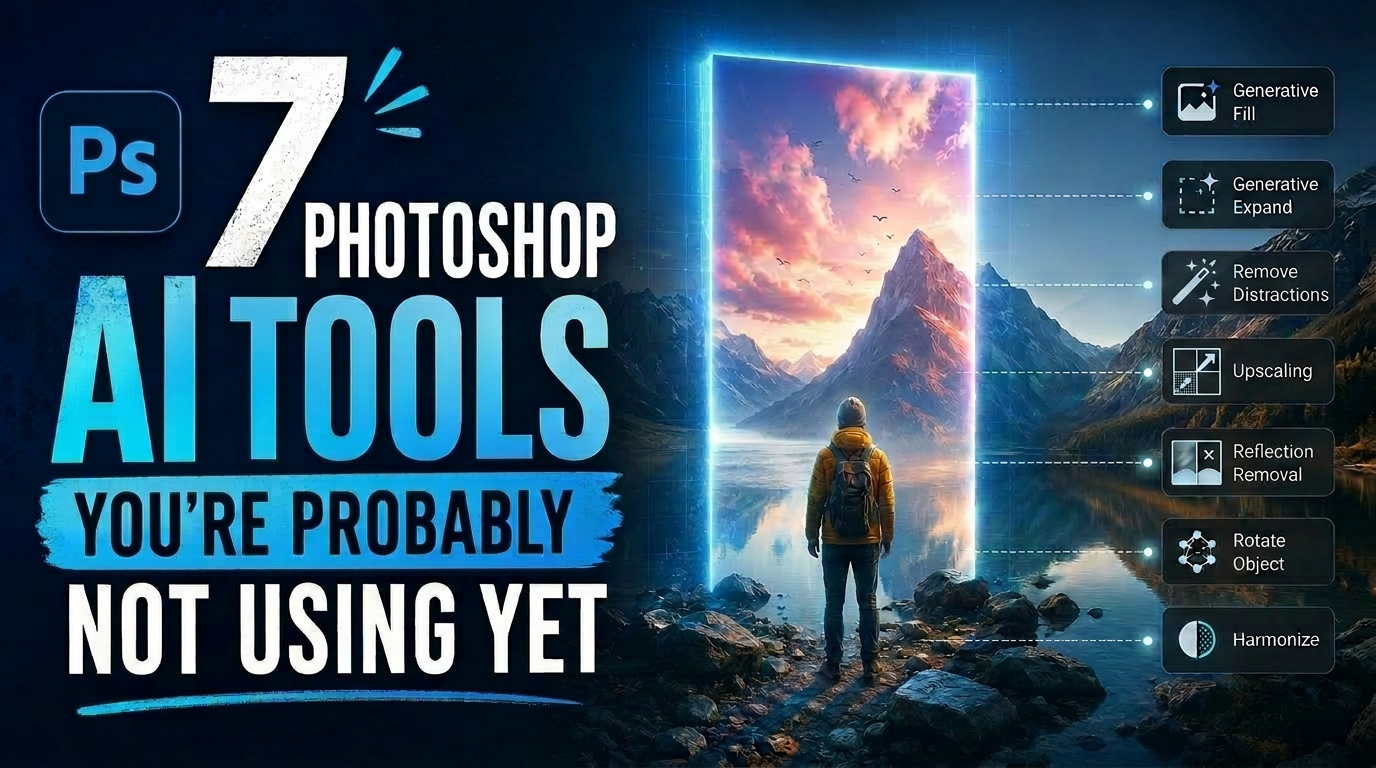
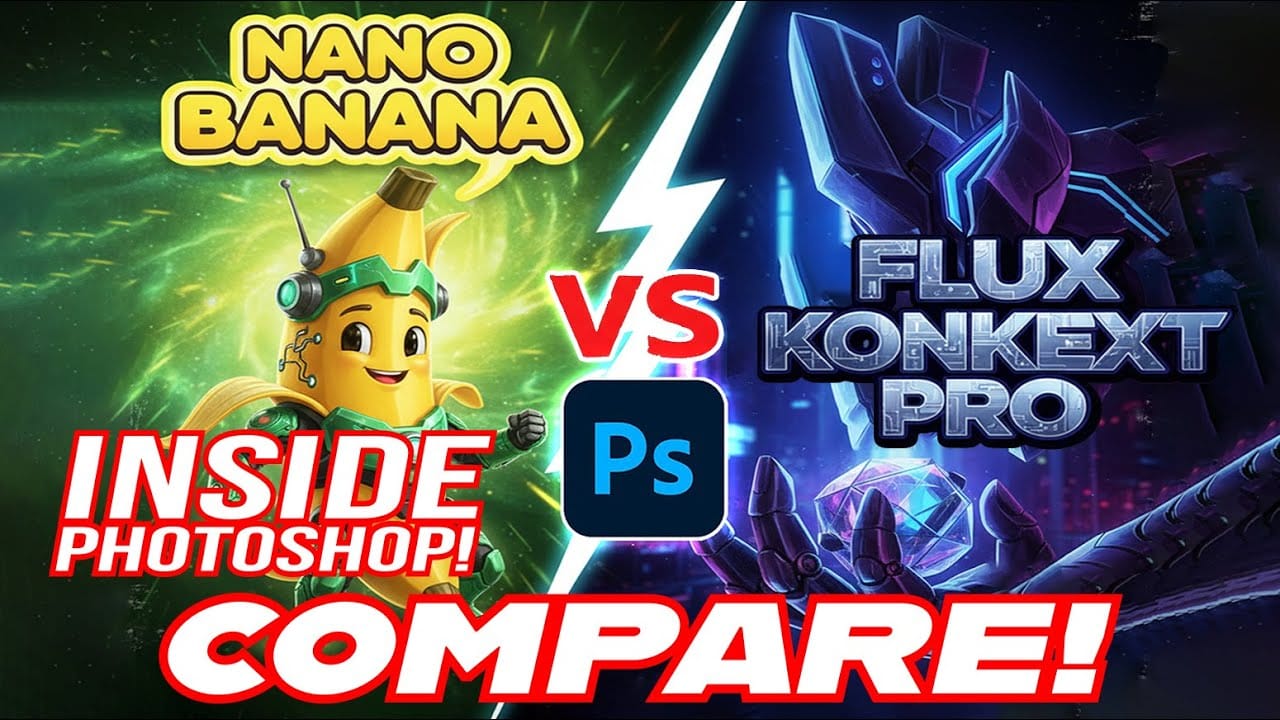
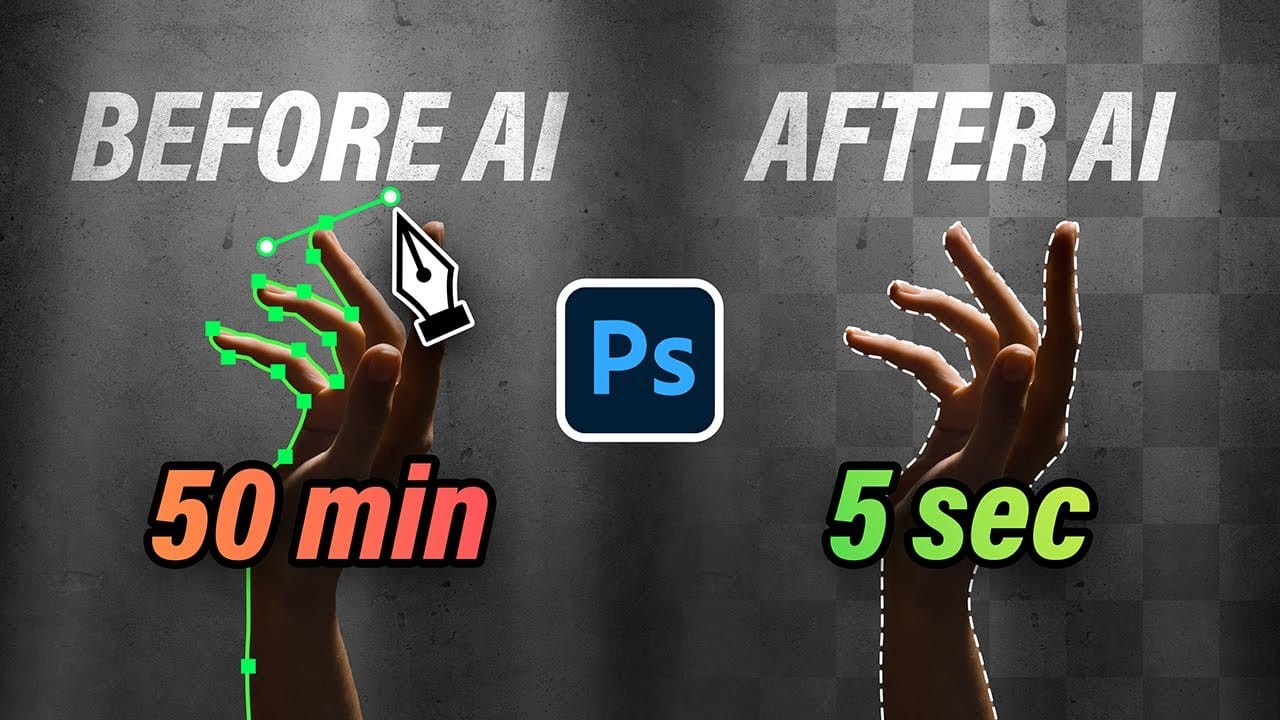
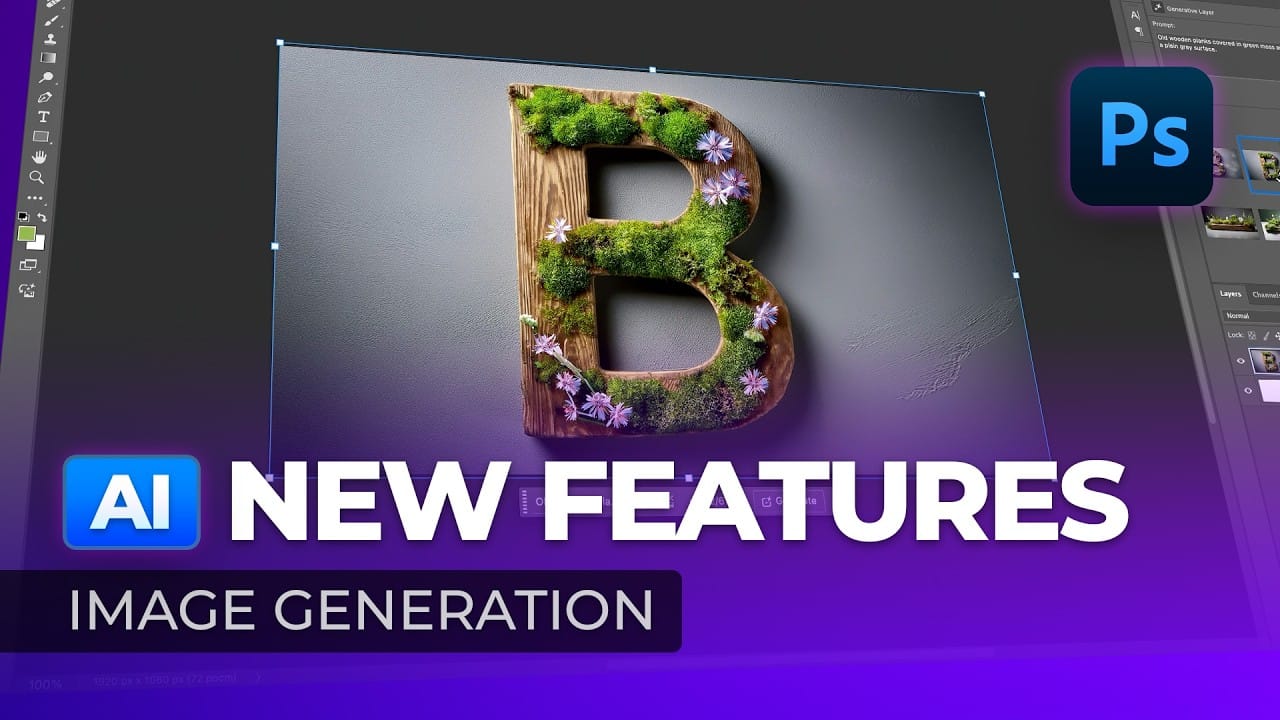
Photoshop now includes eight different AI models from three providers, but knowing which one to use for specific tasks can save you both generative credits and frustration. Each model excels at different types of work—from generating images from scratch to seamlessly editing existing photos.
Understanding the distinction between generative models and editing models, along with their unique strengths, helps you choose the most effective tool for your project while optimizing your credit usage.
Watch the Video
Video by photoshopCAFE. Any links or downloads mentioned by the creator are available only on YouTube
Practical Tips
These key techniques will help you select the right AI model and maximize your generative credits:
- Use Firefly Fill and Expand for inpainting tasks—it costs only 1 credit versus 10 for other models and provides better edge integration
- Choose Flux 2 Pro for realistic image generation and Flux Context Pro specifically for editing existing images
- Access the full model selection by using Edit > Generative Fill instead of the Generate button, which limits you to Firefly only
- Check credit costs by hovering over the Generate button after selecting your model—costs range from 1 to 40 credits depending on the task
- Make smaller selections for inpainting to control the size and scale of generated objects within your image
Related Articles and Tutorials
Explore more comprehensive guides on working with AI models and advanced editing techniques: