How to Create a Long Exposure Glow Effect in Photoshop

How to Create a Long Exposure Glow Effect in Photoshop

Motion blur and glowing light trails create some of photography's most captivating visual effects. The ethereal quality of long exposure photography transforms ordinary subjects into dreamlike compositions with flowing energy and luminous movement.

This technique recreates that signature glow digitally, allowing you to achieve stunning motion effects without specialized camera equipment or perfect shooting conditions.

Watch the Tutorial

Video by P A N T E R. Any links or downloads mentioned by the creator are available only on YouTube

Understanding Digital Long Exposure Effects

Traditional long exposure photography captures light movement over extended time periods, creating natural motion trails and glowing effects. Digital recreation of this technique relies on motion blur filters and strategic layer blending to simulate the same luminous quality.

The key to convincing results lies in understanding how light behaves during actual long exposures. Moving light sources create bright streaks that fade gradually at the edges, while stationary elements remain sharp. Screen blend mode effectively mimics this behavior by brightening underlying pixels based on the blur layer's values.

Smart object workflows preserve editing flexibility throughout the process. This approach allows for non-destructive adjustments to blur settings, opacity levels, and positioning without compromising image quality or requiring complete reconstruction of the effect.

Essential Tips for Motion Glow Effects

  • Convert your base layer to a smart object before applying motion blur to maintain editing flexibility
  • Use Screen blend mode for glow layers to create realistic light interaction with the background
  • Create multiple blur duplicates at different positions to enhance the ghosting effect
  • Remove backgrounds from subjects first to prevent unwanted blur extending into empty areas
  • Add film grain as a final step to integrate digital effects with photographic realism

Explore more techniques for creating luminous effects and atmospheric lighting in your digital artwork.
How to create a sun glow effect in Photoshop
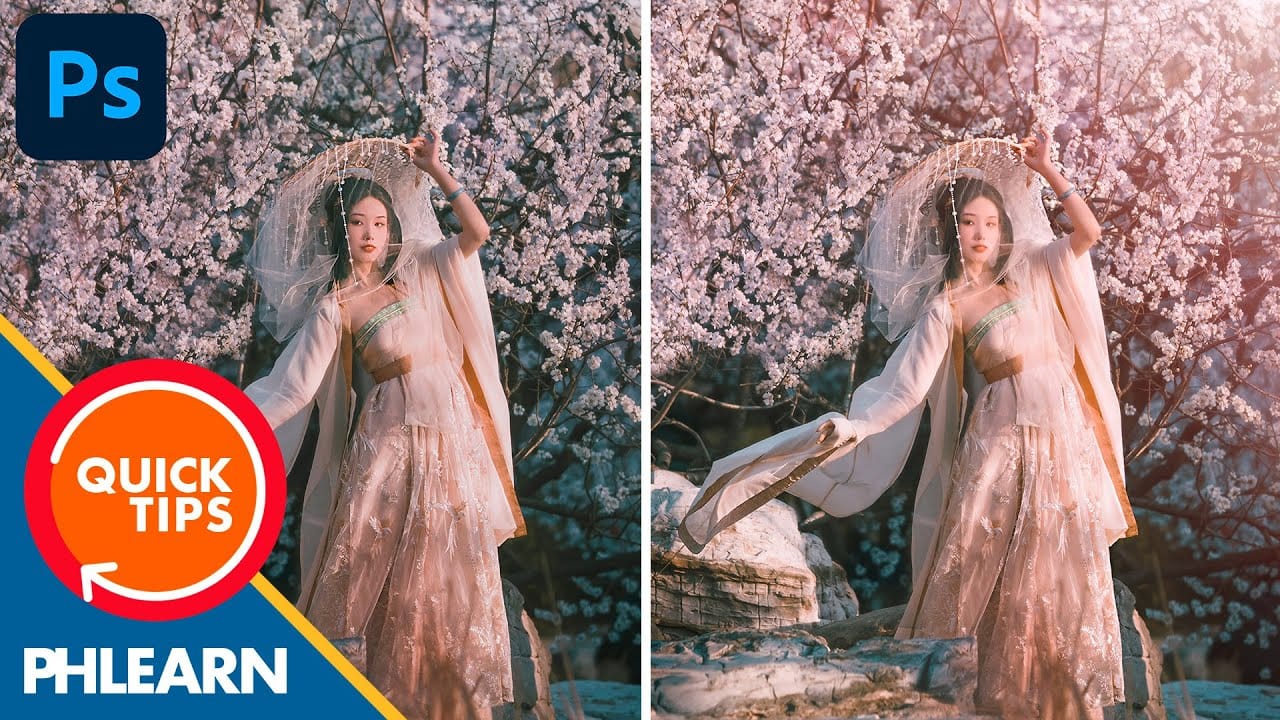
In this tutorial, Aaron Nace shows how to add a vibrant sun glow effect to your photos with ease. The process involves a few straightforward steps to simulate the warm, radiant look of sunlight. Aaron explains how to use blending modes, gradients, and layer adjustments to achieve a natural and eye-catching glow. The tutorial includes a free Sun Glow Gradient, which you can download and use immediately to enhance your images. This effect is perfect for adding a dreamy, sunlit atmosphere to your
Create the Cinematic Bloom Glow Effect in Photoshop
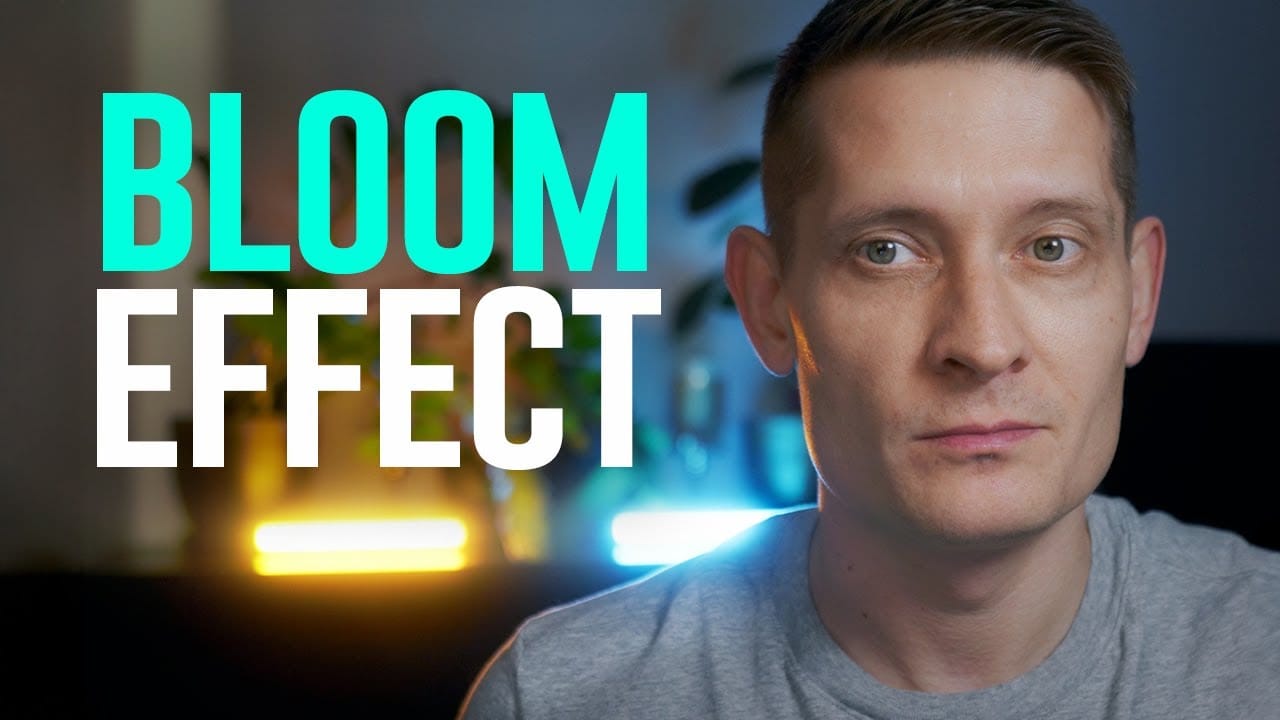
This guide will walk you through the steps to create a stunning bloom effect using Photoshop and DaVinci Resolve. This technique enhances your highlights, infusing your photos and videos with a cinematic glow that adds a dreamy atmosphere.The bloom effect simulates the appearance of black diffusion filters commonly found in photography and cinematography. These filters soften images and contribute a soft, glowing quality to highlights. This approach is ideal for anyone looking to enrich their v
Creating a 3D Glowing Text Effect in Photoshop
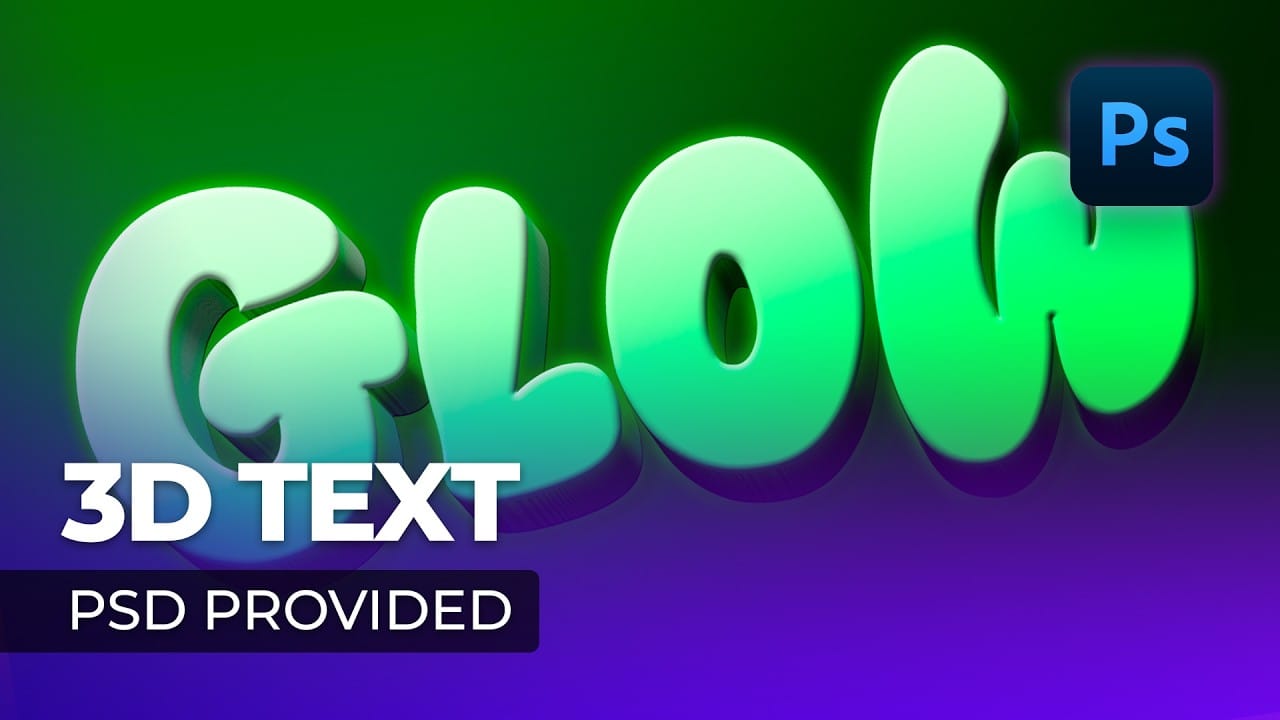
Adding depth and luminosity to text can transform a simple design into something visually striking. The combination of 3D extrusion and glow effects creates text that appears to leap off the page, making it perfect for logos, headers, and eye-catching graphics. This tutorial demonstrates how to build a complete 3D text effect with glowing elements using Smart Objects and layer effects. The technique covers everything from creating dimensional text to applying multiple glow layers for enhanced v
Create a Dreamy Lighting Portrait Effect in Photoshop
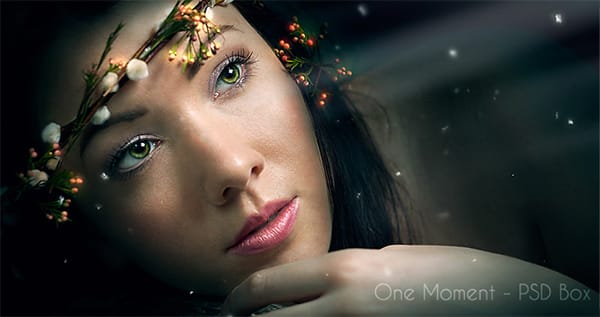
In this tutorial presented by Andrei Oprinca from PSD Box, you will explore the process of creating a beautiful spotlight effect in Photoshop. By utilizing the brush tool, you can achieve a dreamy lighting effect that enhances any image. The technique is straightforward, making it accessible for users at various skill levels. However, it does require a bit of patience to get the desired outcome. As you follow along, you will learn how to manipulate the brush settings and layer styles to achieve

Get tutorials & freebies delivered to you.

Subscribe to the Photoshop Roadmap newsletter, a weekly roundup of new tutorials, insights and quality downloads, trusted by 6500+ readers.

You might also like

How to Use Color Average for Color Toning in Photoshop

Color average creates a unified color tone by analyzing all the colors in your image and calculating their mathematical average. This technique adds depth and cohesion to photos, composites, and AI-generated images by applying a subtle color wash that ties all elements together. The method works particularly well for composites...

How to Remove Complex Background Elements Using AI in Photoshop

Removing complex background elements like fencing or wire mesh has traditionally been one of the most time-consuming tasks in photo editing. New AI-powered tools in Photoshop can now eliminate these distracting elements while preserving fine details in your subject. This tutorial demonstrates two practical workflows: one using the latest Firefly...

How to Use Photoshop's Auto Layer Rename Feature

Messy layer names like "Layer 52 copy 4" and "Untitled 5" clutter your workspace and slow down complex projects. Photoshop's new auto-rename feature uses AI to automatically identify and name layers based on their content, from "Woman in yellow shirt" to "...

New Generative Fill Features in Photoshop Beta: Reference Images and Credit Tracking

Photoshop Beta introduces significant improvements to Generative Fill that address the most requested features from users. The updated interface now displays your generative credit balance and usage, while the new reference image capability lets you add up to eight specific images to guide AI generation with precise visual examples. These...

Essential Photoshop Tools for Beginners: Brush, Crop, and Move Tool Tutorial

Learning Photoshop tools feels overwhelming when you don't know where to start. This tutorial focuses on three essential tools that form the foundation of most Photoshop work: the brush tool for painting and retouching, the crop tool for resizing and straightening images, and the move tool for positioning...

How to Add Custom Textures to Photos in Photoshop

Adding textures to photographs can transform ordinary images into compelling artistic compositions. This technique uses multiple texture layers combined with strategic blending modes and color adjustments to create depth and visual interest. The process involves layering different texture types—color overlays, surface patterns, and lighting effects—then using masking techniques...

You’ve successfully subscribed to Photoshop Roadmap
Welcome back! You’ve successfully signed in.
Great! You’ve successfully signed up.
Success! Your email is updated.
Your link has expired
Success! Check your email for magic link to sign-in.