PSD templates transform complex Photoshop effects into reusable presets that save hours of repetitive work. While many designers download templates online, creating your own gives you complete control over the final result and builds valuable technical skills.
This tutorial demonstrates how to build a professional plastic texture effect template from scratch, covering displacement mapping, smart objects, and the crucial difference between PSD and PSDT files.
Watch the Tutorial
Video by PiXimperfect. Any links or downloads mentioned by the creator are available only on YouTube
Practical Tips for PSD Template Creation
- Convert layers to smart objects with background layers to ensure adequate canvas space for text variations and prevent cropping issues during editing.
- Create displacement maps early by duplicating your texture layer to a separate document and saving it as a PSD file for later distortion effects.
- Use field blur strategically to simulate depth by applying different blur amounts at multiple points rather than uniform blurring across the entire layer.
- Save templates with PSDT extension to create non-destructive templates that generate new documents each time they're opened, preserving the original template.
- Group texture layers logically and use descriptive names like "texture overlay" and "texture brightening" to make templates user-friendly for clients or future editing.
More Tutorials about Photoshop Templates and Effects
Explore additional techniques for creating professional Photoshop effects and templates.
The Secret to Eye-Popping Color Overlays in Photoshop!
In this insightful tutorial, TextureLabs unveils a powerful technique for creating vibrant and striking color overlays in Photoshop. The focus is on leveraging fundamental color theory principles to produce gradient maps that truly stand out.
You'll start by learning how to apply color overlays and tints that add a unique flair to your designs. The tutorial walks you through a method for crafting gradient maps that not only enhance the visual appeal of your images but also give them a captivati
10 little-known Photoshop features you should really learn
The real beauty in Photoshop is that even it is a high-end professional software, you can simply open an image and quickly apply effects or corrections to achieve beautiful results. But that can only take you so far. And I don't mean you should go and learn complex curves manipulation or channel mixing techniques. Those are difficult indeed!
There are a lot of cool hidden (and not so) features that aren't nearly as advanced as those mentioned before. You've probably heard of stuff like Puppet w
The Single Best Color Tool in Photoshop
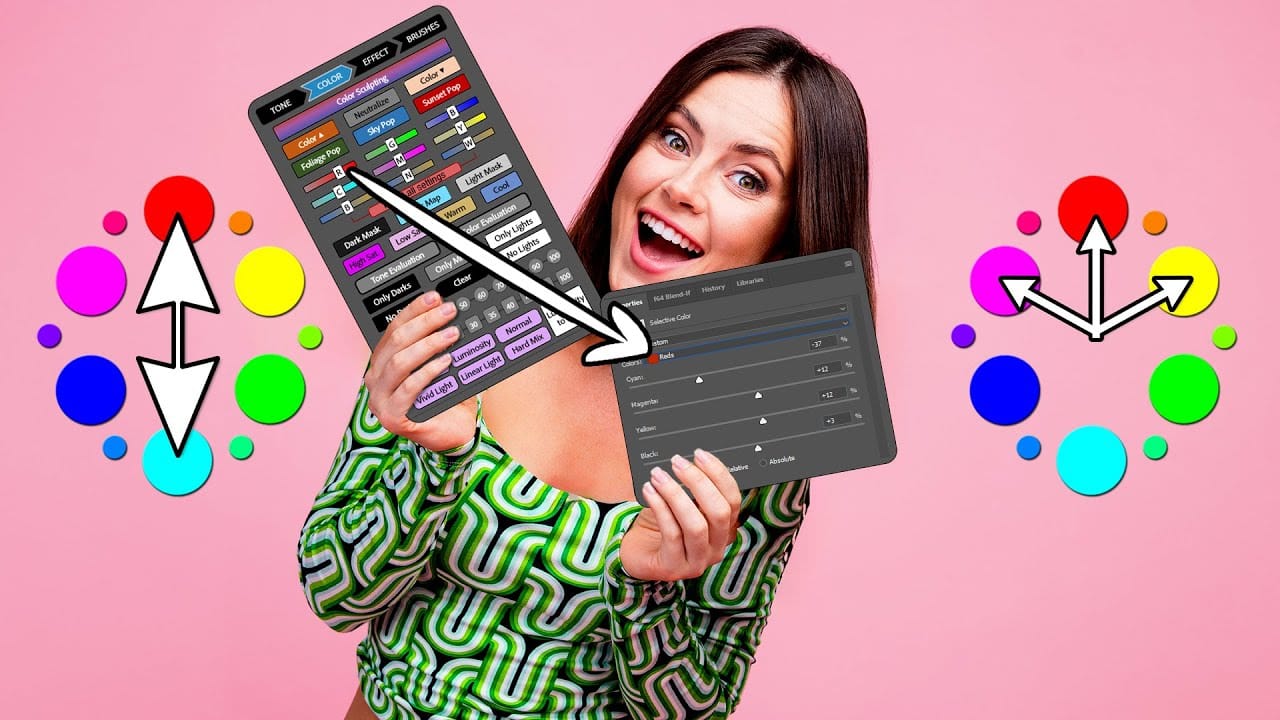
In this tutorial, you will uncover the often-overlooked capabilities of Photoshop's Selective Color Adjustment Layer.
This powerful tool allows you to perform both subtle and dramatic color grading, giving your images a polished look similar to fine art. You'll learn techniques to intensify colors, separate various hues for added depth, and achieve better overall color balance in your work. This ensures that your images maintain their vibrancy without the risk of over-saturation.
The tutorial
5 Hidden Photoshop Features You Probably Didn't Know
Many Photoshop users tend to rely on a familiar set of tools and workflows, often overlooking powerful but less obvious functionalities. This can lead to inefficient processes and missed creative opportunities, making certain tasks feel more cumbersome than they need to be.
This guide and accompanying video demonstrate five underutilized features within Photoshop that can significantly enhance your efficiency and expand your creative toolkit. Learning these capabilities transforms how you appro