How to easily remove logos from clothing in Photoshop

How to easily remove logos from clothing in Photoshop

Portrait photographers frequently encounter unwanted logos, branding, or text on clothing during shoots. Whether it's a corporate client who needs brand-neutral images or simply removing distracting graphics from apparel, logo removal requires specific techniques that preserve the underlying fabric texture and maintain realistic lighting.

The key to successful logo removal lies in matching different approaches to different fabric types. Textured materials like knits and woven fabrics demand careful texture replication, while solid-colored garments can often be cleaned up with simpler painting techniques.

Watch the Video

Video by PHLEARN. Any links or downloads mentioned by the creator are available only on YouTube

Practical Tips

Master these essential techniques for seamless logo removal on different fabric types:

  • Use the Clone Stamp tool to copy texture from adjacent areas, creating separate patches on new layers before transforming them into position
  • Apply the Brush tool for solid-colored fabrics by sampling nearby colors and painting over logos, then smoothing with a large, soft brush at reduced flow
  • Transform and warp copied textures using Ctrl/Cmd + T, holding Ctrl/Cmd while dragging corners to skew patches into the correct perspective
  • Match lighting and color with clipping-masked adjustment layers, using Hue/Saturation to desaturate and Curves to adjust brightness
  • Work on separate layers throughout the process to maintain flexibility for adjustments and corrections

Explore more clothing editing techniques and logo manipulation methods:
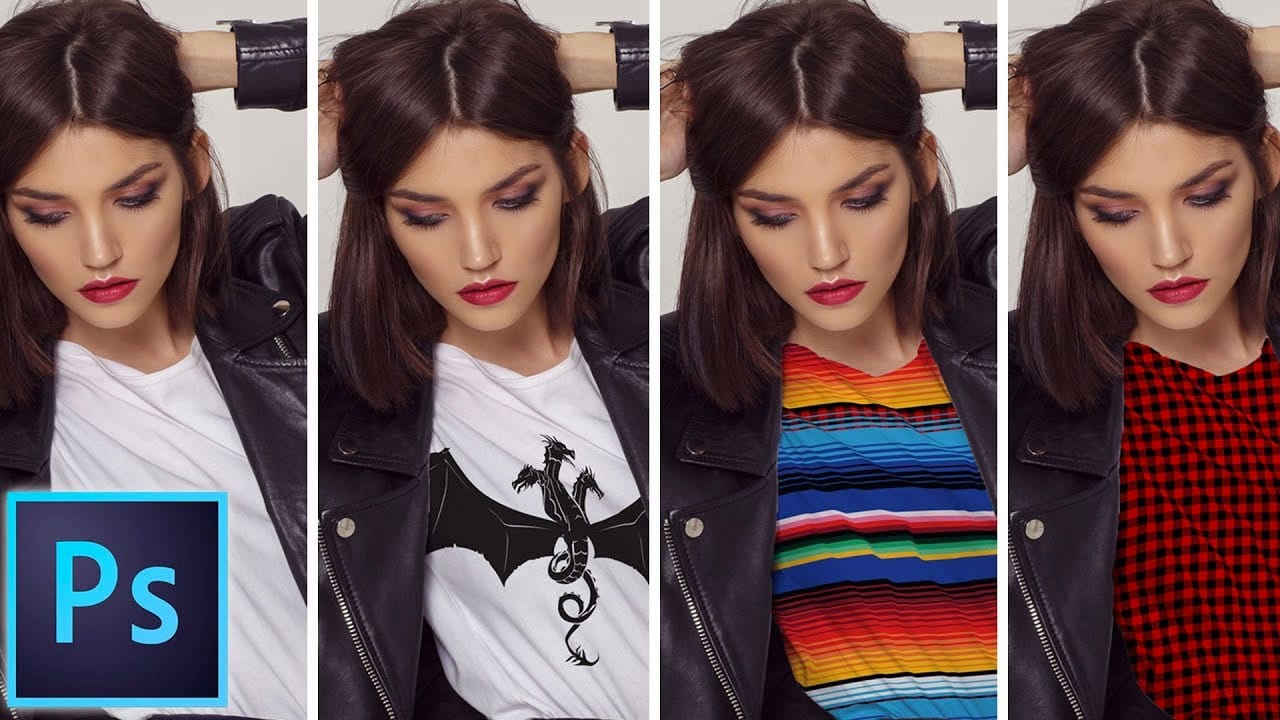
How to add a logo or pattern to a shirt in Photoshop
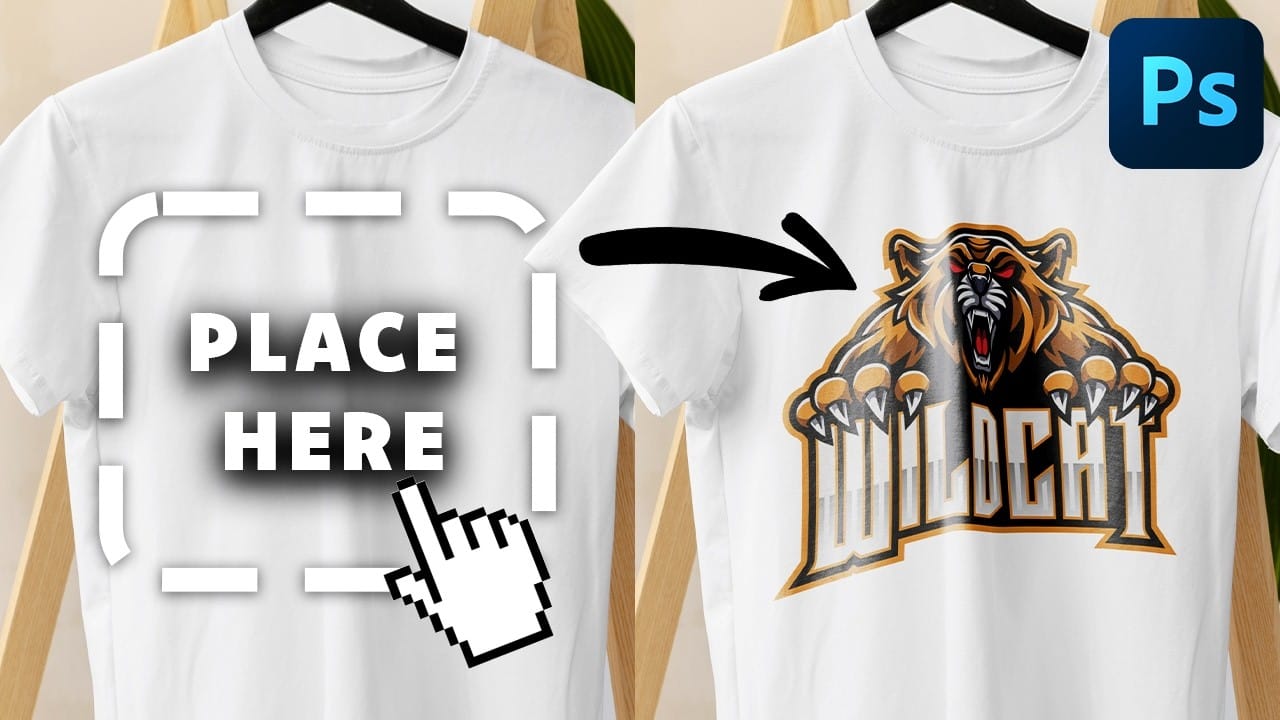
In his Photoshop tutorial, author Colin Smith guides viewers through the process of adding a logo, graphic, pattern, or texture onto clothing. This technique allows for quick and easy customization of apparel, enabling users to swap out designs in a matter of seconds. Smith's step-by-step instructions demonstrate how to seamlessly incorporate the desired visual element onto a shirt or other garment. By leveraging the power of Photoshop's layers and blending modes, users can achieve a profession
Create a transparent clothes effect in Photoshop
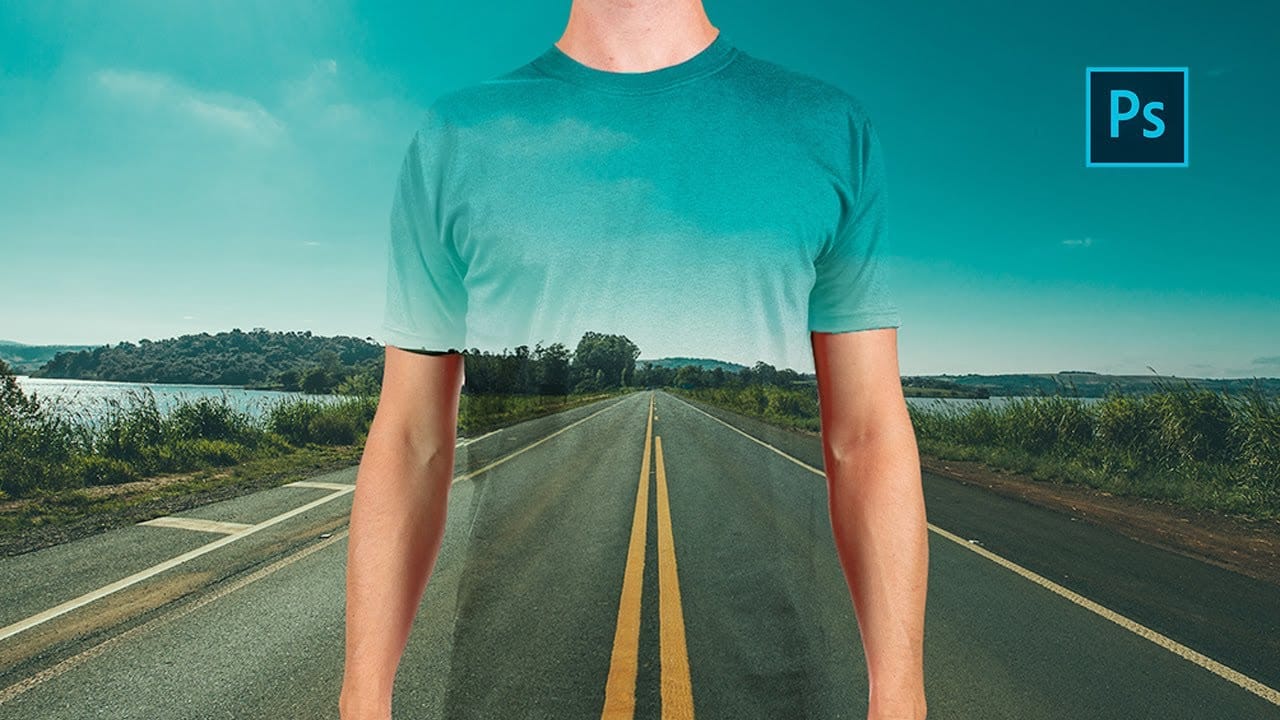
In this Photoshop tutorial you will to achieve a camouflage photo effect where we make t shirt look transparent. It's a super simple tutorial, quite easy for beginners to learn some things. We will cut out the background and and than separate t-shirt from body and will change the blending mode to make it mix with background. The real trick is to make t-shirt black and white before making it transparent so we don't have any trouble with miss matching colors. Also we will use displacement map, wh
Place a logo onto a bottle in Photoshop
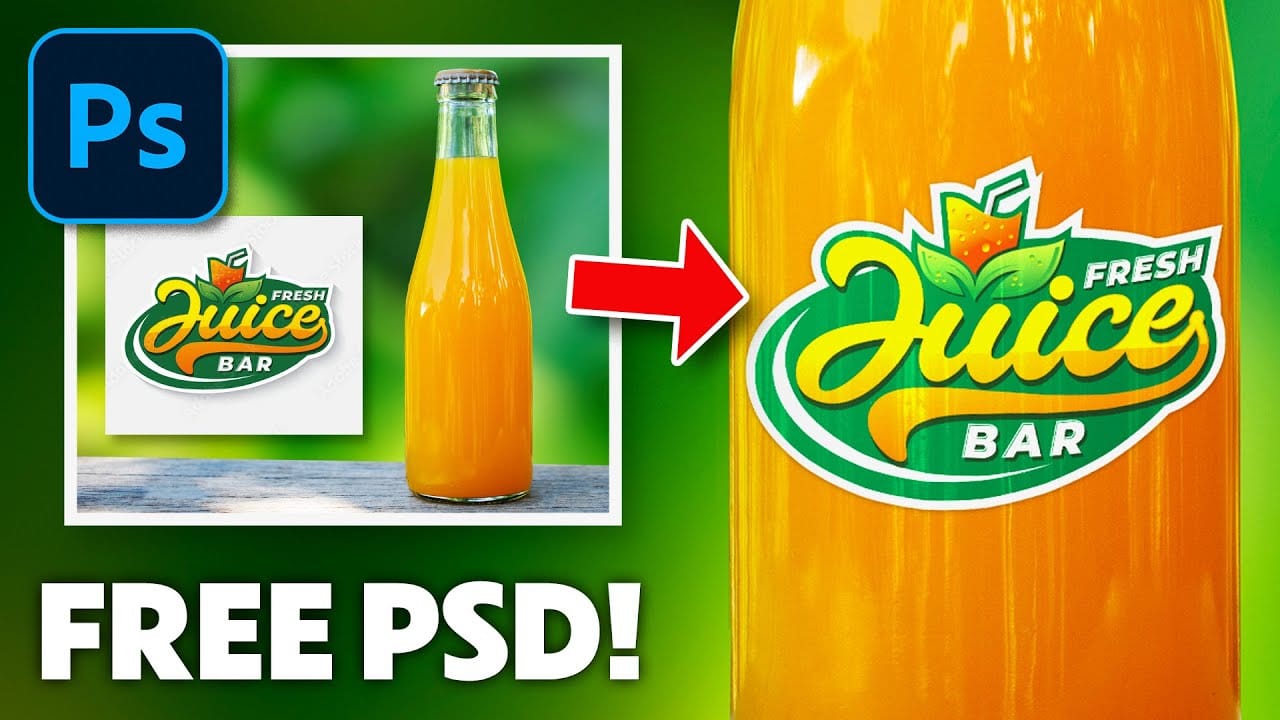
In this detailed tutorial, Jesus Ramirez from PTC Photoshop Training Channel walks you through the process of placing any logo onto a bottle using Photoshop. The tutorial is packed with valuable information and techniques that are essential for both beginners and advanced users. You will learn how to use Smart Objects to ensure your logo retains its quality when resized, and how to apply Clipping Masks to seamlessly integrate the logo onto the bottle's surface. Additionally, the tutorial covers
How to Create Reusable Drag & Drop Mockup Templates in Photoshop
Manually warping and blending logos onto product photos takes 15-30 minutes each time. Smart objects in Photoshop transform this repetitive process into a one-time setup that creates reusable templates. This technique lets you drag and drop any design into a pre-configured mockup that automatically applies warping, blending, and lighting effects. Watch the Tutorial Essential Tips for Drag & Drop Mockups * Create a rectangular shape layer as your container, then convert it to a smart objec
How to change the color of clothing in Photoshop
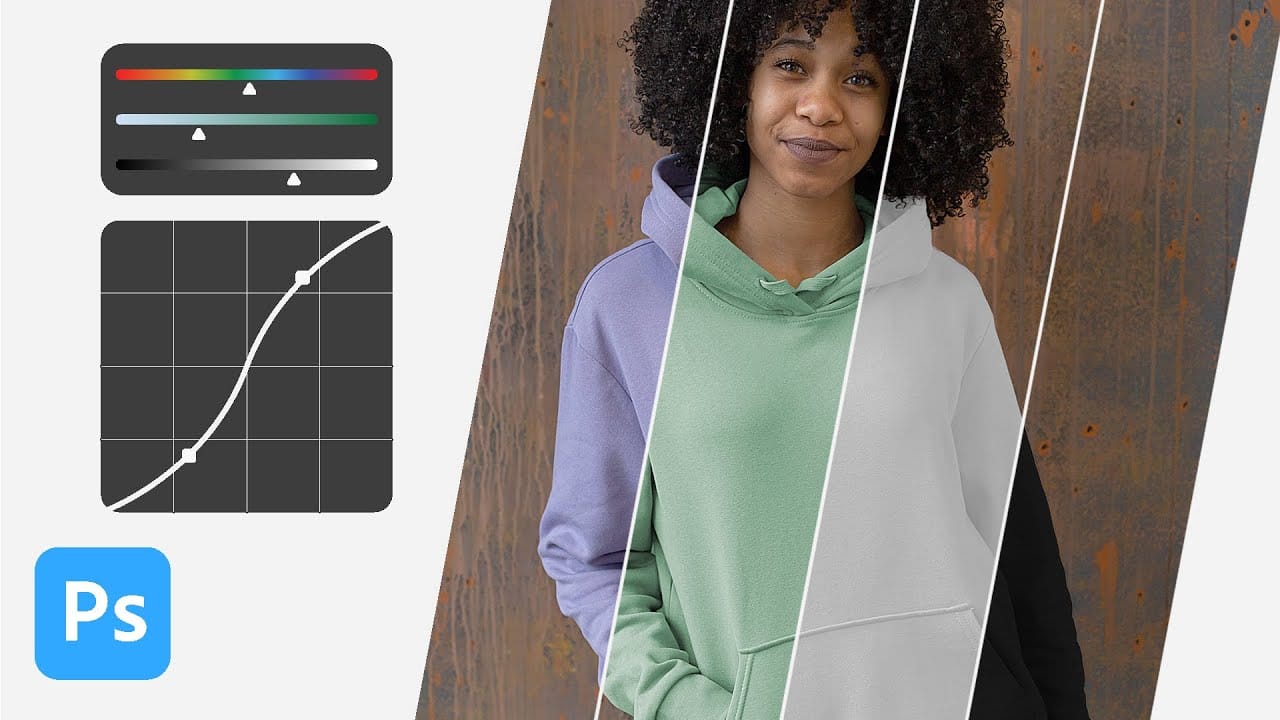
In this tutorial, Aaron Nace from Phlearn shows you how to change the color of clothing in Photoshop, even transforming it to black or white. This comprehensive guide covers essential tools and techniques to ensure perfect detail and realistic highlights and shadows. Aaron demonstrates how to use Layer Masks, Curves Adjustment Layers, and Hue/Saturation Adjustment Layers to create precise selections that isolate the clothing from the rest of the image, adjust brightness and contrast, and manipu
How to Remove Objects from Photos Using Photoshop's Remove Tool and Clean Plate Technique
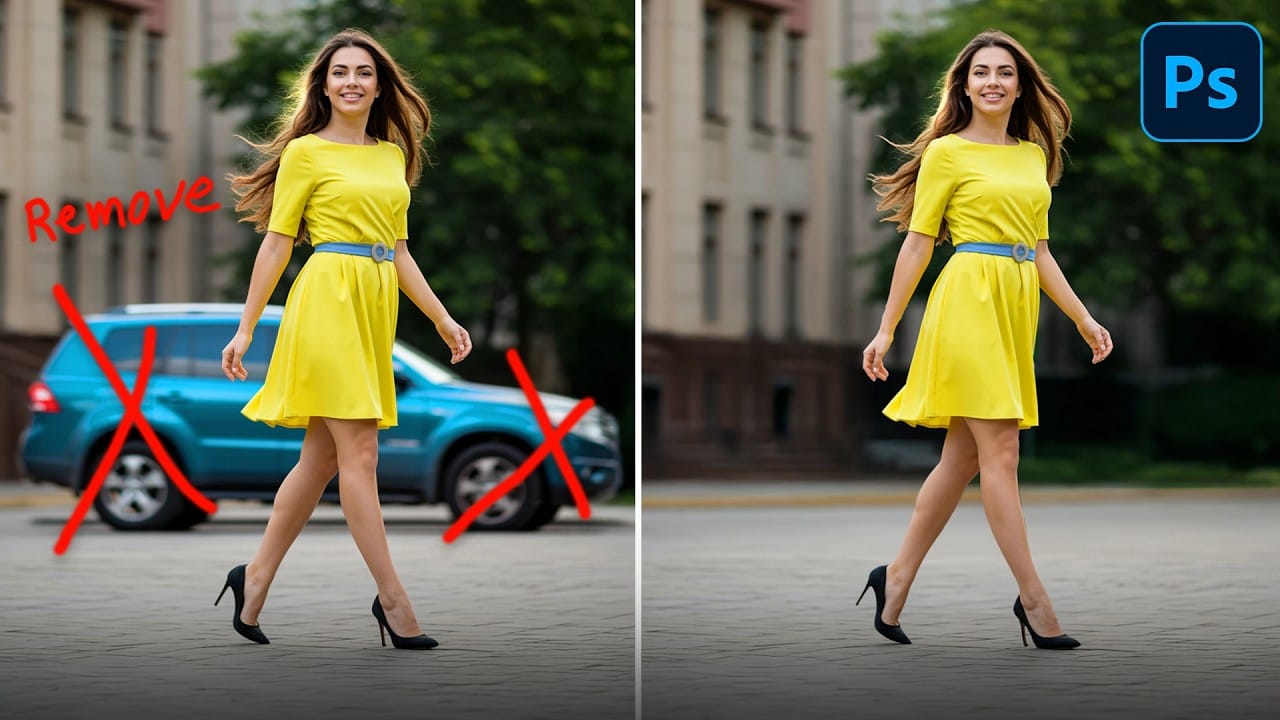
Professional photo editing often requires removing unwanted objects while maintaining natural-looking results. The challenge lies in creating seamless edges and realistic backgrounds, especially around complex subjects like hair or intricate details. This tutorial demonstrates both basic object removal using Photoshop's Remove Tool and an advanced "clean plate" technique used in professional TV and movie poster production. Watch the Tutorial Essential Tips for Object Removal * Create a ne
Create a Liquid Gel Logo Effect in Photoshop
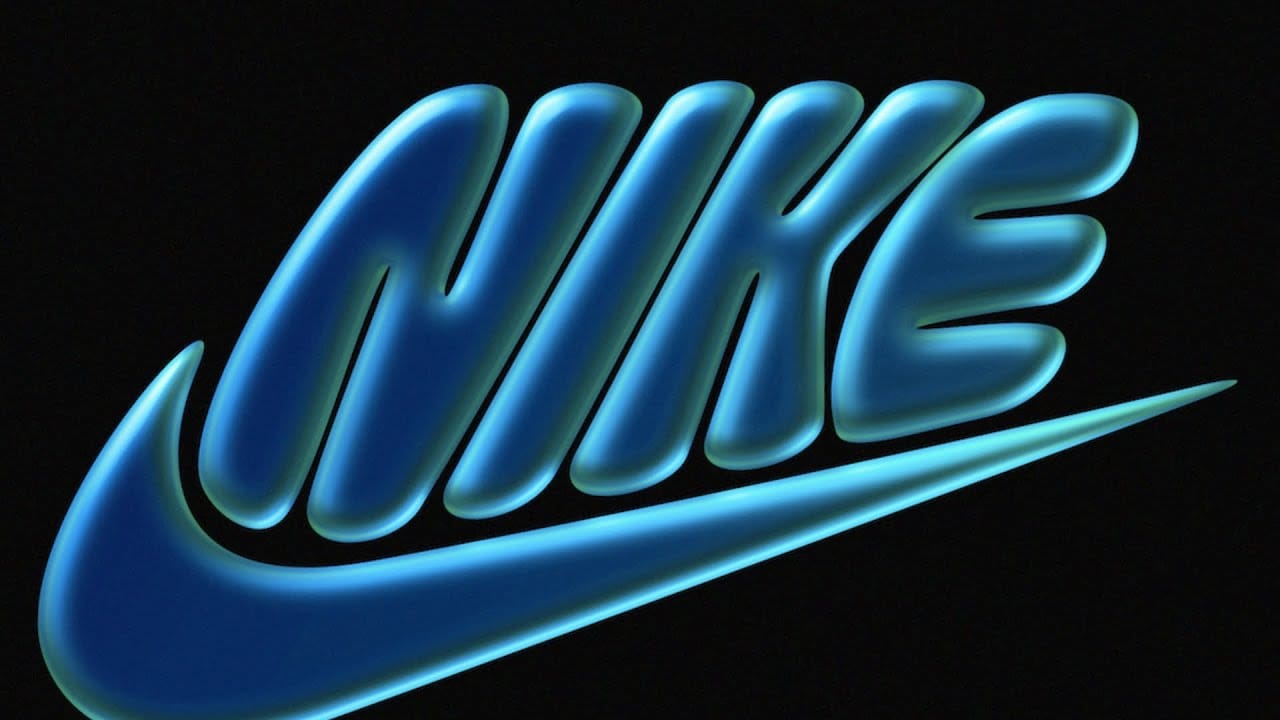
Liquid gel effects transform flat logos into dimensional, glossy designs that appear to bubble and flow. This technique uses multiple layer styles and strategic duplication to build depth, creating surfaces that catch light like thick, viscous liquid. The method combines gradient overlays, bevel effects, and inner glows across several duplicated layers to achieve the signature bubbly, three-dimensional appearance that makes logos stand out with professional polish. Watch the Video Practical
How to replace a sign for mockups in Photoshop
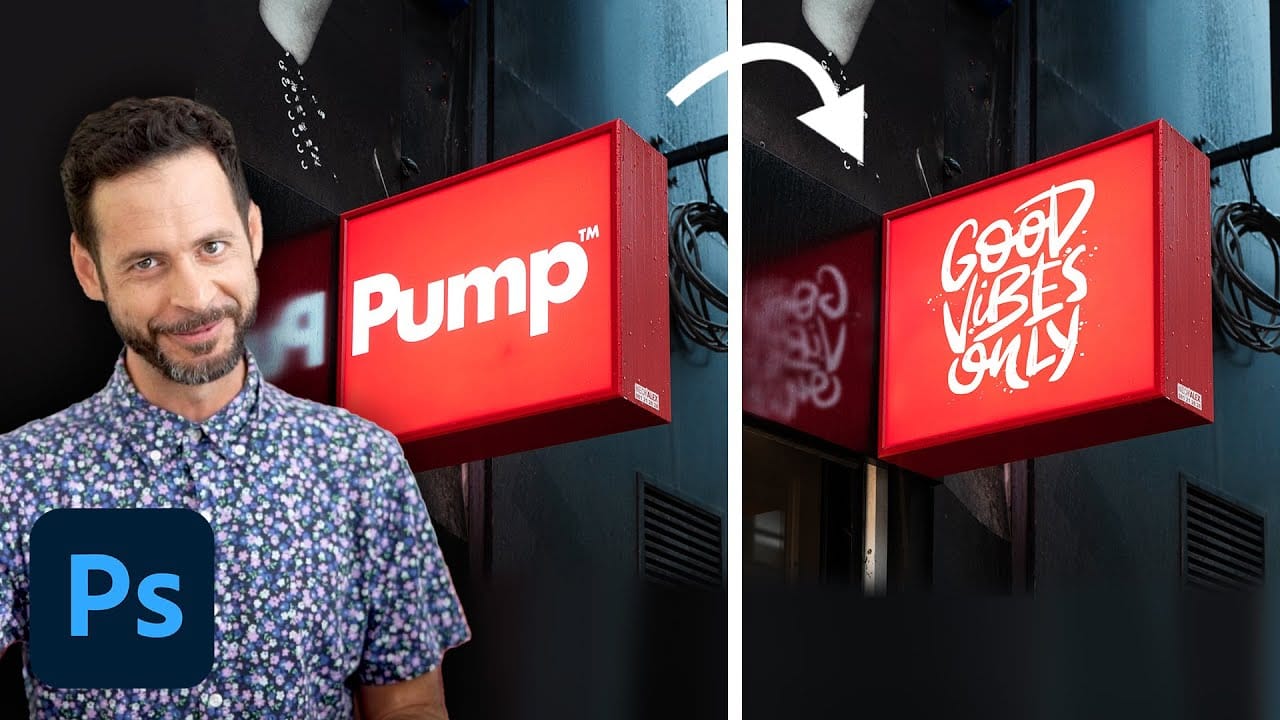
In this tutorial, Aaron Nace demonstrates how to customize signs in Photoshop for mockups. You'll learn how to efficiently remove existing graphics from a photographed sign and replace them with your own text and logos. Aaron covers techniques for placing your graphics accurately in perspective, ensuring they fit seamlessly into the original sign's design. The tutorial also includes tips on managing multiple Photoshop documents that update in real-time, making it easier to see your changes as y
How to Remove Tattoos Using AI in Photoshop
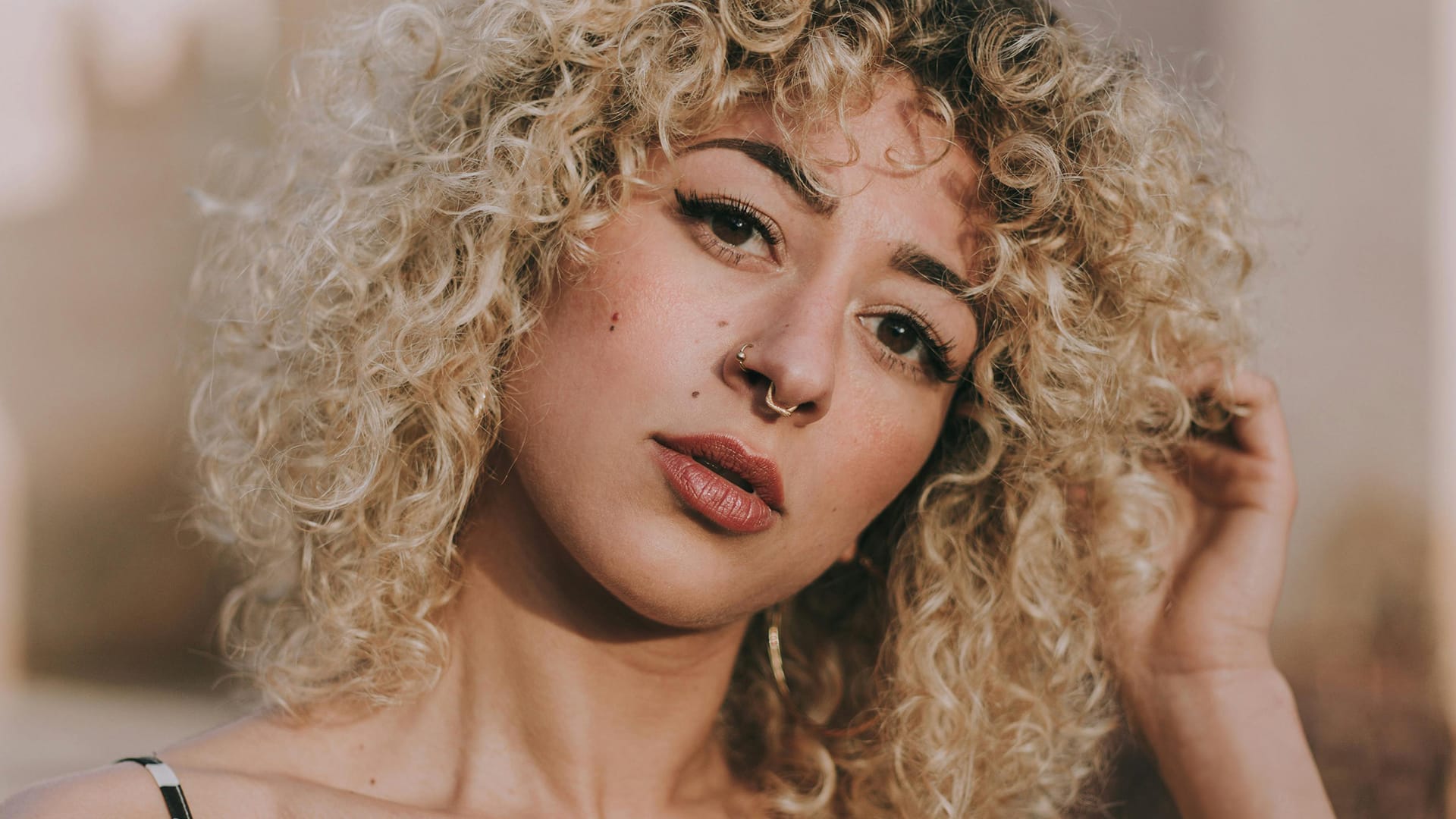
In this Photoshop tutorial Aaron Nace from Phlearn offers a clear and effective approach to blending graphics with portraits. You will learn how to use the Super Zoom feature, which allows you to upscale graphics while maintaining their resolution. This technique ensures that your designs remain sharp and clear. Next, the tutorial introduces the use of Gradient Maps. This tool is essential for color matching, making your graphics seamlessly integrate with your portraits. You will appreciate how

Get tutorials & freebies delivered to you.

Subscribe to the Photoshop Roadmap newsletter, a weekly roundup of new tutorials, insights and quality downloads, trusted by 6500+ readers.

You might also like

When to Use Saturation vs Vibrance for Better Color Enhancement

While vibrance gets praised for being "gentler" than saturation, the reality is more nuanced. Saturation works like a universal volume knob, boosting all colors equally, while vibrance acts like a smart equalizer, selectively enhancing less saturated areas first. Understanding when each approach serves your creative vision makes the...

How to Check Your Generative Fill Credit Balance in Photoshop

Keeping track of your AI credit usage becomes essential when working with premium generative features. Understanding your remaining balance helps you budget your edits and avoid unexpected interruptions during important projects. The credit system divides features into standard tools (like basic generative fill) that don't consume credits, and...

How to Create Realistic Depth Blur Effects in Photoshop

Creating professional depth of field effects can transform flat images into dynamic photographs with natural-looking focus transitions. Two powerful methods in Photoshop offer different advantages: Neural Filters provide automated depth detection with atmospheric effects like haze, while Camera Raw Filter delivers precise manual control with customizable bokeh shapes. Both techniques...

Three Professional Methods to Fix White Balance in Photoshop

Color casts can ruin even the best photographs, making whites appear yellow, blue, or green instead of neutral. Poor white balance destroys the natural look of your images and creates an unprofessional appearance that's immediately noticeable to viewers. These three techniques provide increasingly precise control over white balance...

Creating Dark Moody Wildlife Photo Edits in Photoshop

Dark, moody wildlife photography transforms ordinary animal portraits into dramatic, atmospheric pieces that capture the mystery and power of nature. This editing approach combines strategic lighting placement, careful color grading, and atmospheric effects to create compelling images that draw viewers into the scene. The workflow begins with essential noise reduction...

How to Create Professional Photo Composites in Photoshop

Creating compelling photo composites requires more than simply placing images together. This comprehensive tutorial demonstrates how to blend multiple elements seamlessly, from matching lighting and color to painting realistic shadows and highlights. The project showcases a dramatic scene inspired by Stranger Things, combining buildings, characters, and atmospheric effects with precise...

You’ve successfully subscribed to Photoshop Roadmap
Welcome back! You’ve successfully signed in.
Great! You’ve successfully signed up.
Success! Your email is updated.
Your link has expired
Success! Check your email for magic link to sign-in.