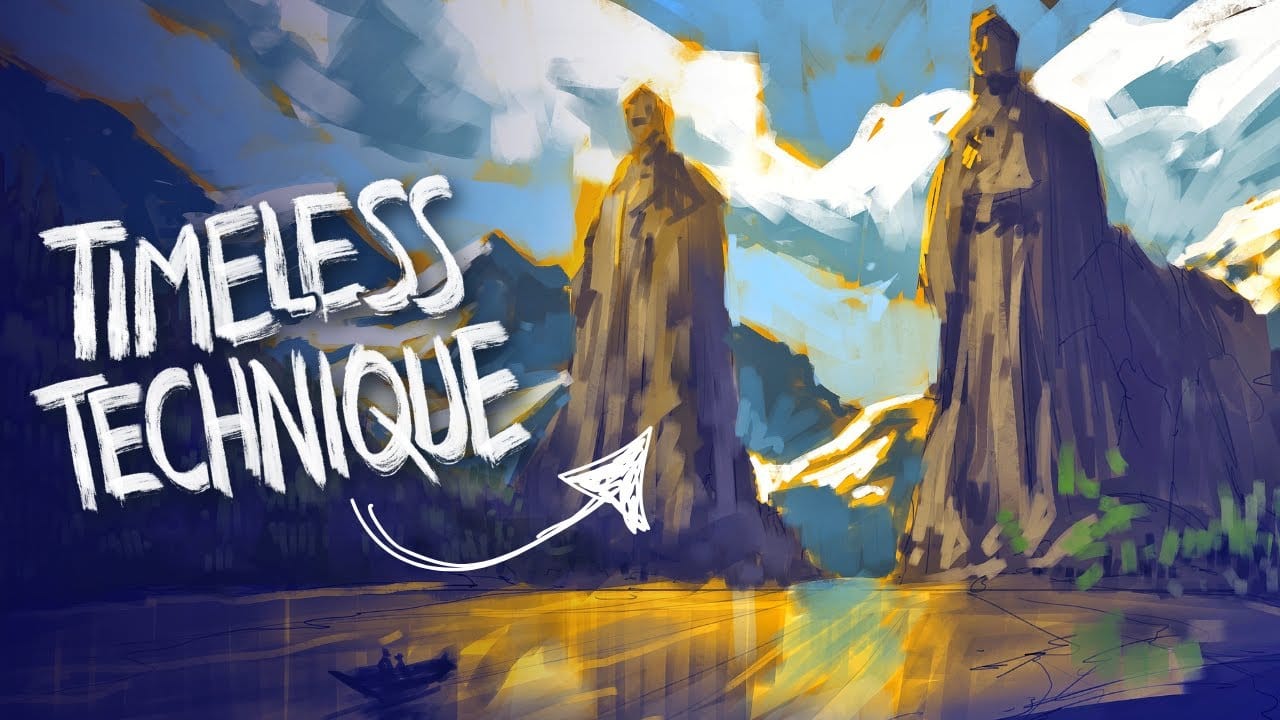

A well-crafted background can anchor an entire digital painting, providing atmosphere, depth, and visual context for the subject. This video demonstrates practical approaches to building backgrounds from scratch using digital tools, covering brush selection, color layering, and compositional thinking.
Watch the Video
Video by Nikki Harrison. Any links or downloads mentioned by the creator are available only on YouTube
Practical Tips
Keep these core principles in mind as you work through your own digital background painting sessions.
- Start with broad color blocks to establish the overall mood before adding detail.
- Use varied brush textures to break up flat areas and create a more organic, hand-painted look.
- Work in layers so individual elements — sky, midground, foreground — can be adjusted independently.
- Sample colors from your existing painting to maintain a cohesive palette as you build up the background.
- Keep backgrounds slightly less detailed than your focal subject to maintain natural visual hierarchy.
Related Articles and Tutorials
Explore more tutorials on digital painting techniques and background creation.
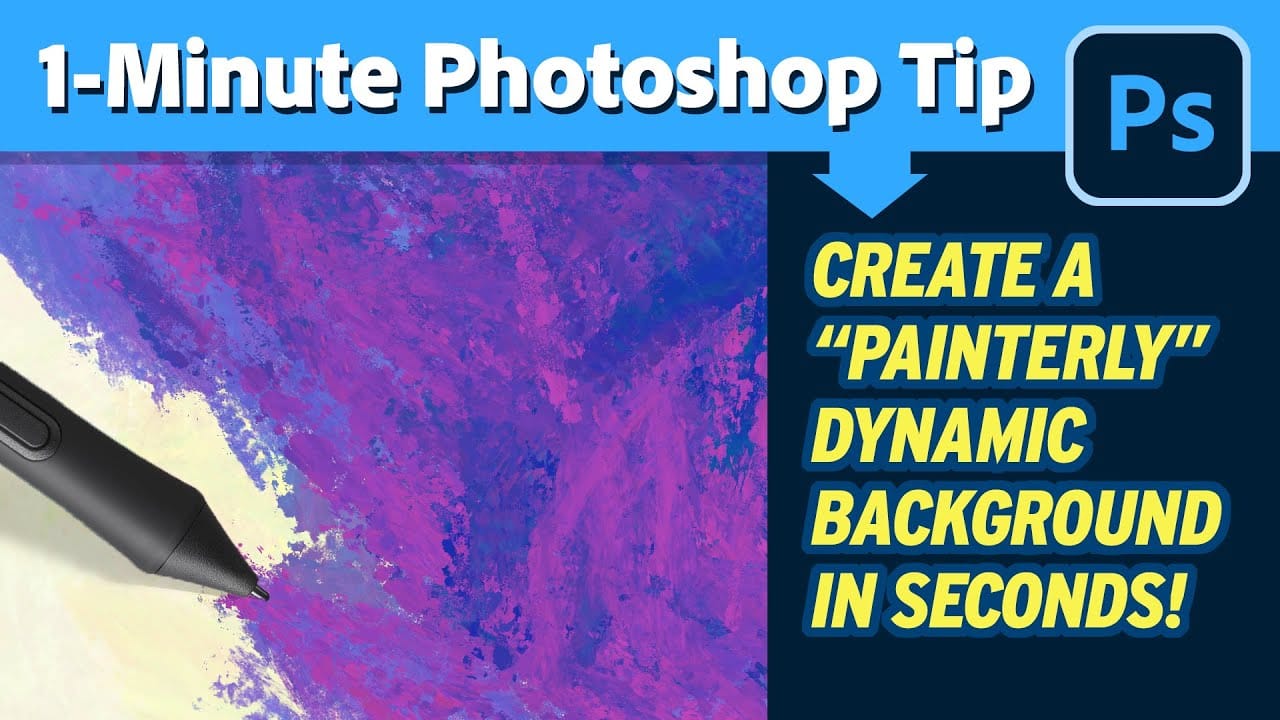
Create painterly backgrounds in Photoshop FAST!
Painting in Photoshop doesn't have to be flat and lifeless. In this quick 1-minute video tutorial, Kyle T Webster shows you how to create vibrant painterly backgrounds with ease. By taking advantage of color dynamics, you can add depth and life to your backgrounds, transforming them from flat to fabulous in no time.
Kyle demonstrates how simple adjustments and techniques can significantly enhance the overall look and feel of your digital paintings. Whether you're a beginner or an experienced ar
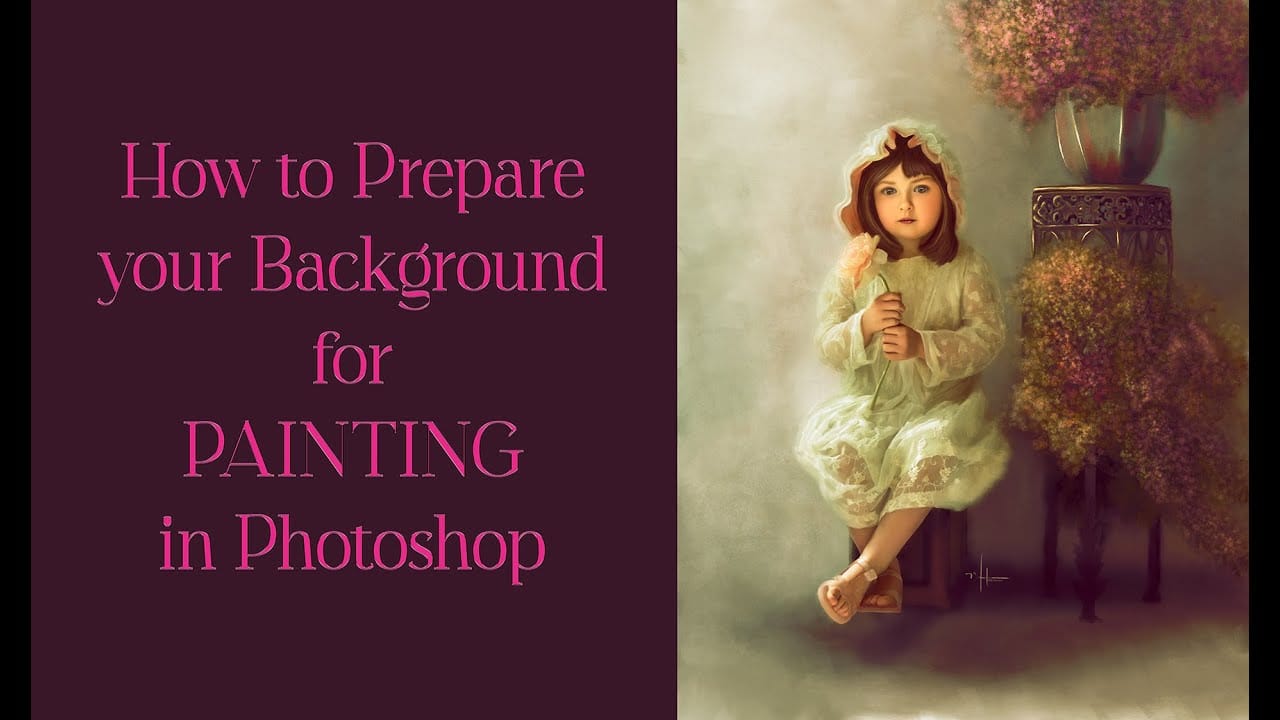
How to Transform Photos into Digital Paintings Using Photoshop Brushes
Busy backgrounds and photographic detail can overwhelm your artistic vision. This technique shows how to prepare photos for digital painting by strategically overpainting backgrounds and replacing photographic elements with painterly textures. The approach combines subject isolation, textured brush work, and color sampling to create a foundation that bridges photography and fine art.
Rather than simply filtering a photo, this method involves actually painting new elements while using the origin
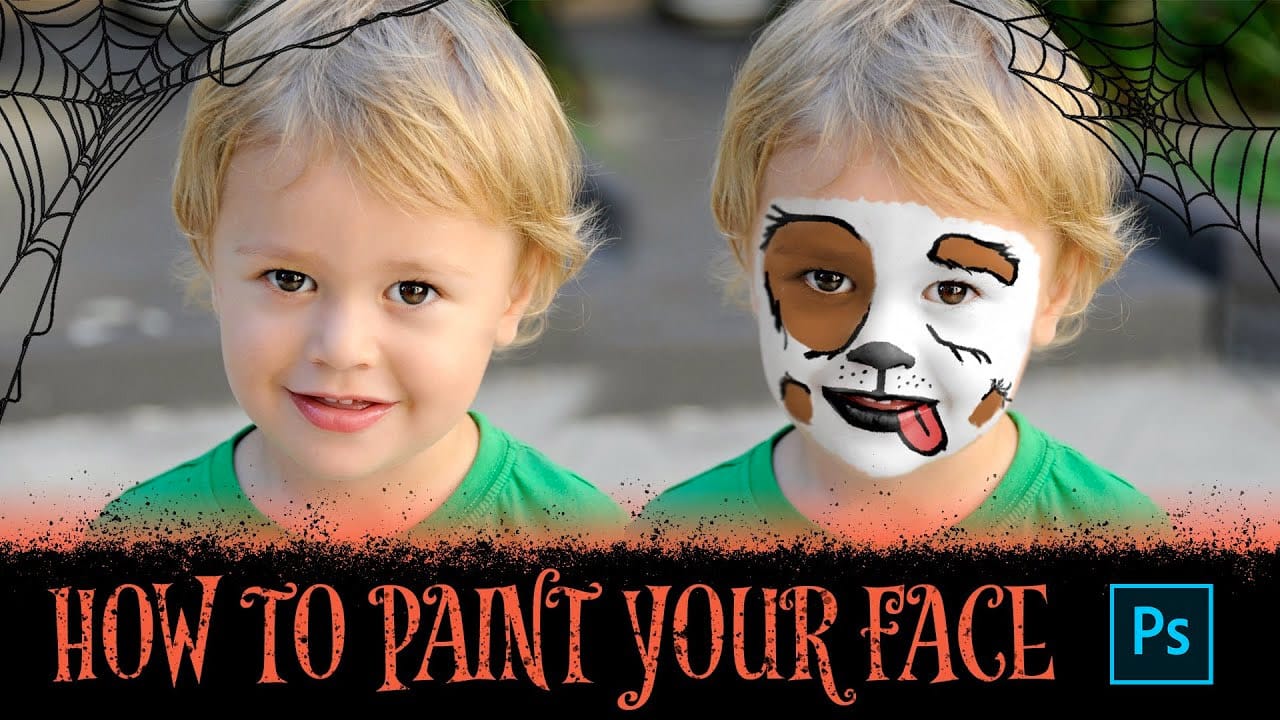
How to Paint Your Face in Photoshop
Digital face painting opens creative possibilities for portraits, costumes, and artistic projects without the mess of real paint. This technique uses adjustment layers and custom brushes to create convincing face paint that preserves natural skin texture and lighting.
The method works for any color scheme and includes specialized approaches for white and black paint, which require different handling to maintain realistic depth and highlights.
Watch the Video
Practical Tips
Master these key
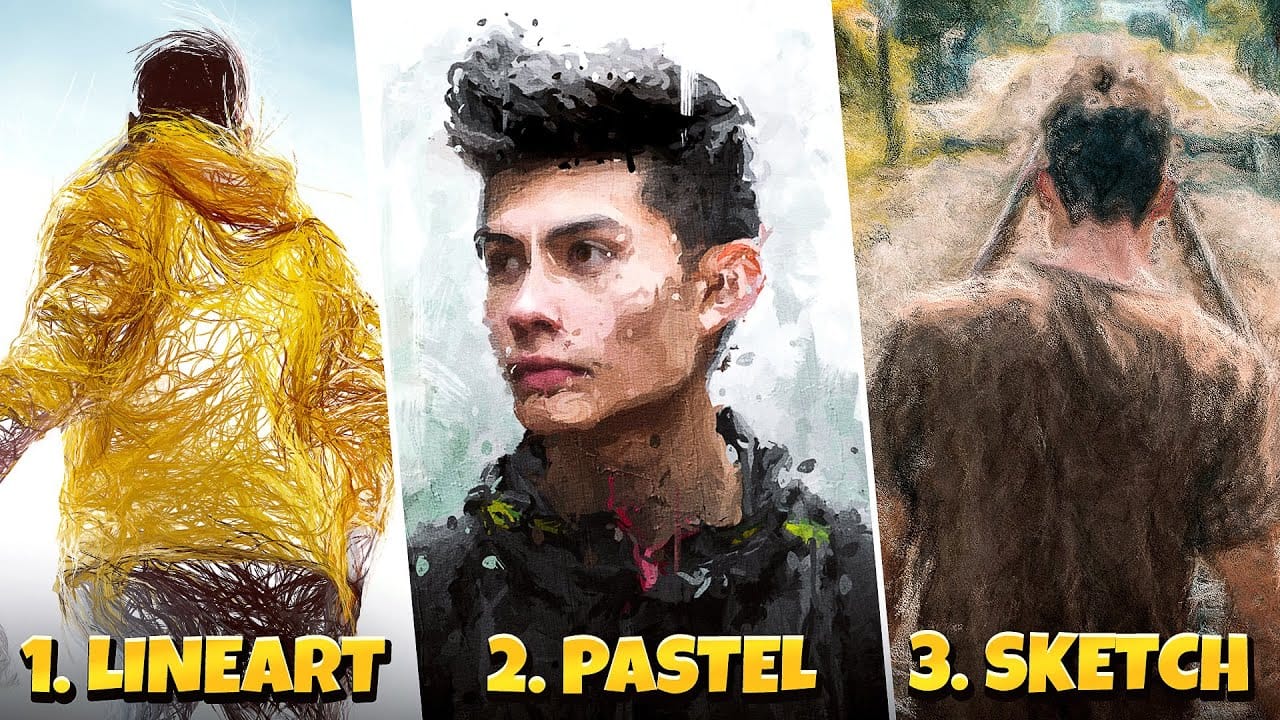
3 Digital Painting Effects With One Tool in Photoshop
In this tutorial by Pixivu, you'll learn how to create three distinct digital painting effects in Photoshop using just one tool. The tutorial starts with a sketch effect, where you'll use specific brushes to convert your photo into a detailed sketch. The process is straightforward and results in a highly realistic sketch effect.
Next, it guides you through creating a pastel oil paint effect with an easy and innovative technique involving four unique brushes. This technique adds rich texture and
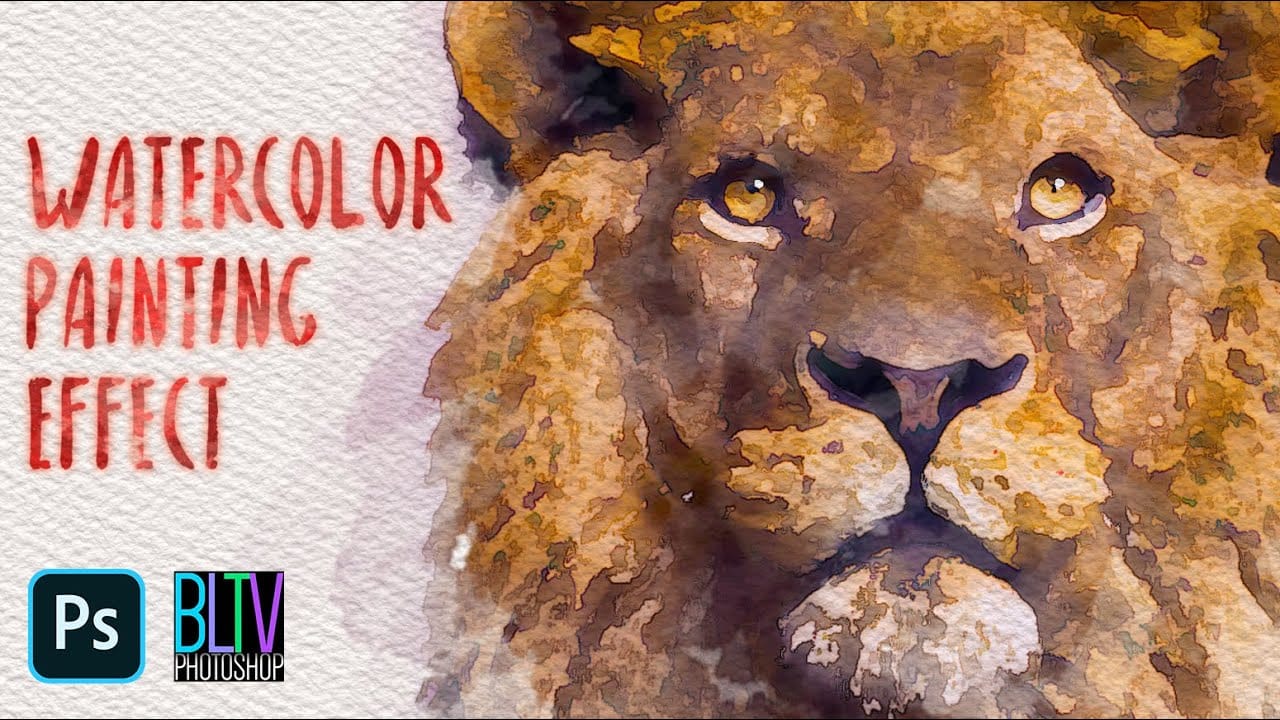
Advanced Digital Watercolor Rendering Technique in Photoshop
Unleash the artistic potential hidden within your photographs by transforming them into stunning watercolor paintings. This effect adds a timeless, hand-painted aesthetic to any image, offering a distinct visual appeal. Learn how to achieve a nuanced, custom watercolor look in Photoshop that goes beyond typical filters, giving you precise control over every brushstroke. The video guides you through each step, ensuring you can replicate this beautiful artistic style with ease.
Watch the Video
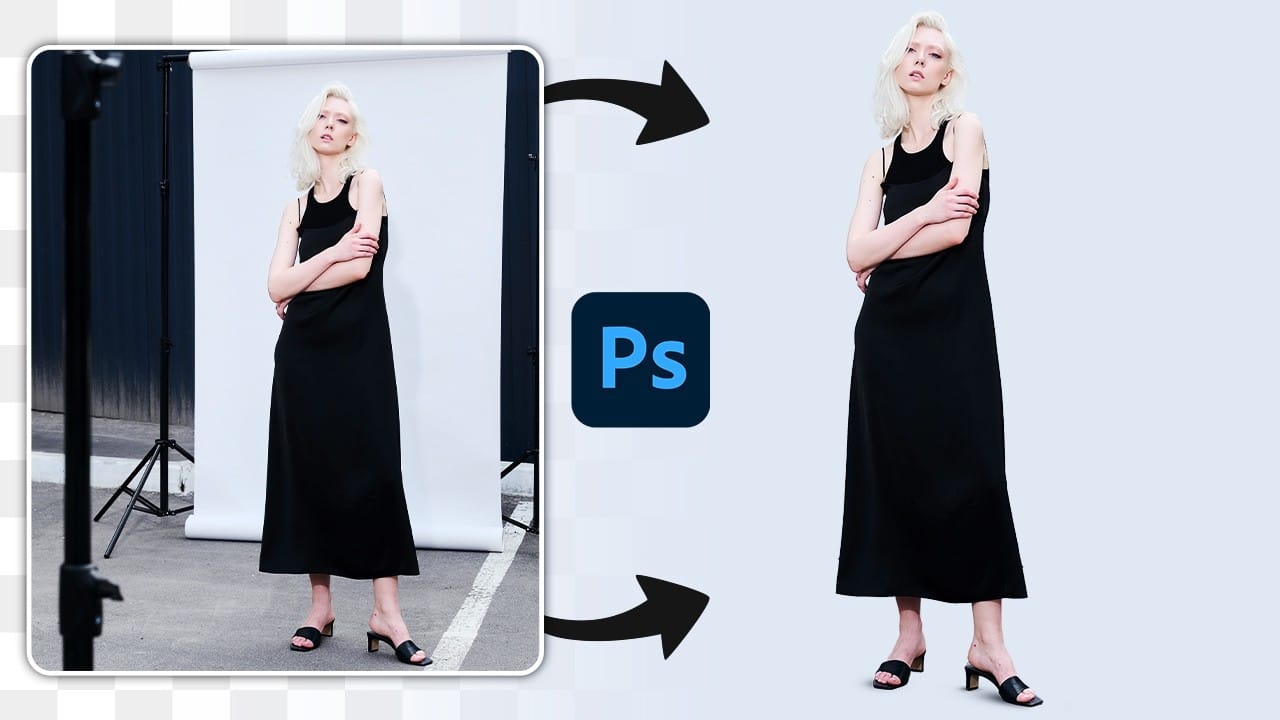
How To Create A Seamless Backdrop In Photoshop
When working with smaller backgrounds, especially on location, it can be challenging to achieve a professional studio look. Fortunately, Photoshop offers simple techniques to transform your images effectively.
While generative fill may seem like an easy option, it often leads to unexpected results, such as distorted limbs or mismatched backgrounds. Instead, a manual approach can yield better outcomes.Start by selecting your subject and creating a new color fill layer that matches the original b
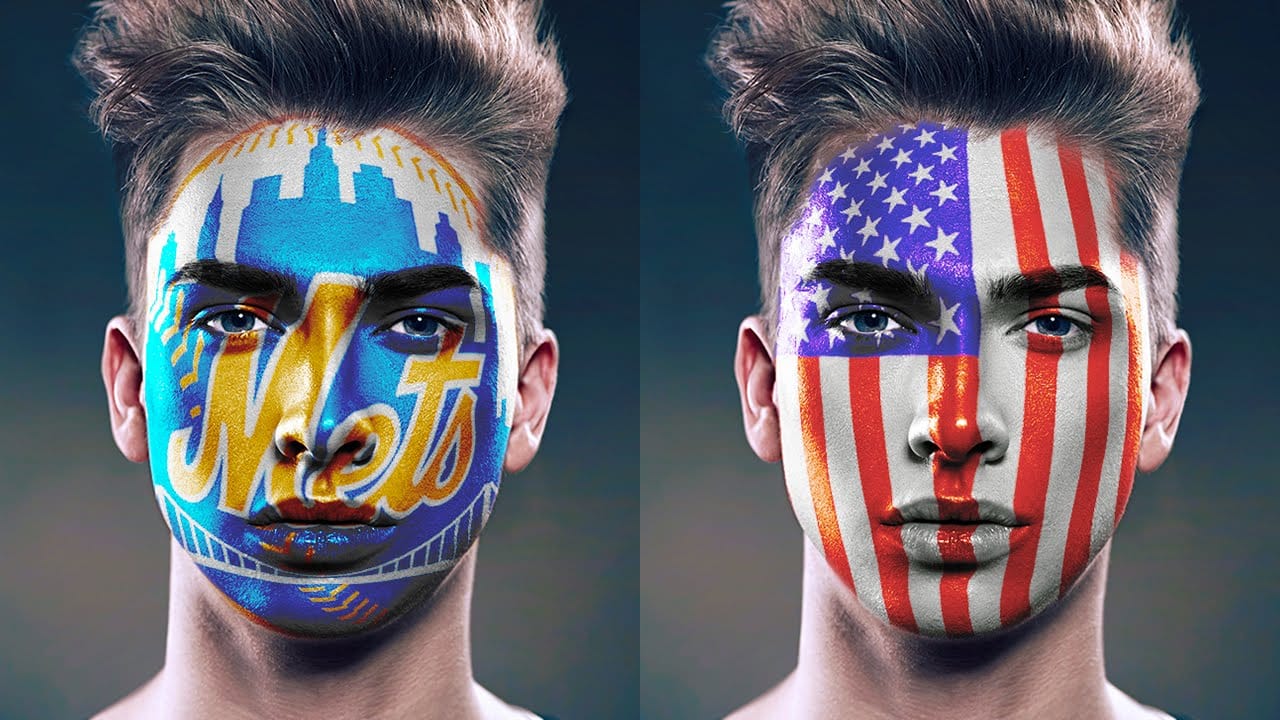
How to Paint Graphics onto a Face in Photoshop
Achieving realistic digital face paint in Photoshop can transform portraits, bringing creative visions to life for various purposes. This technique is particularly effective for applying elements like flags, sports team logos, or intricate designs directly onto a subject's face, making it appear as if the graphic is truly painted on.
This video tutorial guides you through the process of seamlessly applying graphics to a face using Photoshop's powerful features. You will learn how to prepare you
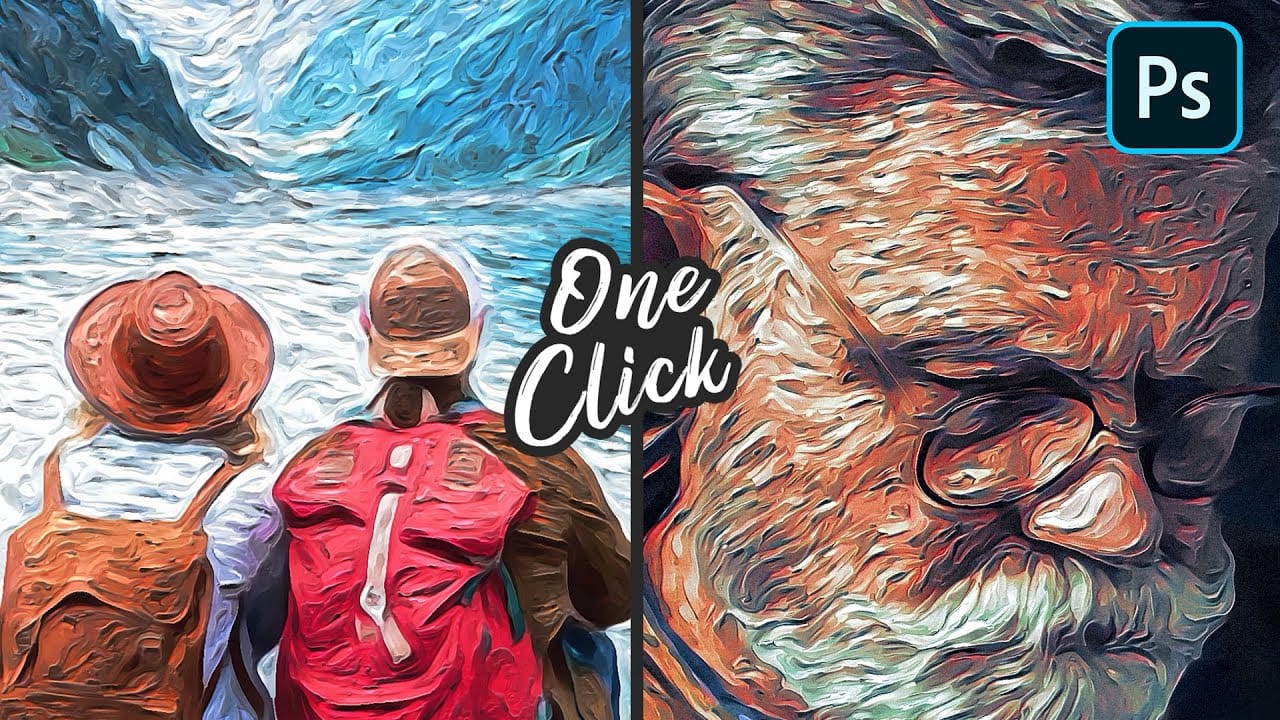
One-click Van Gogh Digital Painting in Photoshop
In this detailed tutorial, Pixivu demonstrates how to transform a photo into a digital painting masterpiece with just a few clicks using Adobe Photoshop.
By leveraging smart objects and a variety of filters, you can effortlessly create a stunning painting effect that mirrors the iconic style of Van Gogh. The final outcome features raised brush strokes, giving it a rich, textured, painted look. This tutorial is perfect for both beginners and experienced users who want to achieve a classic, artis
The Underpainting Technique in Adobe Photoshop
In this presentation, you will explore an oil painting technique that has stood the test of time, used by Old Masters for centuries. This method begins with a basic CPA underpainting, which serves as a foundation for the artwork.
Following this, layers of color are added on top to create depth and richness. The speaker will demonstrate this technique through digital speedpaints, showing how you can apply it to your own work. The process starts with loose sketching to establish composition, foll