Create Realistic Water Reflections Using Generative Fill in Photoshop

Create Realistic Water Reflections Using Generative Fill in Photoshop

Traditional reflection techniques in photo editing often produce unrealistic results because they simply flip and copy existing image elements. Real reflections show different viewing angles and reveal surfaces not visible in the original photograph—like the underside of vehicles or objects viewed from below water level.

Generative fill technology solves this physics problem by creating reflections that show appropriate alternate viewpoints, producing convincing water puddles and reflective surfaces that would otherwise require extensive manual compositing work.

Watch the Video

Video by photoshopCAFE. Any links or downloads mentioned by the creator are available only on YouTube

Practical Tips

Here are key techniques for creating convincing reflective surfaces with generative fill:

  • Use the lasso tool to carefully select the area where you want to create your puddle or reflective surface
  • Always include the word "reflective" in your generative fill prompt to ensure the AI creates actual reflections rather than just water
  • Compare multiple generated variations to find the one that shows the most realistic alternate viewpoint angles
  • Look for reflections that reveal undersides of objects or different surface angles that wouldn't be visible in simple flipped copies
  • Combine generative fill reflections with traditional compositing techniques for areas where manual control provides better results

Explore more techniques for advanced photo editing and AI-powered creative workflows.
How to Add Objects to Photos Using Photoshop's Generative Fill
Photoshop's Generative Fill transforms photo editing by letting you add realistic objects using simple text descriptions. This AI-powered feature creates seamless additions that match your image's lighting, perspective, and style. The process requires just a basic selection and a descriptive prompt to generate professional-looking results in seconds. Watch the Tutorial Essential Tips for Generative Fill Success * Make your selection slightly larger than the object you want to generate — t
Complete Guide to AI Photo Editing with Photoshop's Generative Fill
Modern photo editing has entered a new era where artificial intelligence can solve complex visual problems in seconds. Tasks that once required hours of manual work—removing unwanted objects, changing skies, adding realistic elements—can now be accomplished with simple selections and text prompts. This comprehensive tutorial demonstrates 37 practical applications of Photoshop's AI-powered generative fill feature. From basic sky replacements to advanced portrait retouching, these techniques show
How Generative Fill in Photoshop is Transforming Photo Editing
In the ever-evolving realm of photo editing, a game-changing feature has emerged that promises to revolutionize the way we approach image enhancement. Enter Generative Fill, an innovative tool introduced in the Photoshop Beta, and it's already making waves. Spearheaded by the renowned creative mind Aaron Nace from PHLEARN, this tool is poised to reshape the landscape of digital editing. Generative Fill isn't your typical editing tool that relies on traditional methods. Instead, it leverages the
How to Get Higher Quality Results from Photoshop's Generative Fill Tool
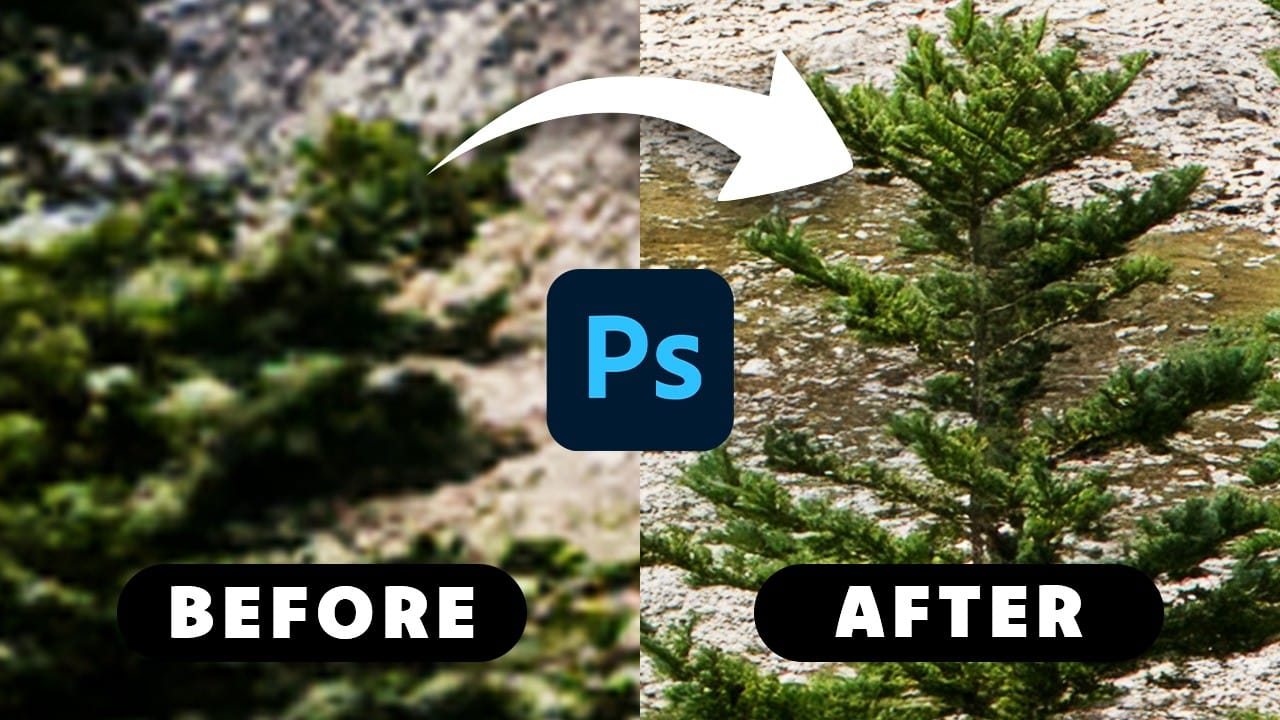
Photoshop's Generative Fill creates impressive AI extensions, but the results often look blurry and pixelated when viewed at full size. This quality limitation makes many AI-generated areas unusable for printing or large displays. This technique shows how to work around the 1024x1024 pixel quality limit to create much sharper, more professional-looking generative fill results. Watch the Tutorial Essential Tips for Better Generative Fill Quality * Keep selections under 1024x1024 pixels — G
Turn Pictures Into Paintings Using Generative Fill In Photoshop
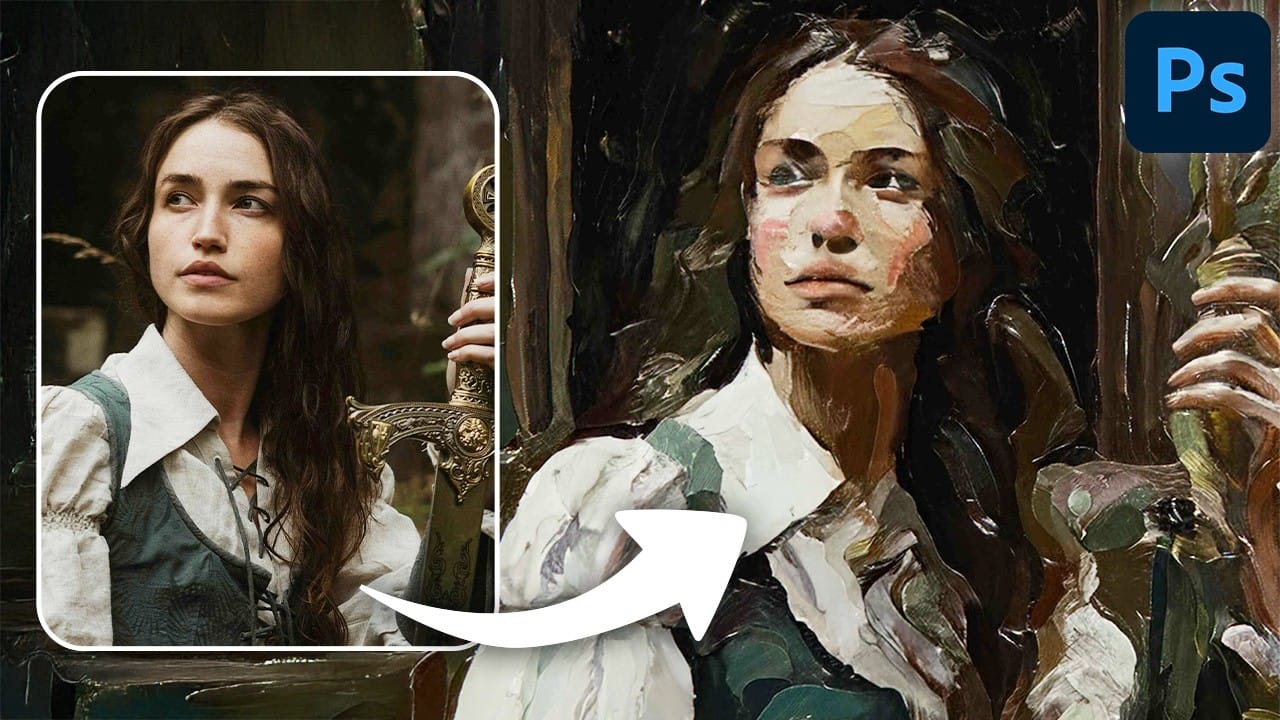
Converting photographs into artistic paintings has traditionally required advanced Photoshop skills, complex layer blending techniques, or expensive third-party plugins. Many photographers and designers struggle with creating convincing painted effects that maintain the original image's character while adding genuine artistic style. This tutorial demonstrates how to transform photos into paintings using Photoshop's generative fill feature combined with channel-based selections. The technique cr
Essential Guide to Generative Fill: Remove, Add, and Replace Objects in Photos
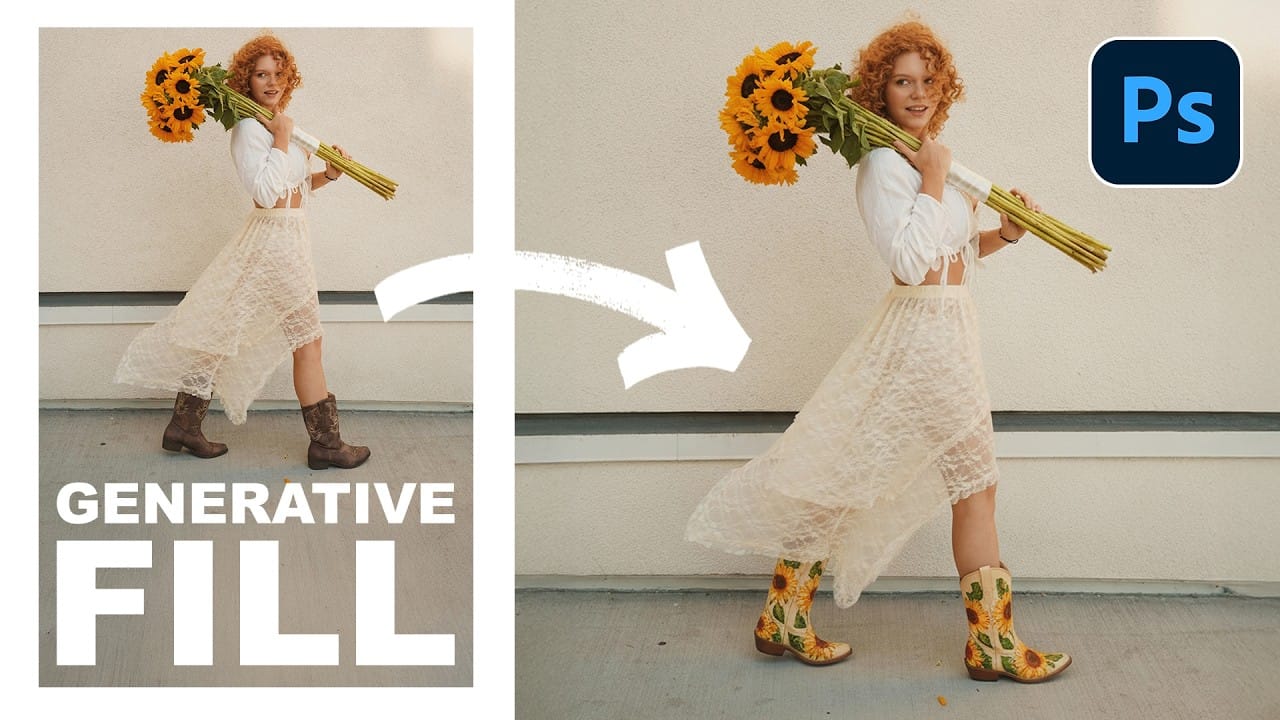
Generative Fill has transformed how photographers handle object removal, additions, and replacements in their images. This comprehensive tutorial demonstrates four practical applications using real examples—from cleaning up unwanted graffiti to adding garden gnomes and creating custom sunflower boots. You'll learn to work with both Adobe's Firefly Image 3 and Google's Gemini 2.5 models, understanding when to use each approach for optimal results. Watch the Video Practical Tips Here are the
Turn Anything into Realistic 3D with Photoshop and Firefly
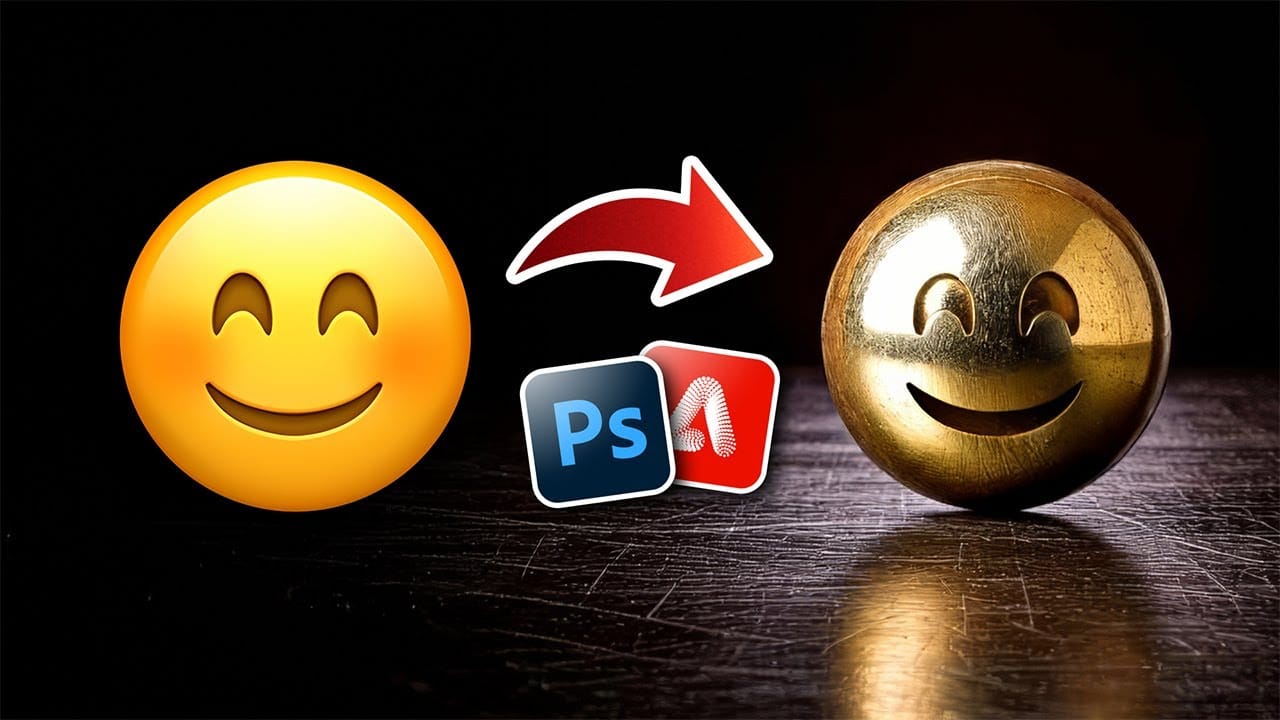
Achieving realistic 3D effects from simple 2D shapes can significantly enhance your designs. This process becomes remarkably accessible with the integration of generative AI tools like Adobe Firefly into Photoshop. This tutorial demonstrates a streamlined workflow, enabling you to transform ordinary graphics into striking, dimensional visuals. You gain control over surface textures, reflections, and dramatic lighting, pushing creative boundaries with ease. Watch the Video Bridging 2D and 3D
Photoshop Generative Expand and Composite Techniques Using AI-Generated Images
AI-generated imagery opens up endless creative possibilities, but the real magic happens when you know how to refine and enhance these digital creations. Raw AI images often need compositional adjustments, element removal, and seamless blending to reach their full potential. This tutorial demonstrates practical techniques for extending canvas space, removing backgrounds, and creating cohesive composites using Photoshop's modern tools. The workflow combines traditional compositing skills with AI
How to Remove Reflections from Photos Using Photoshop's AI Tool
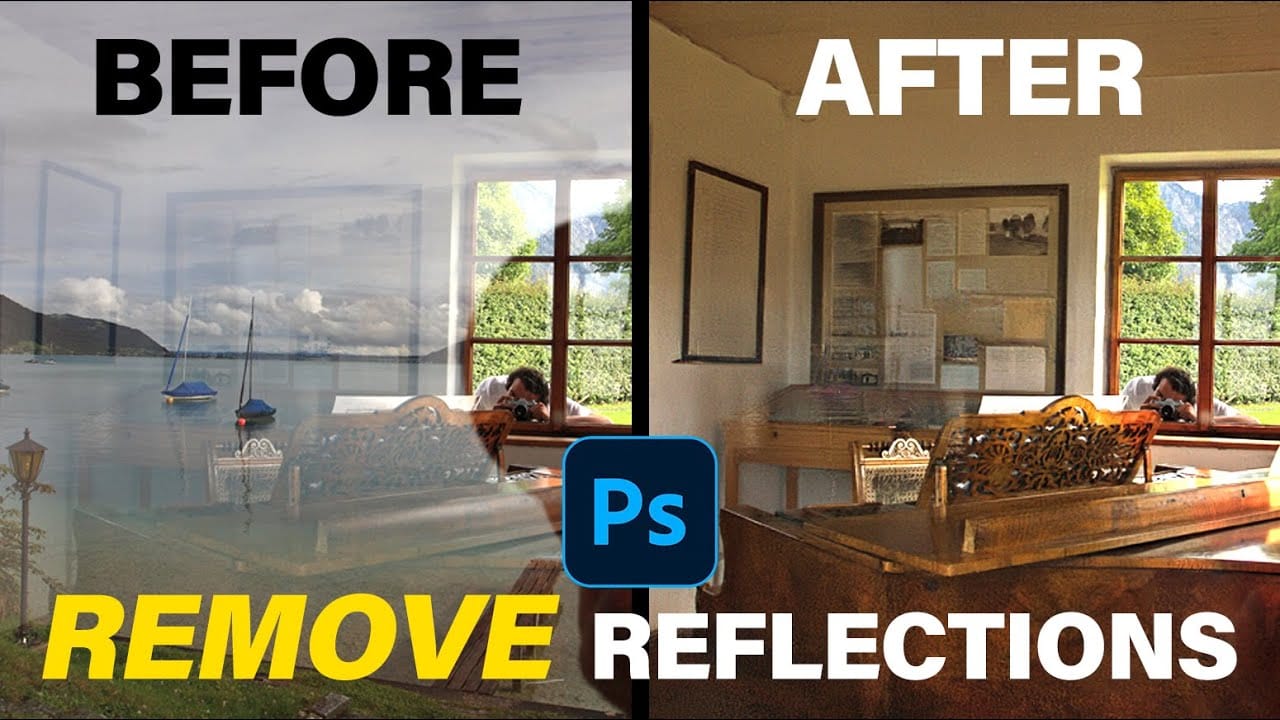
Glass surfaces create some of photography's most persistent challenges. Windows, storefronts, and displays often produce unwanted reflections that obscure subjects and compromise image clarity. Photoshop's latest AI-powered reflection removal tool addresses this common problem with automated detection and removal capabilities. This video demonstrates the complete workflow for eliminating reflections while preserving underlying image details. Watch the Tutorial Understanding Reflection Remov
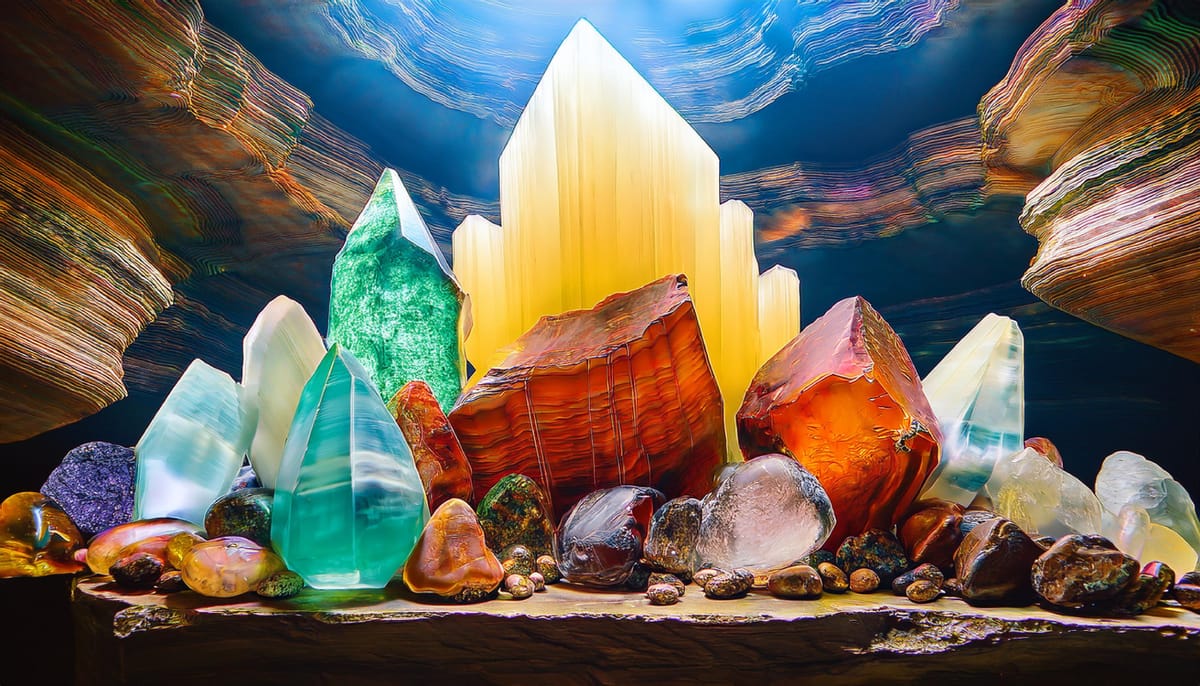
Mineral Splendor: A Macro Journey Through Crystals, Stones, and Craftsmanship Created with Adobe Firefly
In visual art, the fusion of natural beauty and human craftsmanship has long been a profound source of inspiration. Whether it is the intricate designs of a finely cut gemstone or the raw allure of an unpolished mineral, the interplay of light, texture, and color evokes an undeniable fascination. In

Get tutorials & freebies delivered to you.

Subscribe to the Photoshop Roadmap newsletter, a weekly roundup of new tutorials, insights and quality downloads, trusted by 6500+ readers.

You might also like

When to Use Saturation vs Vibrance for Better Color Enhancement

While vibrance gets praised for being "gentler" than saturation, the reality is more nuanced. Saturation works like a universal volume knob, boosting all colors equally, while vibrance acts like a smart equalizer, selectively enhancing less saturated areas first. Understanding when each approach serves your creative vision makes the...

How to Check Your Generative Fill Credit Balance in Photoshop

Keeping track of your AI credit usage becomes essential when working with premium generative features. Understanding your remaining balance helps you budget your edits and avoid unexpected interruptions during important projects. The credit system divides features into standard tools (like basic generative fill) that don't consume credits, and...

How to Create Realistic Depth Blur Effects in Photoshop

Creating professional depth of field effects can transform flat images into dynamic photographs with natural-looking focus transitions. Two powerful methods in Photoshop offer different advantages: Neural Filters provide automated depth detection with atmospheric effects like haze, while Camera Raw Filter delivers precise manual control with customizable bokeh shapes. Both techniques...

Three Professional Methods to Fix White Balance in Photoshop

Color casts can ruin even the best photographs, making whites appear yellow, blue, or green instead of neutral. Poor white balance destroys the natural look of your images and creates an unprofessional appearance that's immediately noticeable to viewers. These three techniques provide increasingly precise control over white balance...

Creating Dark Moody Wildlife Photo Edits in Photoshop

Dark, moody wildlife photography transforms ordinary animal portraits into dramatic, atmospheric pieces that capture the mystery and power of nature. This editing approach combines strategic lighting placement, careful color grading, and atmospheric effects to create compelling images that draw viewers into the scene. The workflow begins with essential noise reduction...

How to Create Professional Photo Composites in Photoshop

Creating compelling photo composites requires more than simply placing images together. This comprehensive tutorial demonstrates how to blend multiple elements seamlessly, from matching lighting and color to painting realistic shadows and highlights. The project showcases a dramatic scene inspired by Stranger Things, combining buildings, characters, and atmospheric effects with precise...

You’ve successfully subscribed to Photoshop Roadmap
Welcome back! You’ve successfully signed in.
Great! You’ve successfully signed up.
Success! Your email is updated.
Your link has expired
Success! Check your email for magic link to sign-in.