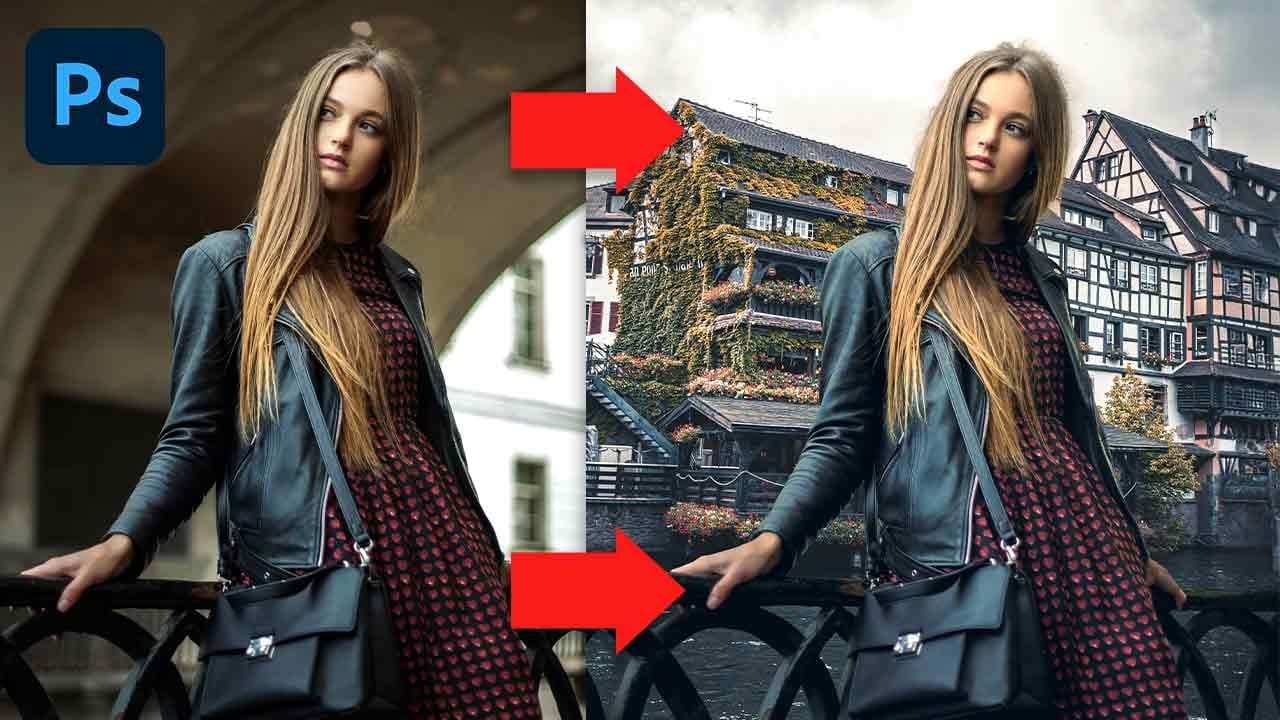
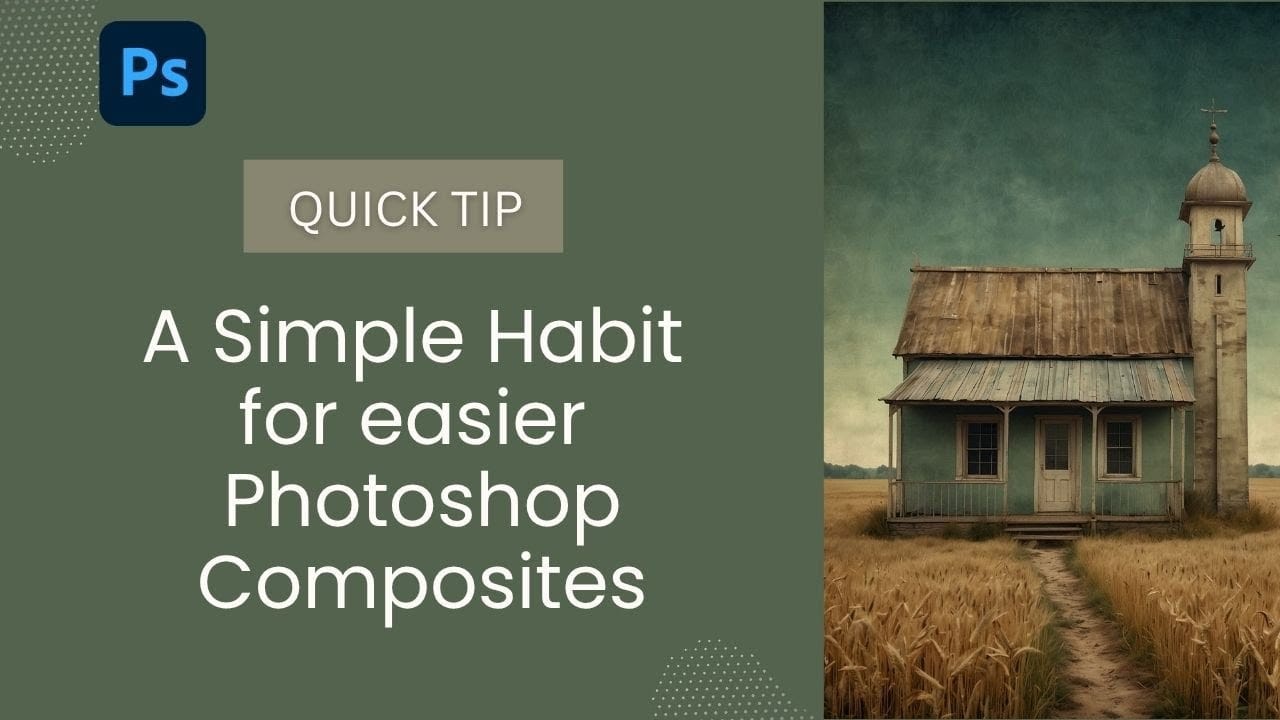
Creating a Fantasy Photo Composite with Grapes as Balloons in Photoshop

Creating a Fantasy Photo Composite with Grapes as Balloons in Photoshop

Transform ordinary photographs into whimsical fantasy scenes using creative vision and modern compositing tools. This detailed walkthrough demonstrates how to build a surreal image of a young girl floating through the sky, held aloft by grapes reimagined as colorful balloons.

The project combines just two main photos—a portrait and grocery store grapes—into a complete atmospheric composite featuring rope swings, flying birds, and dreamy color grading that brings the fantastical concept to life.

Watch the Video

Video by Nucly • Photoshop and Creative Design Training. Any links or downloads mentioned by the creator are available only on YouTube

Practical Tips

Master these essential compositing techniques to create convincing fantasy scenes:

  • Turn off "Remove after each stroke" in the Remove tool settings to clean multiple elements simultaneously before processing
  • Add atmospheric layers using radial gradients with sky colors to separate foreground subjects from backgrounds
  • Create depth with selective blur on foreground elements while keeping distant objects sharp, mimicking natural camera focus
  • Use color overlays with sky tones at low opacity to push background elements further into atmospheric perspective
  • Apply subsurface scattering effects with clipped gradient layers on overlay mode to make translucent objects like grapes glow naturally

Explore more techniques for building professional composites and blending multiple images seamlessly.
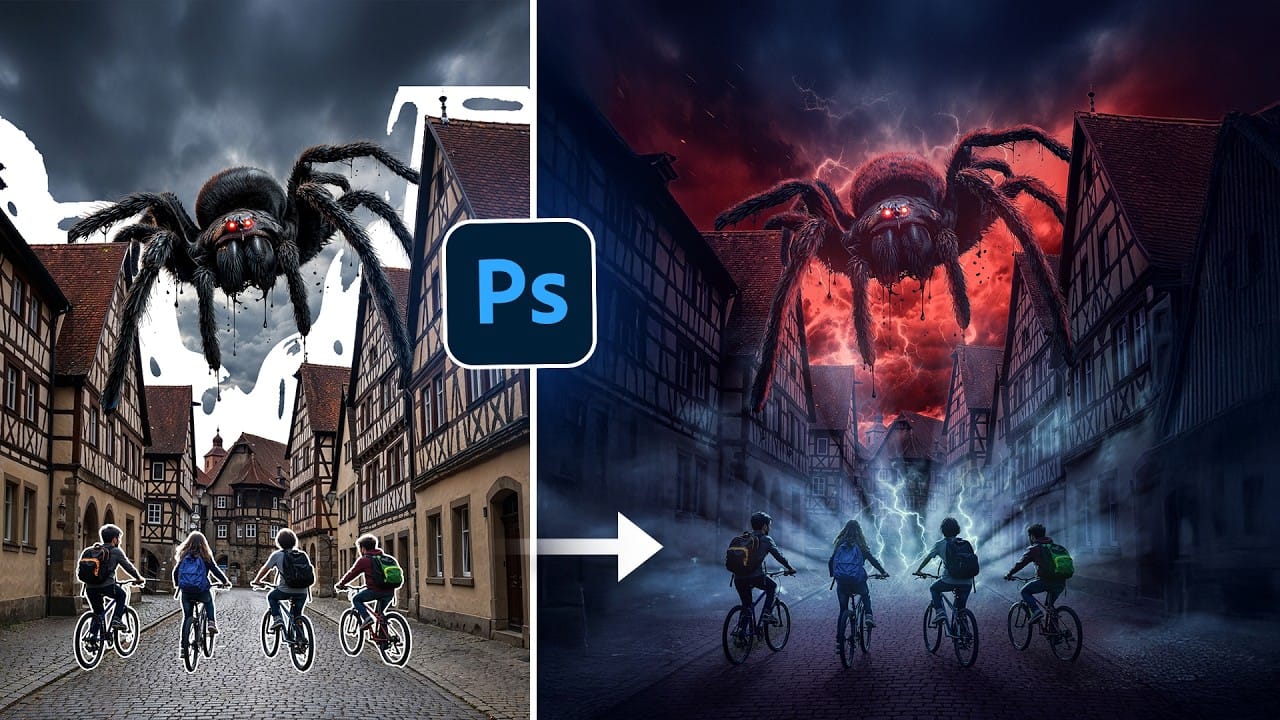
How to Create Professional Photo Composites in Photoshop
Creating compelling photo composites requires more than simply placing images together. This comprehensive tutorial demonstrates how to blend multiple elements seamlessly, from matching lighting and color to painting realistic shadows and highlights. The project showcases a dramatic scene inspired by Stranger Things, combining buildings, characters, and atmospheric effects with precise color grading and lighting techniques that transform ordinary photos into cinematic compositions. Watch the
Learn Photoshop by Combining Tools and Techniques
Achieving truly impressive image manipulations in Photoshop goes beyond mastering individual tools; it requires skillfully combining them. Many users learn techniques in isolation, but the real power of Photoshop emerges when these diverse methods are blended to create a cohesive final result. This tutorial demonstrates how to transform an ordinary photo into a dynamic composite. It guides you through integrating various tools and techniques, showing how to approach complex edits by layering di
Complete Guide to Digital Photo Compositing in Photoshop
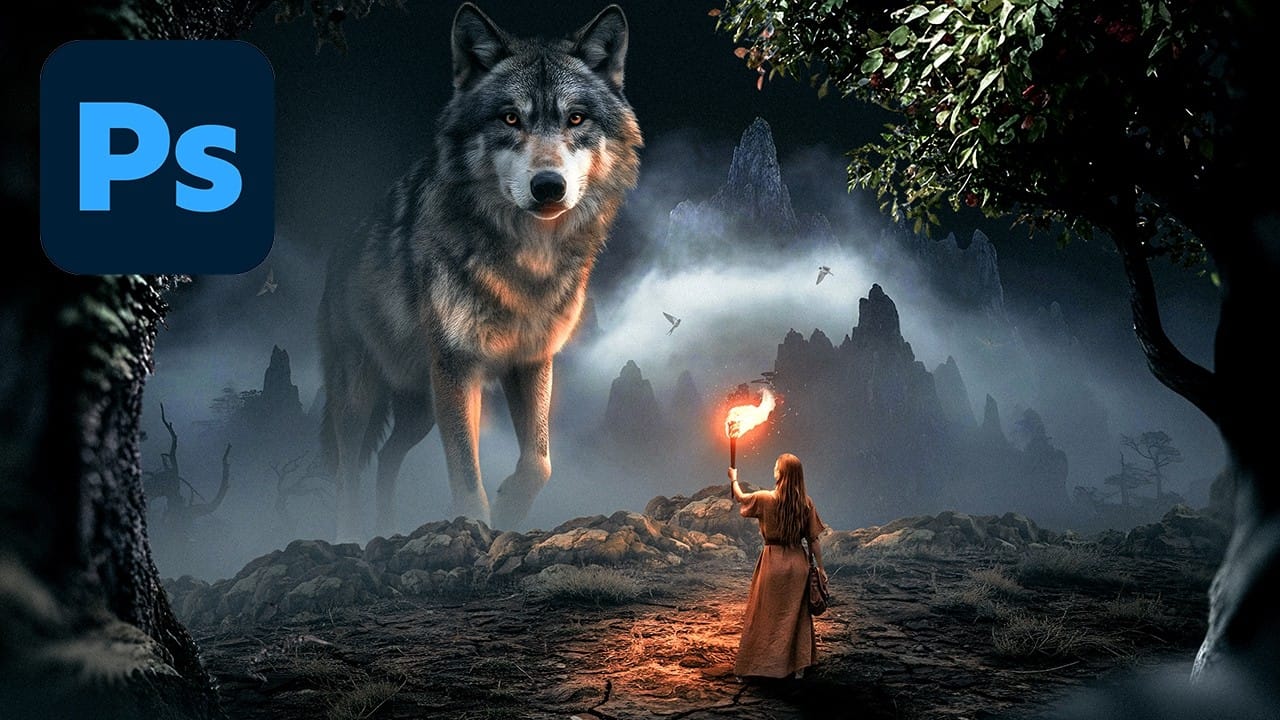
Creating fantasy digital artwork requires mastering the art of photo compositing, where multiple elements come together to form a cohesive scene. This comprehensive tutorial demonstrates how to build a dramatic composition featuring a wolf and human figure in a mystical nighttime setting. The process covers every aspect of professional compositing, from background removal and lighting techniques to color grading and atmospheric effects. You'll learn to create realistic shadows, add depth with b
Blend Photos Like A Hollywood Movie Poster With Photoshop
In this Photo Effects tutorial, you will discover how to mix two photos seamlessly, just like in professional movie posters. The techniques covered will guide you through the process step by step, ensuring that even beginners can achieve stunning results. You'll start by selecting the right images to work with, focusing on how their elements will complement each other. From there, you will learn about layering and using various tools to adjust the images for a flawless integration. By the end o
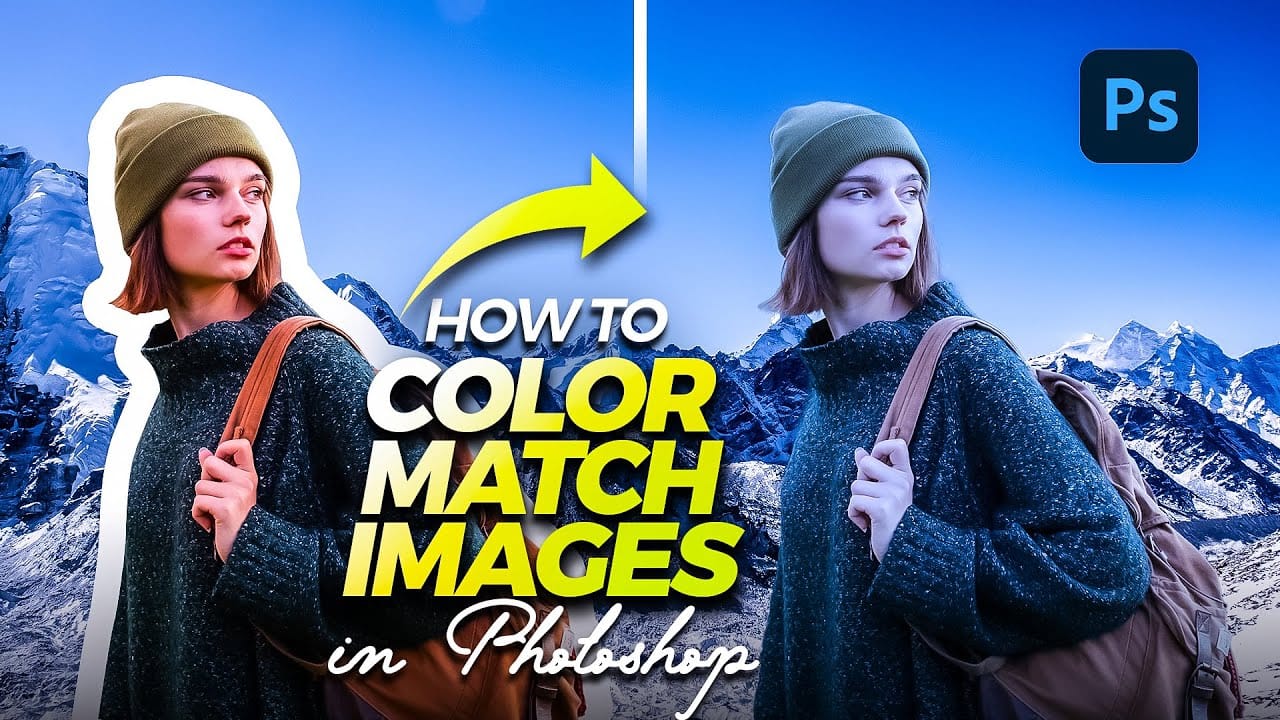
How to perfectly match colors in Photoshop when combining photos
In this insightful tutorial, Colin Smith from Photoshop Cafe teaches you how to seamlessly match colors when combining multiple images in Photoshop. This process is crucial for ensuring that different layers or photographs blend together naturally and look cohesive. Colin demonstrates how to use the Match Color feature to align the tones and hues of different images. He also covers techniques for creating grounding shadows, which help to anchor the combined elements and enhance the overall inte
How to combine and blend photos in Photoshop
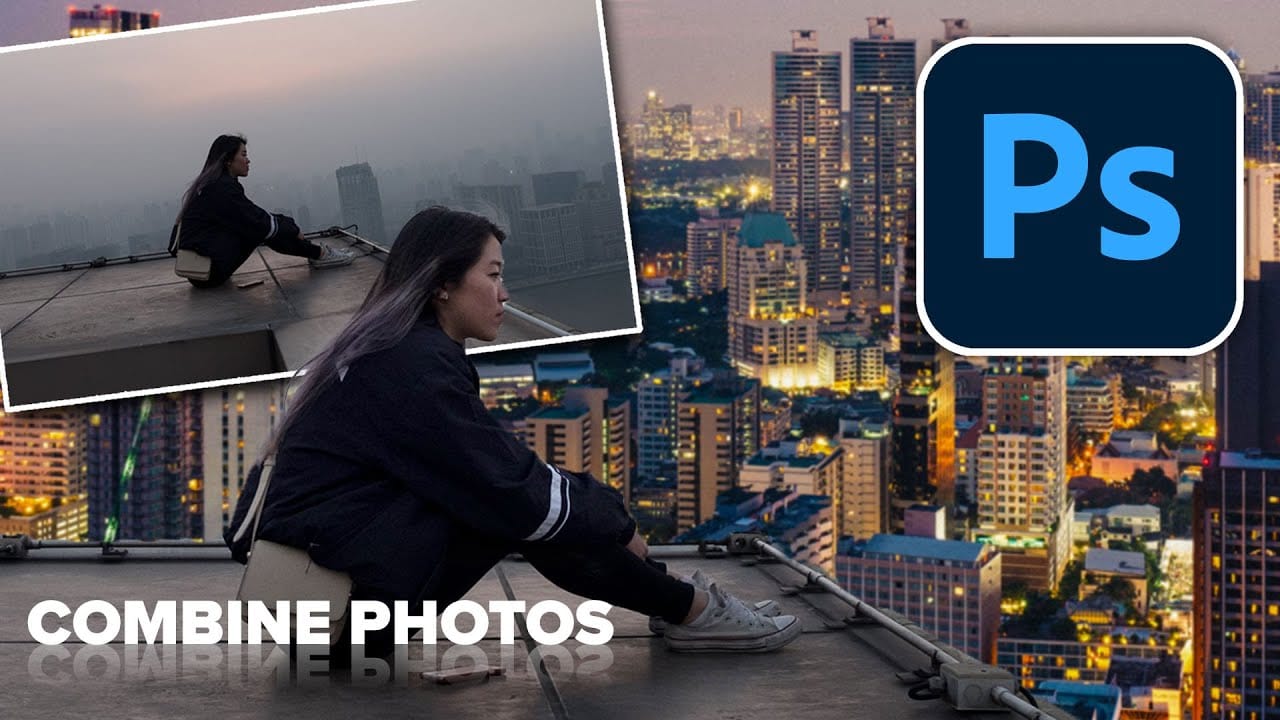
Creating captivating photo composites involves seamlessly bringing different elements together. Mastering the art of combining and blending images allows you to expand your creative possibilities, whether you are crafting surreal landscapes or integrating subjects into new environments. This guide provides a foundational understanding of how to merge multiple photos into a single canvas and then blend them naturally within Photoshop. You will explore various techniques for combining images and
7 easy Photoshop tips to make your composites more realistic
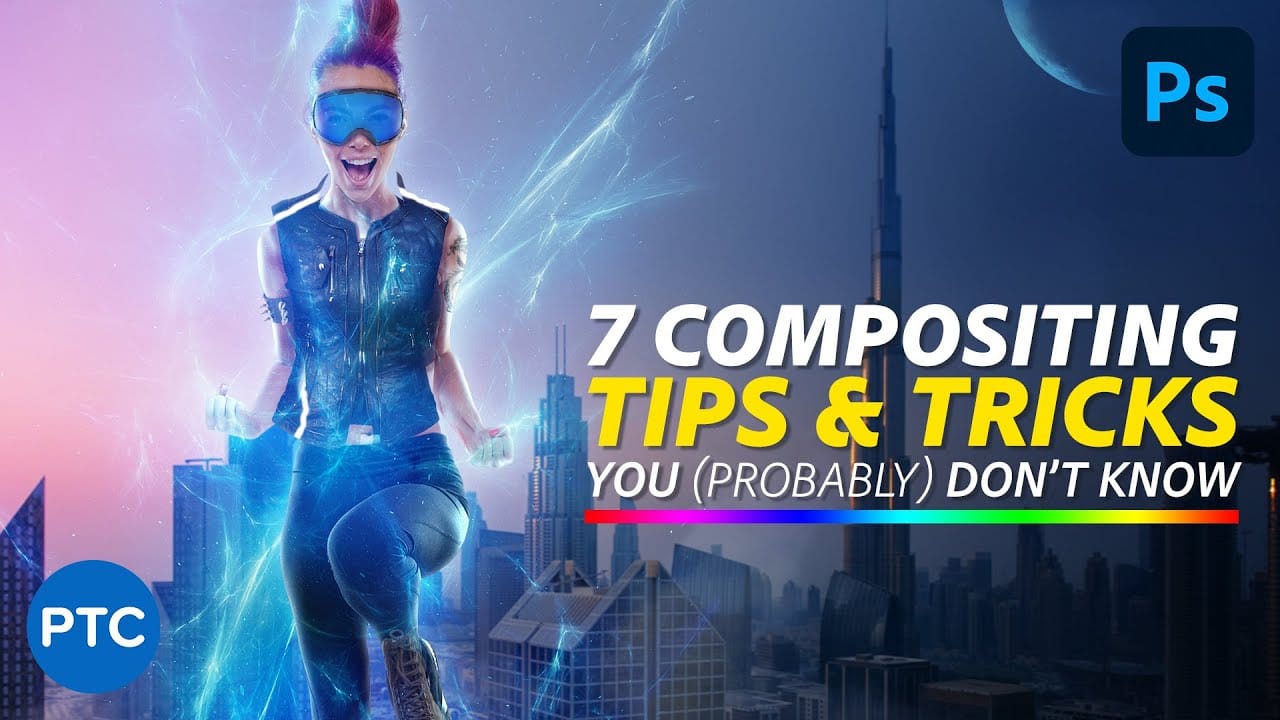
In this tutorial, Jesus Ramirez shares seven essential Photoshop tips and tricks to help you create more realistic composites. If you're struggling to make your composites look convincing, this video is a must-watch. Jesus covers a range of techniques designed to enhance the realism of your composite images. These tips include how to match lighting and shadows, blend edges seamlessly, and use adjustment layers effectively. You'll also learn about color matching and the importance of perspective
How to Match Color in Photoshop for Beginners
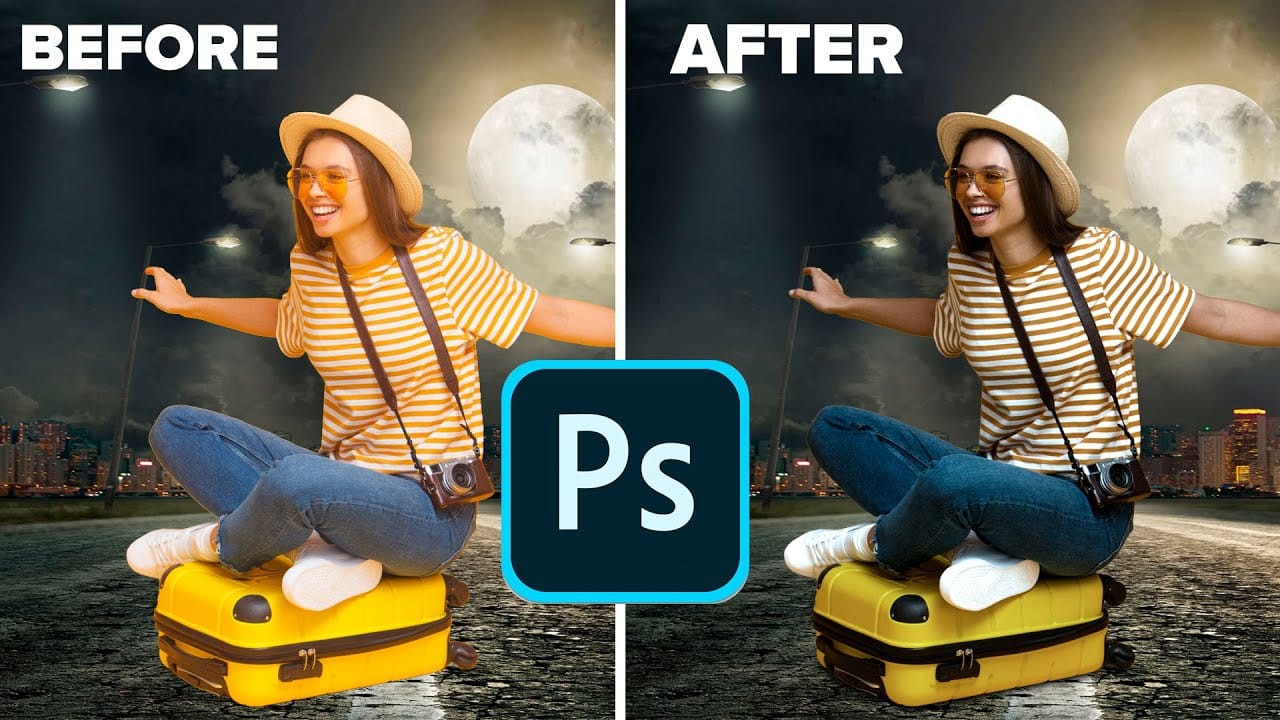
Compositing images often requires precise color matching. When combining elements from different sources, slight variations in tone can disrupt the visual harmony, making the final image appear unnatural. Achieving a cohesive look is crucial for professional results. This tutorial offers a straightforward method to blend disparate image elements seamlessly. The video demonstrates how to use Photoshop's built-in tools, specifically the Curves adjustment layer and Camera Raw, to unify the color p
How to Build an Element Library for Faster Photoshop Composites
Creating Photoshop composites becomes much smoother when you have pre-cut elements ready to use. Building a collection of inspiring images and cutting them out ahead of time eliminates the tedious prep work. This approach lets you jump straight into the creative process when inspiration strikes, rather than stopping to hunt for and extract new elements. Watch the Video Practical Tips for Building Your Element Library * Cut out elements during creative downtime to build a ready-to-use coll
Quick and Easy Method for Color Matching Images in Photoshop
Achieving visual harmony in composite images is a cornerstone of professional photo editing. When combining elements from different sources, discrepancies in color and lighting can immediately break the illusion of a unified scene, making the final image appear unnatural or poorly constructed. This tutorial demonstrates a straightforward yet powerful method within Photoshop to perfectly align the color profiles of disparate images. Viewers will learn how to leverage Photoshop's built-in tools t

Get tutorials & freebies delivered to you.

Subscribe to the Photoshop Roadmap newsletter, a weekly roundup of new tutorials, insights and quality downloads, trusted by 6500+ readers.

You might also like

How to Create a Steel Engraving Effect from Photos in Photoshop

Steel engravings were a traditional printmaking technique that created intricate illustrations with fine lines and rich tonal variation. This effect transforms ordinary photographs into artwork that mimics the detailed crosshatching and precise lines characteristic of vintage engravings found in old books and currency. The technique combines strategic filter combinations with...

How to Customize Your Photoshop Workspace for Better Workflow

A cluttered workspace can overwhelm new users and slow down experienced editors. The default interface includes dozens of panels and tools, many of which you may rarely use, while the ones you need most remain scattered across the screen. This tutorial shows you how to reorganize panels, position toolbars, and...

How to Use Photoshop's Auto Distraction Removal Tool

Removing unwanted elements from photos used to require hours of careful work with clone stamps and healing brushes. The new General Distractions feature in Photoshop's Remove Tool changes this completely by automatically detecting and eliminating distractions across 26 different categories with a single click. This AI-powered upgrade can...

How to Apply Gradients to Any Object Using Hue/Saturation and Layer Masks

Changing colors and adding gradients to clothing or objects in photos requires precise selection techniques to avoid affecting surrounding elements like skin tones. This method combines hue/saturation adjustment layers with layer masks to create stunning gradient effects while maintaining full control over which parts of your image are affected....

How to Use Layer Filtering to Organize Complex Projects in Photoshop

When working with dozens of layers in complex composites or designs, finding specific elements becomes a time-consuming challenge. The layer filtering system in the Layers panel offers powerful tools to instantly isolate different types of content, making organization and editing far more efficient. These filtering options help you quickly group...

5 Essential Photoshop Techniques for Digital Artists and Photographers

Digital artists and photographers often find themselves repeating the same complex adjustments and effects across multiple projects. These five advanced techniques will help you work more efficiently while creating professional-quality results. From custom presets that save hours of color adjustments to hand-painted digital enhancements that set your work apart from...

You’ve successfully subscribed to Photoshop Roadmap
Welcome back! You’ve successfully signed in.
Great! You’ve successfully signed up.
Success! Your email is updated.
Your link has expired
Success! Check your email for magic link to sign-in.