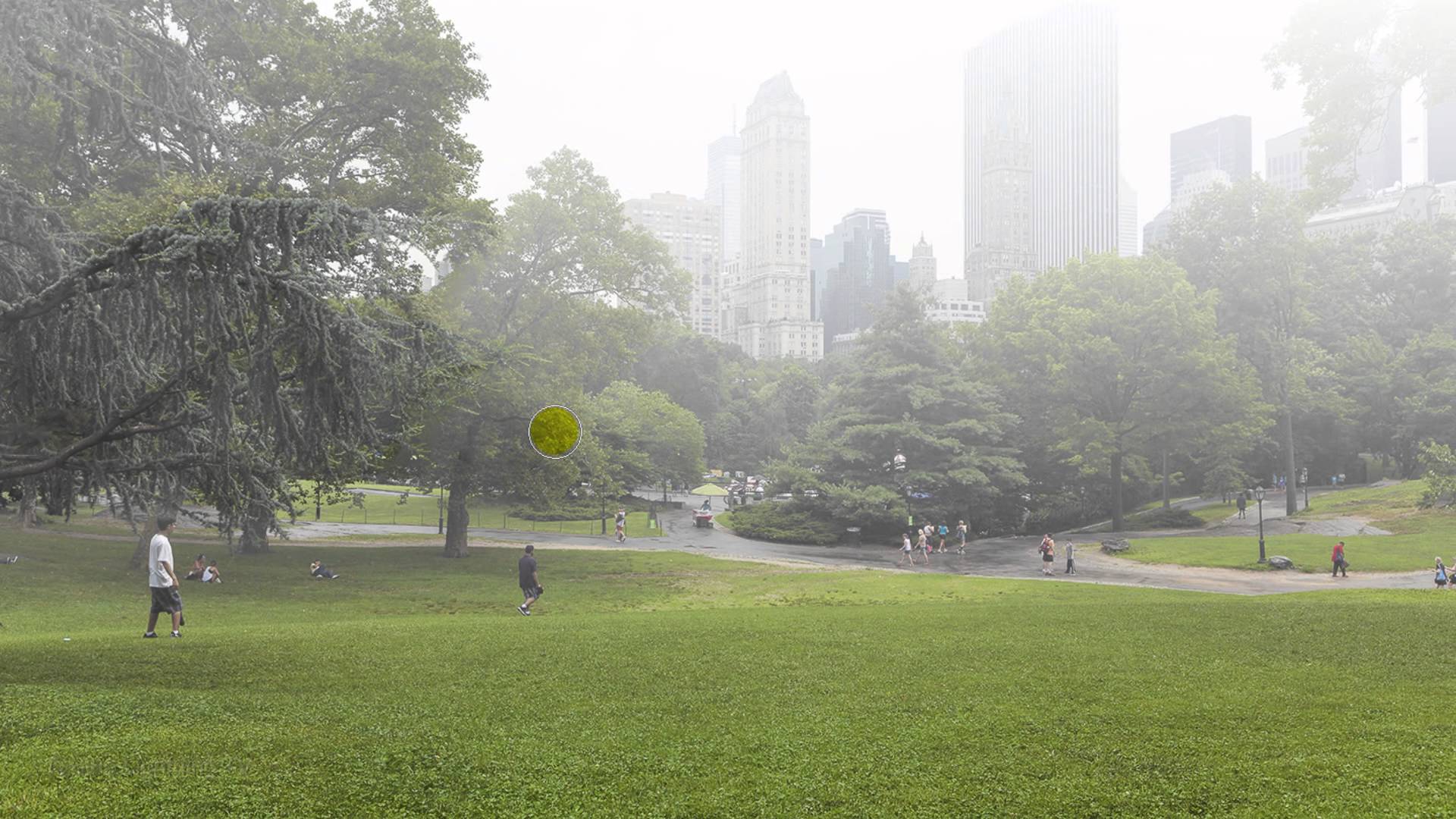
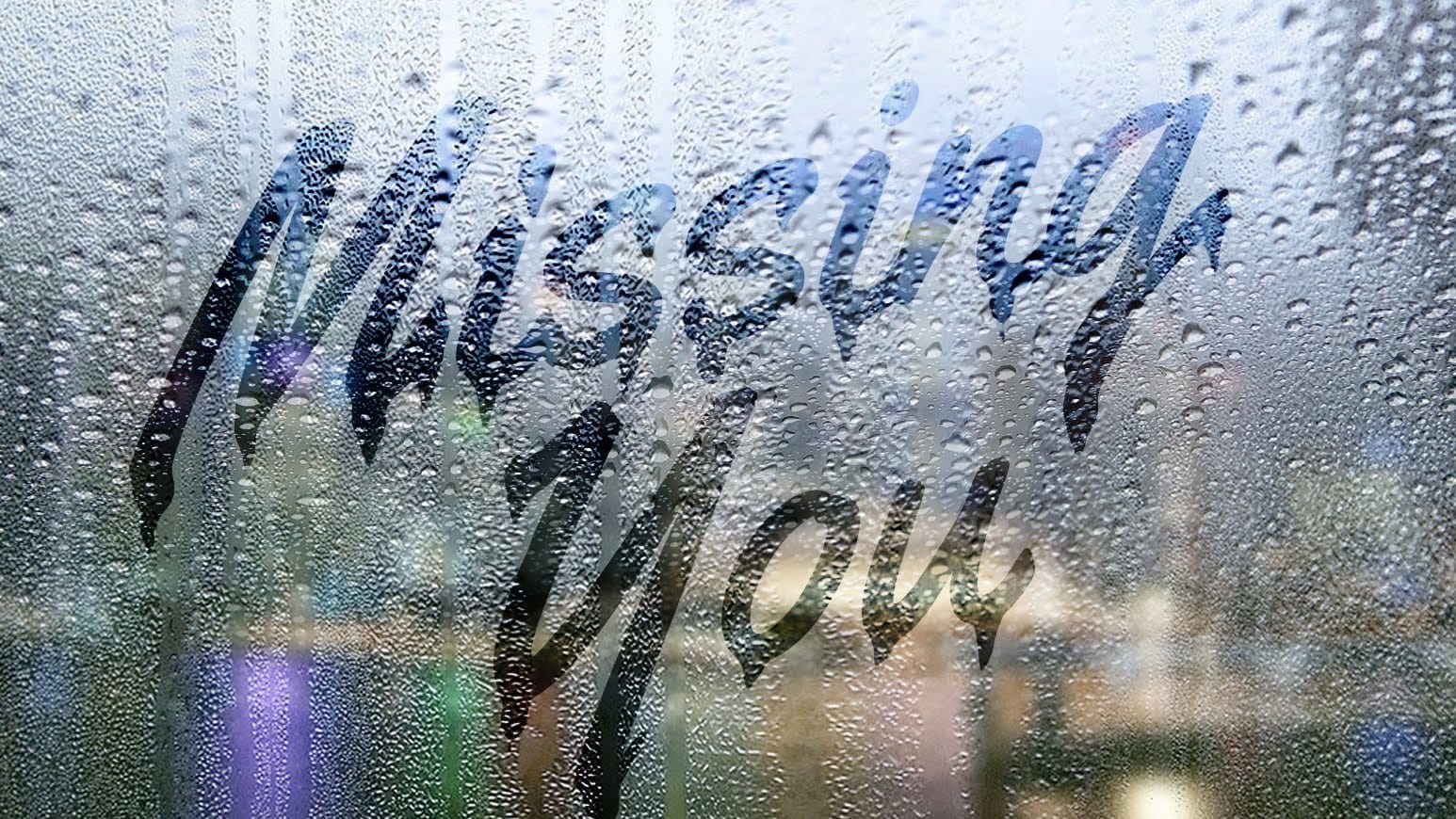
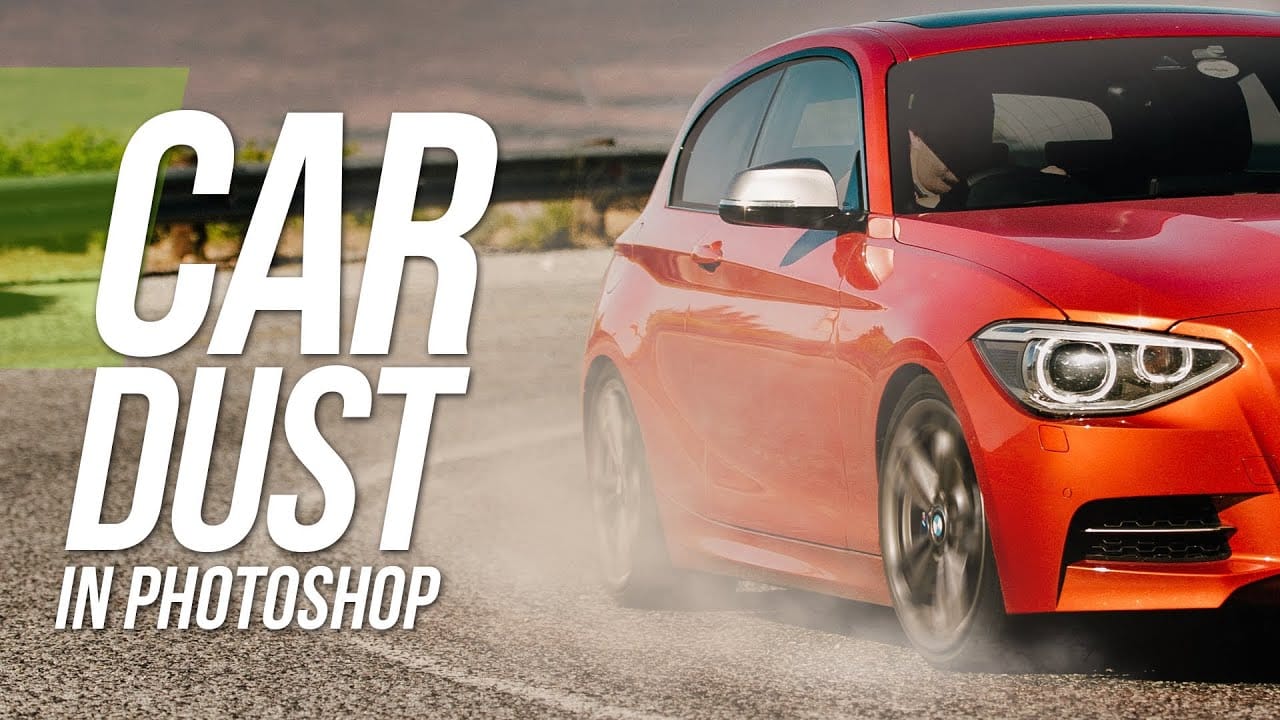
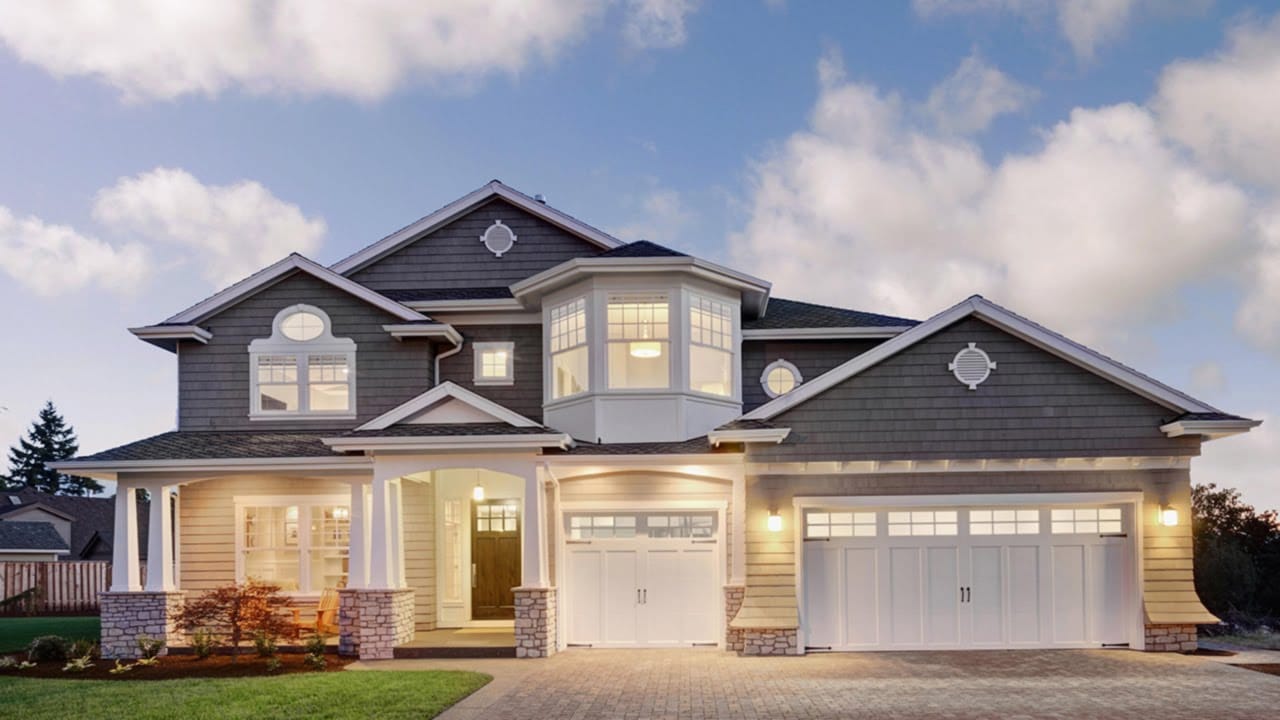
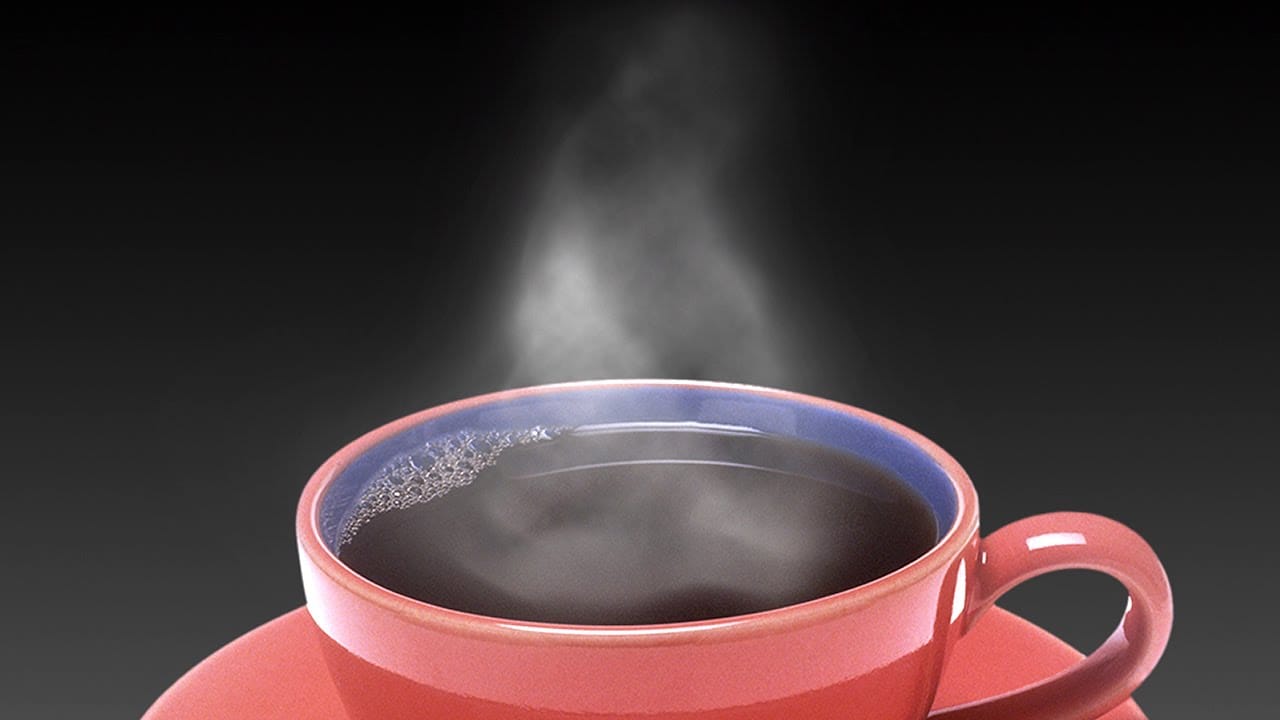
Atmospheric conditions like haze and fog can make or break a photograph. Sometimes natural haze obscures important details in your images, while other times you might want to add fog for dramatic effect. Learning to control these elements gives you complete creative control over the mood and clarity of your photos.
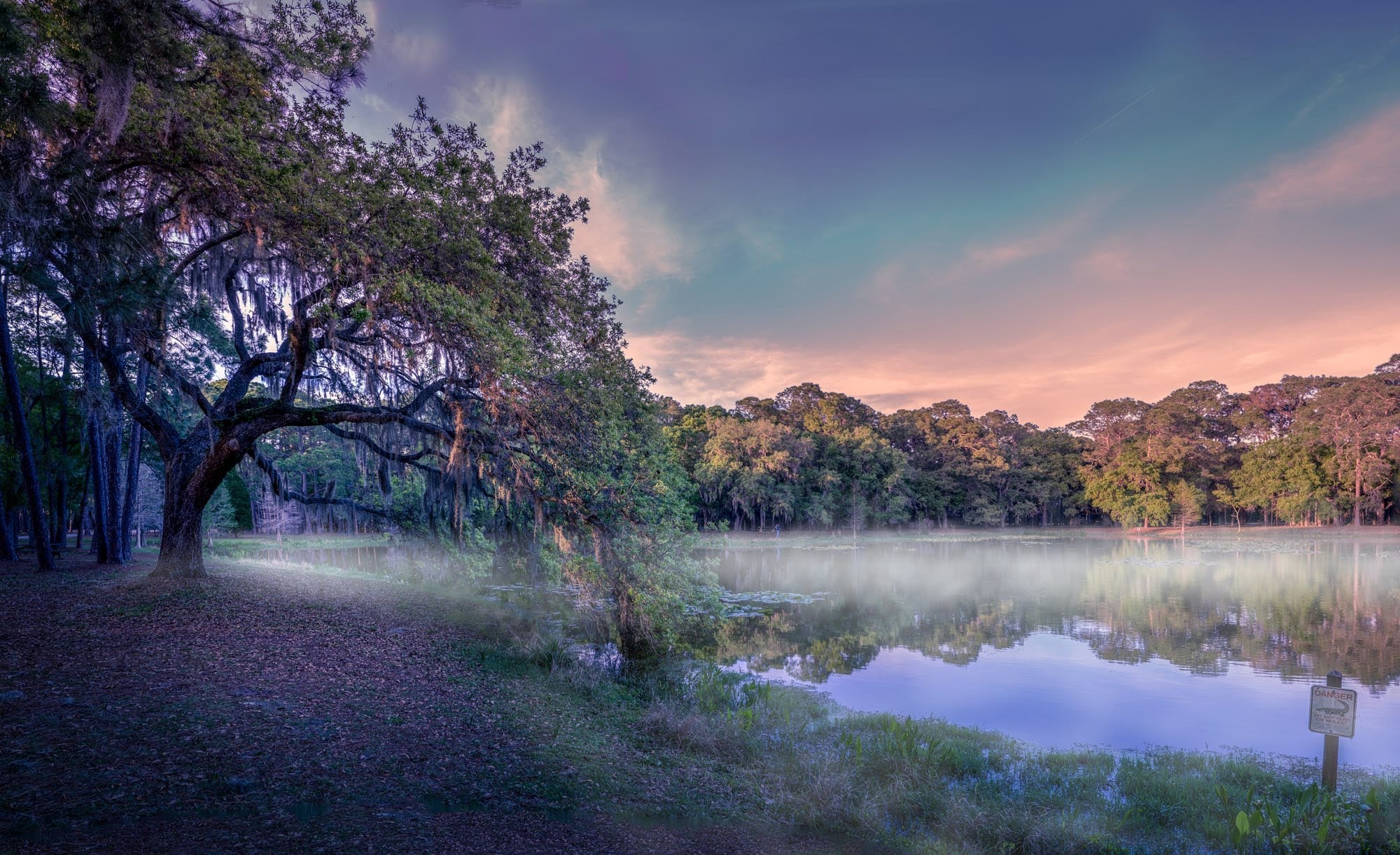
This tutorial covers both scenarios: quickly removing unwanted haze using a powerful tool, and creating realistic fog effects from scratch using cloud filters and blending techniques.
Watch the Video
Video by PHLEARN. Any links or downloads mentioned by the creator are available only on YouTube
Practical Tips
These key techniques will help you achieve professional results when working with atmospheric effects:
- Use the dehaze slider in the Effects panel and drag right to remove haze, left to add it
- Reduce saturation slightly after applying dehaze to prevent oversaturated colors
- Create fog using Filter > Render > Difference Clouds on a 50% gray layer
- Set fog layers to Screen blend mode to make dark areas transparent
- Transform fog layers horizontally to create realistic low-lying mist effects
Related Articles and Tutorials
Explore these additional techniques for creating atmospheric effects in your photography:
 Enrique Flouret