How to Create a Kaleidoscope Effect from Photos in Photoshop

How to Create a Kaleidoscope Effect from Photos in Photoshop

The kaleidoscope effect transforms ordinary photographs into mesmerizing, symmetrical patterns reminiscent of the classic toy. This technique uses smart objects, multiple rotated layers, and custom shapes to create stunning geometric designs that maintain the original photo's essence while adding artistic flair.

By combining layer masks with various blend modes, you can produce unique visual effects that work beautifully for backgrounds, artistic prints, or creative compositions.

Watch the Video

Video by Photoshop Arthouse. Any links or downloads mentioned by the creator are available only on YouTube

Practical Tips

These essential tips will help you achieve the best results when creating kaleidoscope effects:

  • Start with a square crop and convert to smart objects for non-destructive editing and easy photo replacement
  • Use multiply blend mode for the base layer to enhance color depth and pattern visibility
  • Unlink layer masks from their layers to independently transform and position each element
  • Experiment with symmetrical shapes like stars and polygons for varied geometric patterns
  • Try different rotation angles (45°, 75°, 90°) and blend modes to create unique variations

Explore more creative pattern and photo transformation techniques with these tutorials:

12 Visually Striking Photoshop Effects You’ll Want to Add to Your Portfolio Right Now
Most people learning Photoshop quit way too early. Here’s why: You start with excitement. Finally getting your hands on the world’s most powerful image editing software. ‘You’ll create amazing things with just one click’, they said. You eagerly dive into generative fill, experiment with artistic brushes, play with those magical
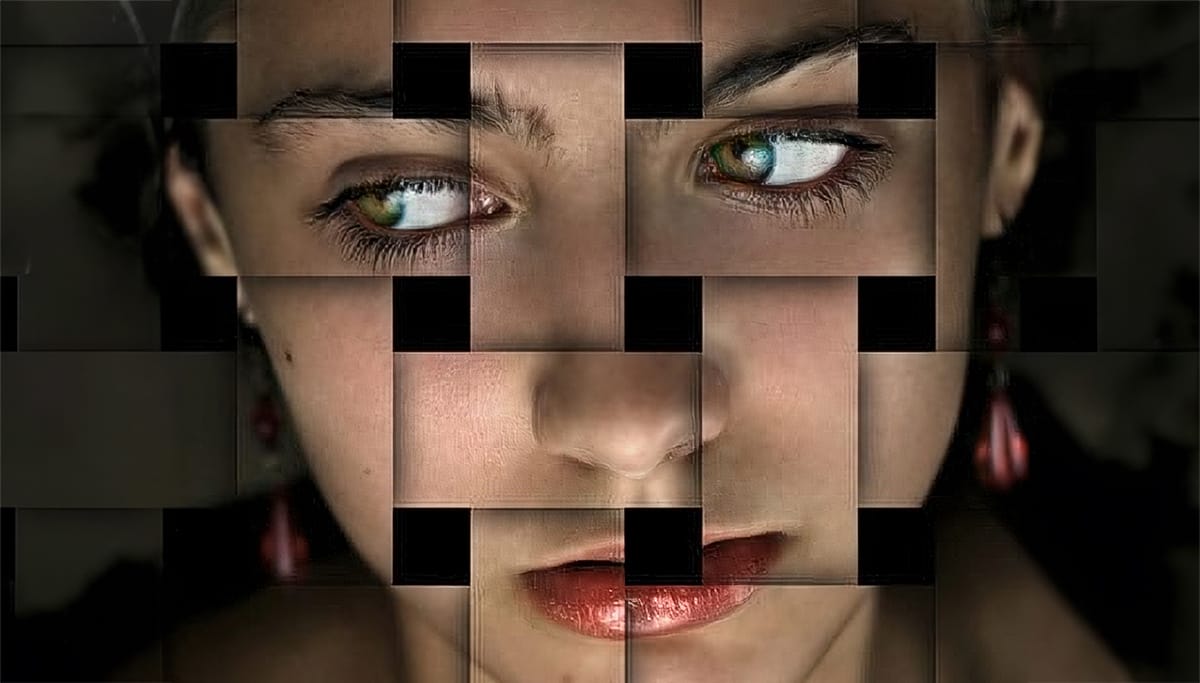
Turn A Photo Into Interweaving Strips
This guide teaches you how to transform a photo into an interesting pattern of interweaving strips. You will learn essential techniques in Photoshop, including how to use layers, layer masks, and clipping masks effectively. The process begins with selecting your photo and preparing it in Photoshop. You will then create vertical and horizontal strips that give the illusion of weaving. By using layer masks, you can manipulate how the strips interact with each other, making some strips appear in t
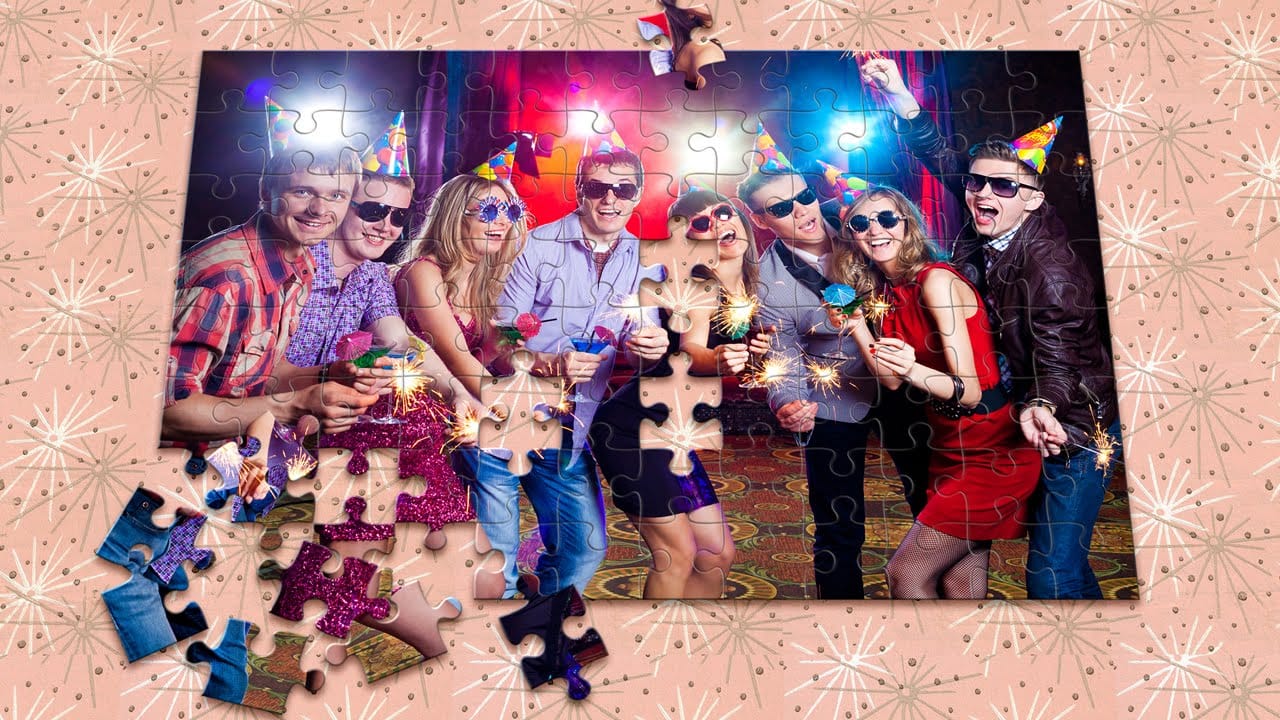
Transform Photos into Jigsaw Puzzles in Photoshop
This video demonstrates a creative method for transforming ordinary photographs into engaging jigsaw puzzles using Adobe Photoshop CC and later versions. It showcases how to achieve a realistic puzzle effect, complete with individual pieces, bevels, and shadows. Viewers will learn to leverage a free Adobe plugin to automatically generate puzzle pieces, define custom background patterns, and artfully reposition individual elements. The tutorial emphasizes practical steps to achieve a dynamic vis
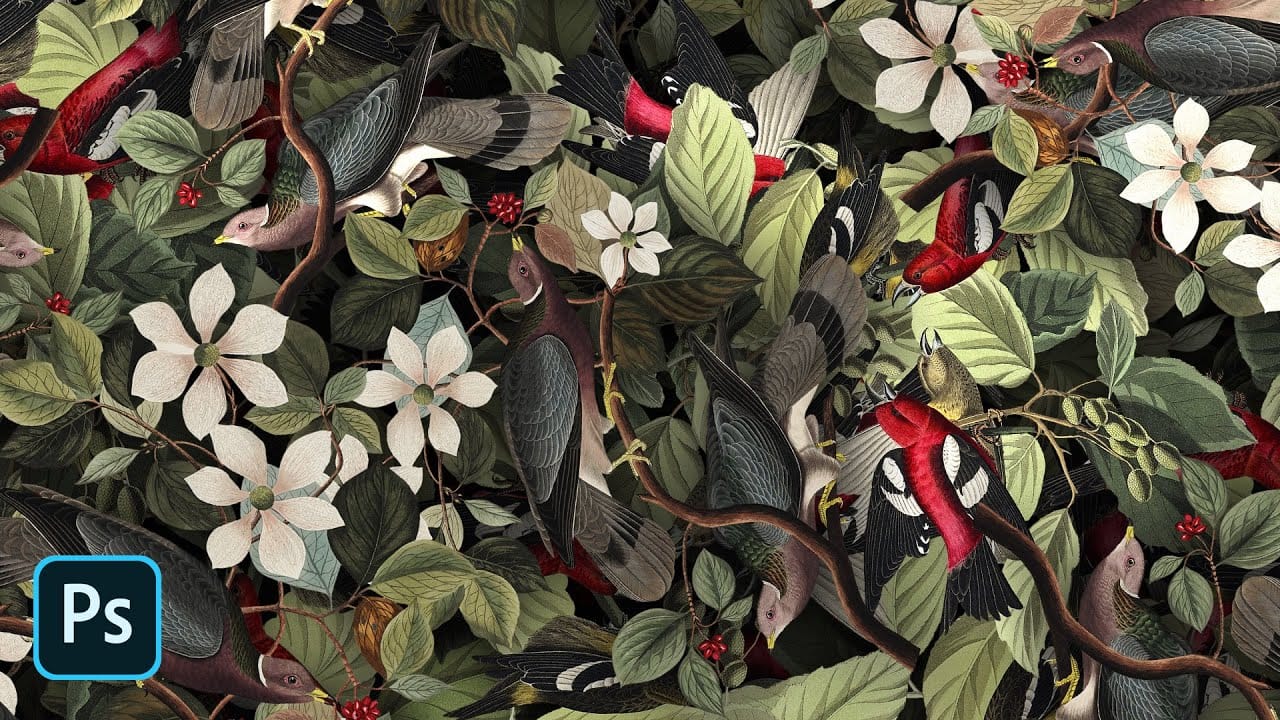
How To Create Detailed Graphic Patterns in Photoshop
Transforming a single image into a sprawling, intricate design can elevate any creative project, from custom fabrics to unique digital backgrounds. This technique allows designers to fill vast areas with graphics, producing complex visual textures without noticeable repetition. It offers an innovative way to generate dynamic backgrounds and decorative elements that truly stand out. This tutorial reveals an effective method for developing detailed abstract patterns using any source image, like a
Creating a Colorful Pixelated Effect in Photoshop
The colorful pixelated effect transforms ordinary photographs into vibrant, retro-style artwork reminiscent of 8-bit video games and digital pop art. This distinctive visual style combines traditional mosaic filtering with advanced color manipulation to create bold, simplified imagery that captures attention. This technique works particularly well for portraits, creating striking poster-like results that blend nostalgic pixel aesthetics with modern design sensibilities. Watch the Tutorial U
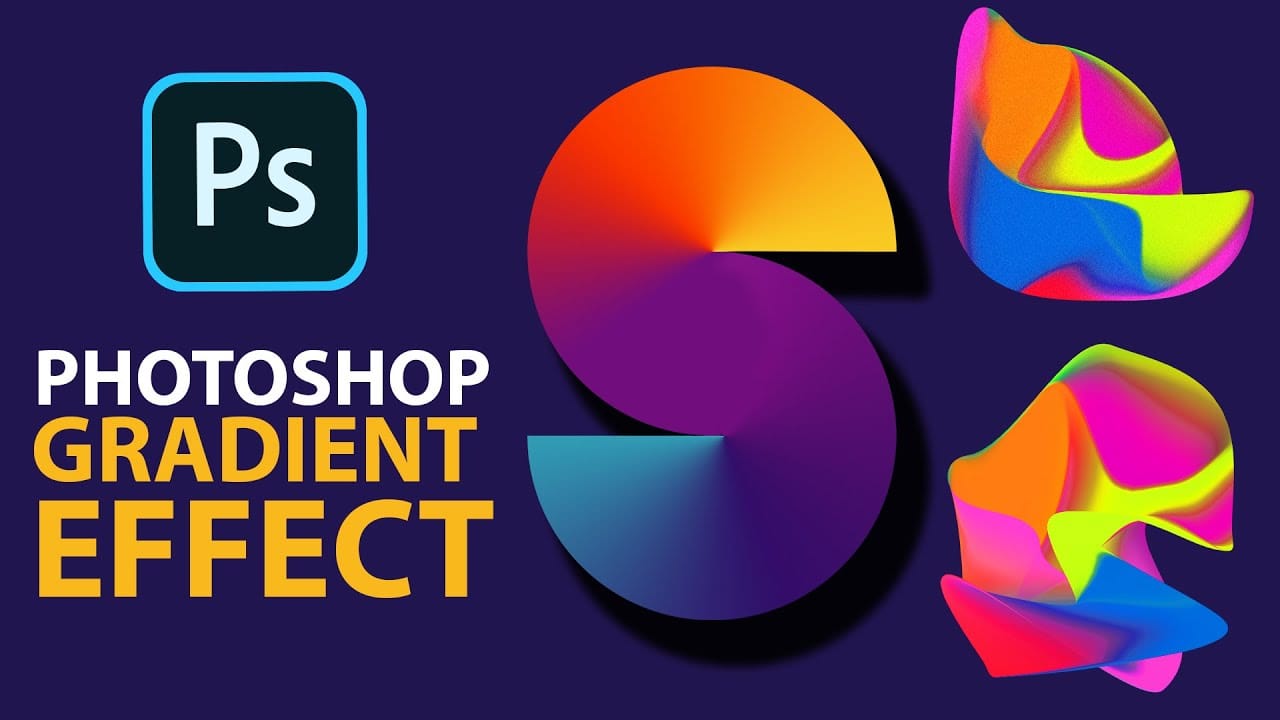
Cerate Stunning Gradient Effects in Photoshop
In this Photoshop tutorial, Trish from Quistt Photoshop demonstrates how to create stunning colorful gradients. This technique is perfect for enhancing lettering designs and art posters. Follow along to learn how to apply vibrant gradients that will make your designs pop. Trish walks you through the process of using gradient tools and adjustment layers to craft beautiful, seamless transitions of color. You'll discover how to use gradients to add depth and dimension to your designs, making them
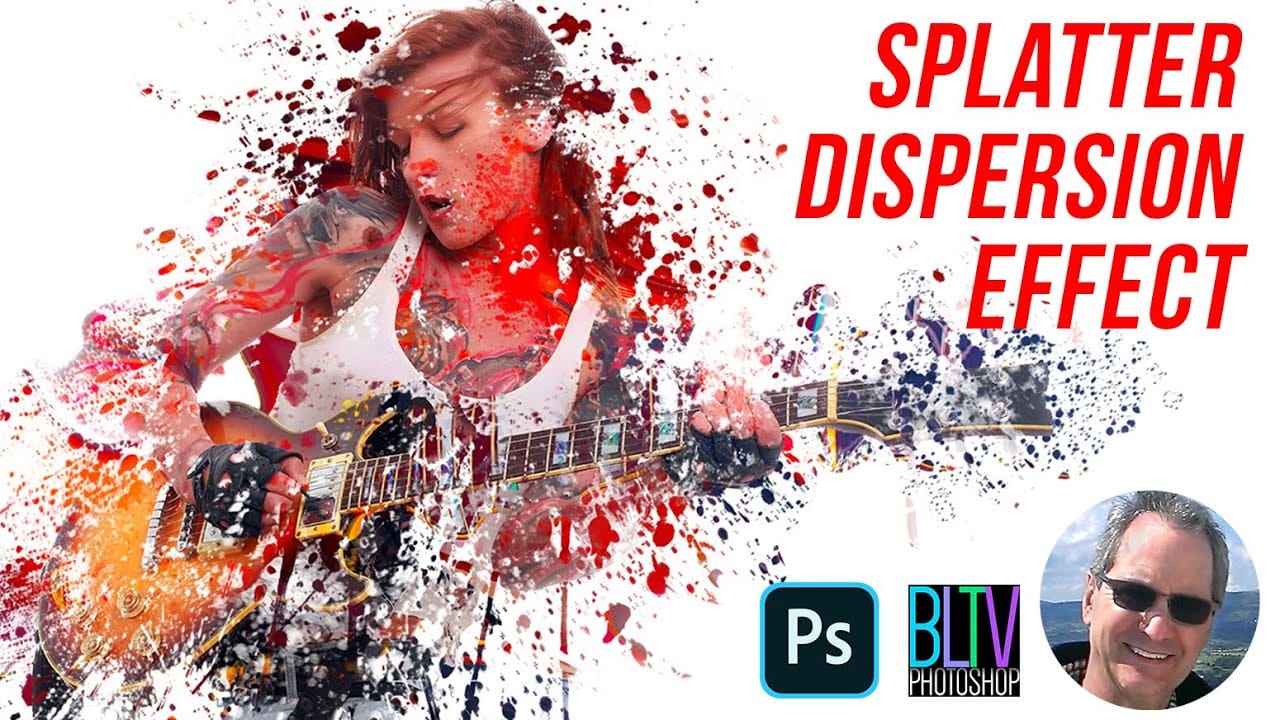
Create a Powerful Dispersion, Splatter Effect from a Photo in Photoshop
This tutorial explores how to create a striking dispersion and splatter effect in Adobe Photoshop, transforming ordinary photos into dynamic works of art. This technique gives the illusion that parts of your subject are breaking apart and scattering into particles, adding movement and drama to static images. Viewers will learn the essential steps to achieve this popular effect, from preparing your subject and background to utilizing smart objects, layer masks, and custom splatter brushes. The v
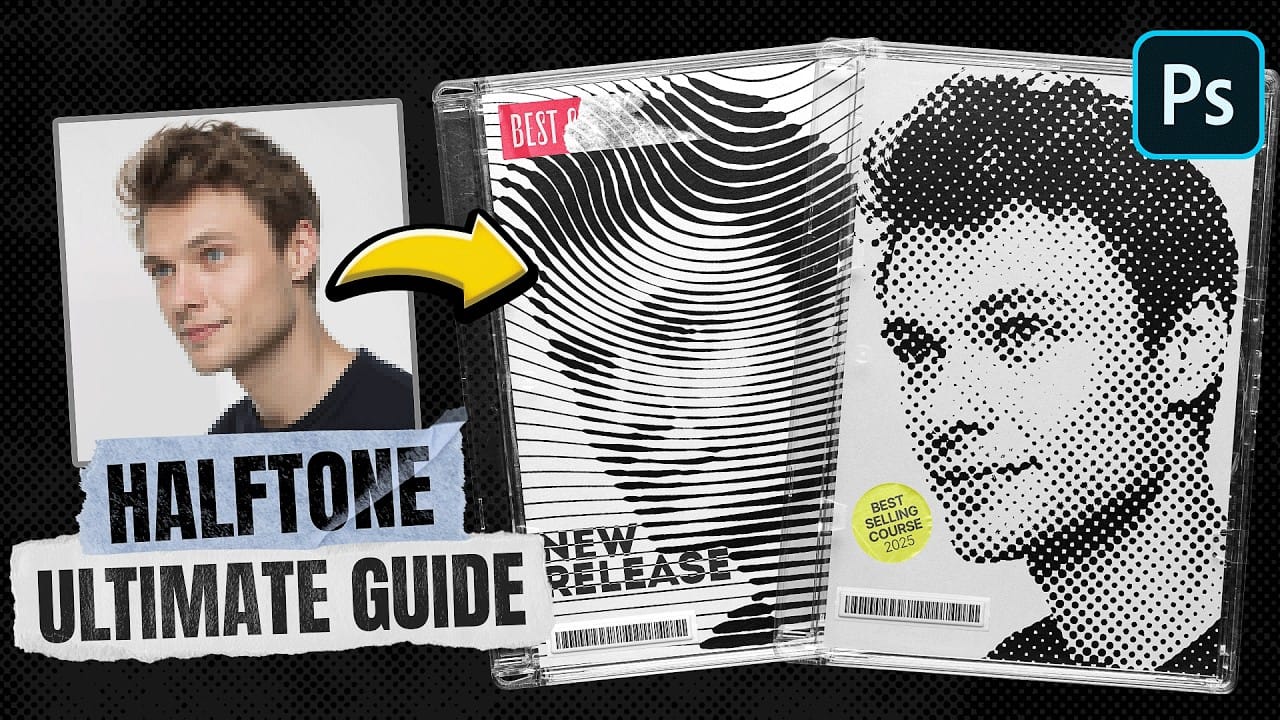
Ultimate Halftone Effect in Photoshop
Halftone effects can transform ordinary photos into striking graphic designs, but many designers struggle with creating patterns that blend naturally with their images. The traditional approach often results in rigid, uniform dots that don't adapt to the underlying image tones and details. This tutorial demonstrates how to create flexible halftone effects using multiple pattern types and blending techniques. You'll learn to build reusable workflows that can be applied to any image instantly, pl
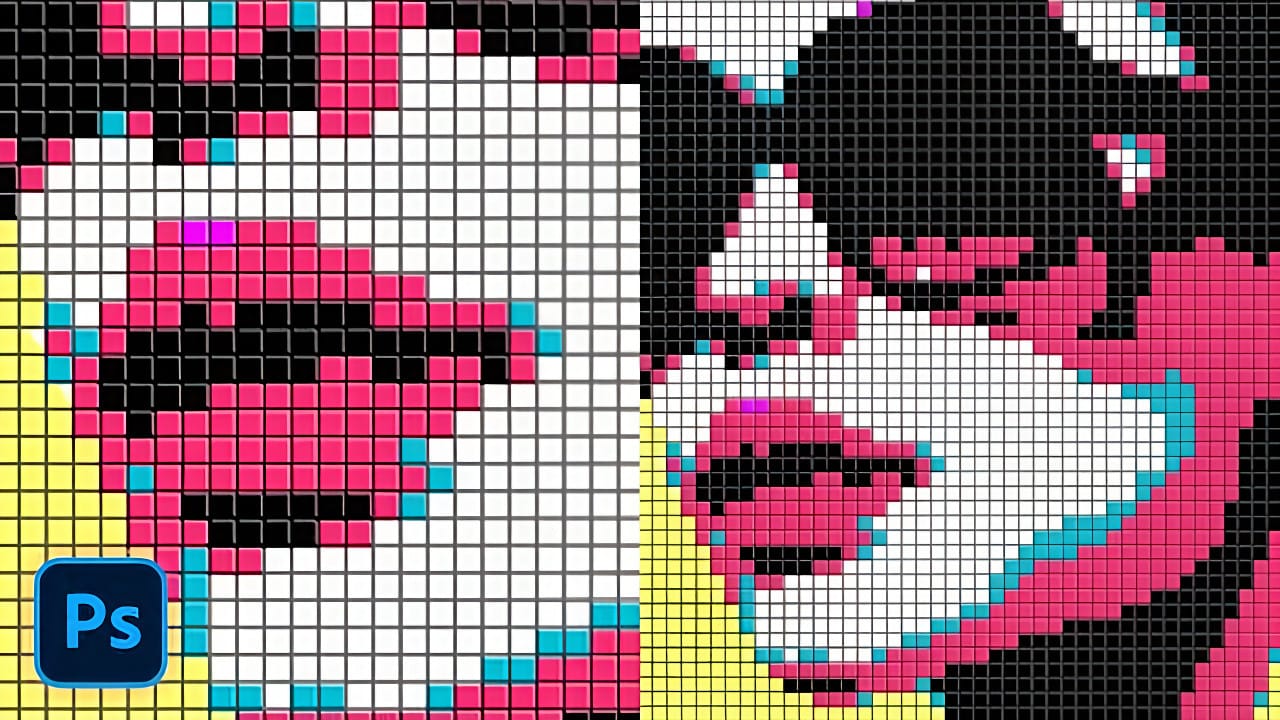
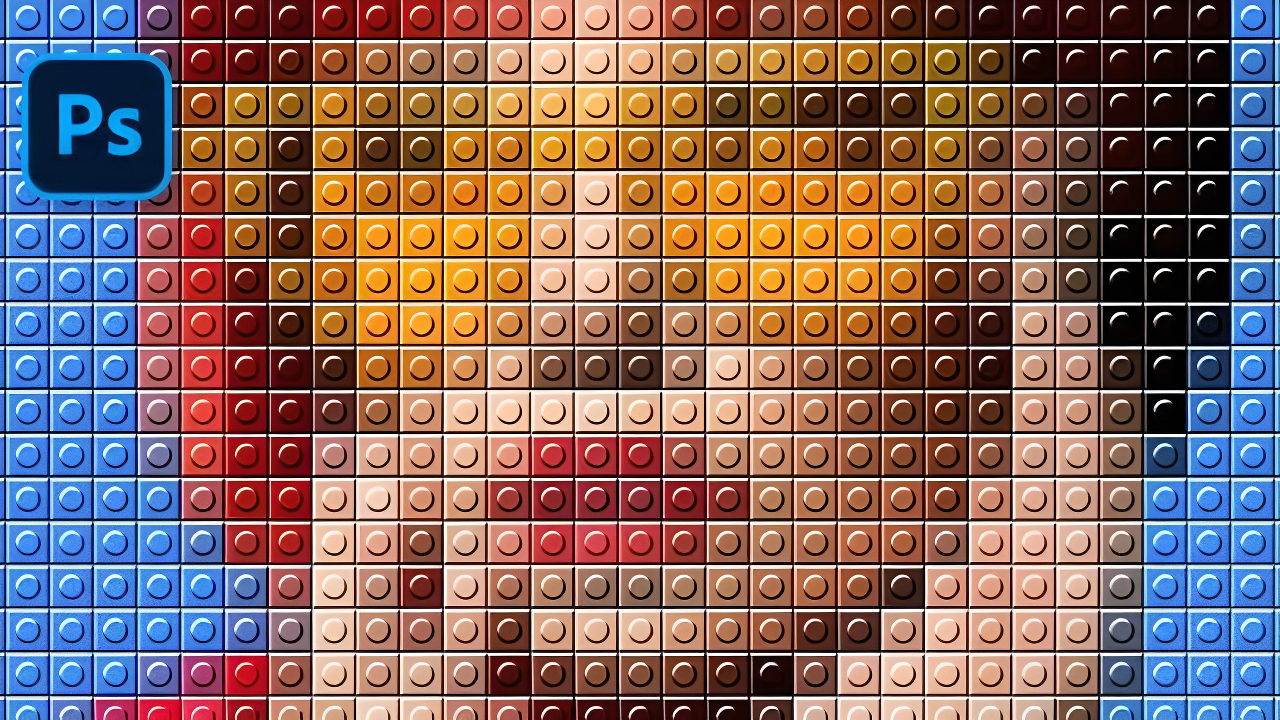
How to Create a LEGO Pattern Effect in Photoshop
LEGO artwork transforms ordinary photos into playful, block-based masterpieces that capture the distinctive charm of the iconic building bricks. This nostalgic aesthetic combines digital artistry with childhood memories. The technique uses a custom pattern overlay combined with pixelation effects to recreate the signature LEGO brick appearance on any photograph. Watch the Video Essential Tips for LEGO Pattern Effects * Match your pattern scale to mosaic cell size — Use the same numerical
Gumroad Marketplace: The Hidden Goldmine of Creative Assets You’re Probably Missing
Gumroad started as a straightforward platform for selling digital files, but it’s quietly evolved into one of the best places to find quality freebies and reasonably priced creative tools. This didn’t happen by design—it’s the result of how effortless they made it for creators to share their work. Unlike

Get tutorials & freebies delivered to you.

Subscribe to the Photoshop Roadmap newsletter, a weekly roundup of new tutorials, insights and quality downloads, trusted by 6500+ readers.

You might also like

Create a Liquid Gel Logo Effect in Photoshop

Liquid gel effects transform flat logos into dimensional, glossy designs that appear to bubble and flow. This technique uses multiple layer styles and strategic duplication to build depth, creating surfaces that catch light like thick, viscous liquid. The method combines gradient overlays, bevel effects, and inner glows across several duplicated...

How to Use Photoshop's AI Sharpen Filter and When It's Worth the Cost

Photoshop's new AI Sharpen filter promises one-click sharpening powered by advanced algorithms. This tool uses technology from Topaz Labs to enhance image details without manual adjustments, but it comes with a significant cost in credits. Understanding when to use this automated approach versus traditional methods like the High...

How to Use Harmonize and Generative Upscale Tools in Photoshop

Creating realistic photo composites requires matching lighting and color between different images—a traditionally time-consuming process. Two new AI-powered tools in Photoshop solve these challenges: Harmonize automatically adjusts lighting and shadows to blend subjects seamlessly into backgrounds, while Generative Upscale enlarges small images without losing detail. These tools work together...

How to Create Convincing Scale Effects in Photoshop Composites

Creating believable scale effects requires more than simply resizing objects—it demands understanding how light, perspective, and atmospheric conditions change with distance. When tiny subjects appear massive or giant objects seem miniature, viewers should feel the illusion is completely natural. This technique combines careful attention to lighting consistency, depth cues,...

How to Flip Images Horizontally and Vertically in Photoshop

Flipping images is a fundamental technique that can dramatically change the composition and impact of your photos. Whether you need to correct the orientation of a subject, create mirror effects, or simply improve the visual flow of your design, knowing how to quickly flip images both horizontally and vertically gives...

How to Use Nano Banana Pro in Photoshop for Background Replacement and Scene Changes

Nano Banana Pro transforms how you place subjects into new environments in Photoshop. This advanced AI model maintains perfect subject likeness while seamlessly integrating them into any background you can imagine. The tool excels at matching lighting, preserving facial features, and even adapting clothing to complement new scenes, all through...

You’ve successfully subscribed to Photoshop Roadmap
Welcome back! You’ve successfully signed in.
Great! You’ve successfully signed up.
Success! Your email is updated.
Your link has expired
Success! Check your email for magic link to sign-in.