Studio lights and reflective surfaces create unwanted glare in portrait photography, particularly when subjects wear glasses. These bright reflections often obscure important facial details and can ruin an otherwise perfect shot.
The Clone Stamp tool offers a precise solution for removing eyeglass glare by copying clear eye details from one lens to replace reflections in the other. This technique works best when at least one eye remains free of reflections to serve as source material.
Watch the Video
Practical Tips
These techniques will help you achieve professional results when removing glare from glasses:
- Enable "Show Overlay" in the Clone Source panel to preview your sampling before painting
- Use the "Flip Width" option to horizontally mirror source material when copying from one eye to the other
- Work on separate layers and set sample mode to "Current and Below" for non-destructive editing
- Reduce opacity to 50% for final blending passes to smooth transitions between cloned areas
- Apply layer masks to selectively hide overpainting and preserve natural details
Related Articles and Tutorials
Explore these additional methods and techniques for handling reflections and glass in your photography work.
How to Professionally Remove Glare from Eyeglasses in Photoshop
Glare on eyeglasses is a persistent and frustrating problem in photography, often obscuring the subject's eyes and facial features. This common issue can detract from an otherwise perfectly composed portrait, making it appear unprofessional or distracting due to bright reflections.
This tutorial demonstrates a robust hybrid approach to tackling eyeglass glare in Photoshop, combining the efficiency of AI-powered Generative Fill for minor touch-ups with the precision of the classic Clone Stamp to
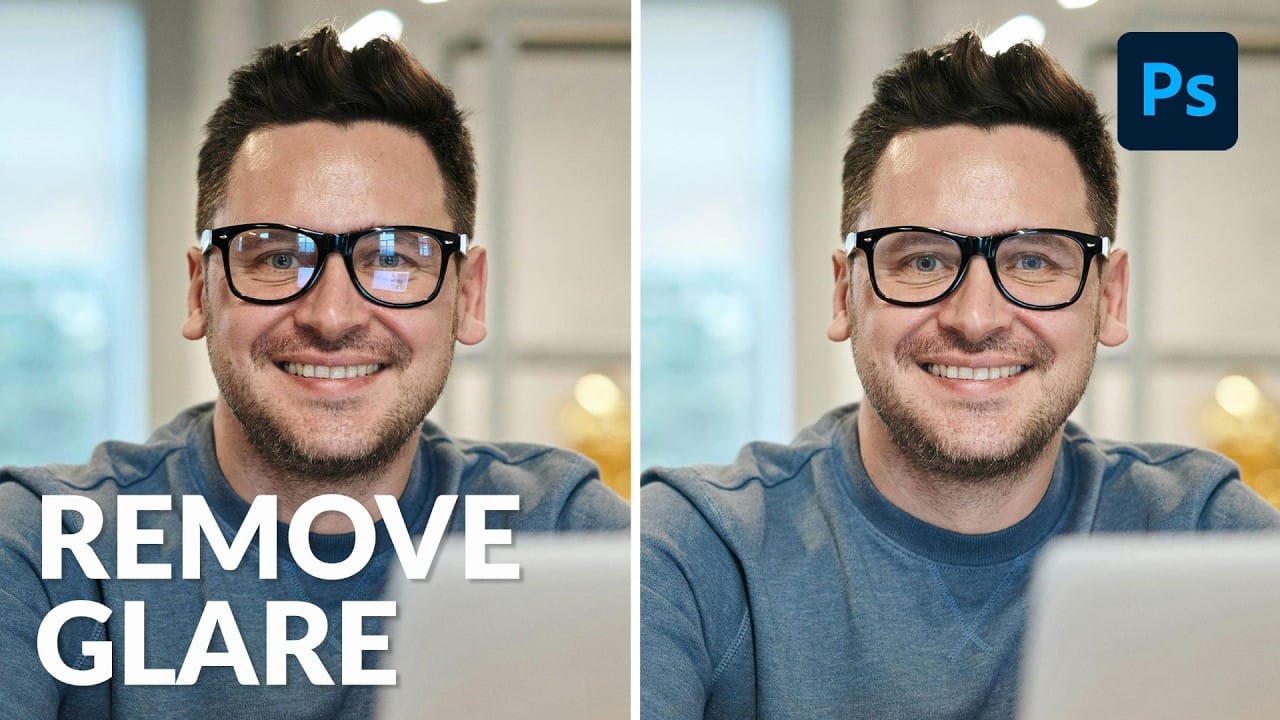
Magically remove glare from glasses in Photoshop
In this tutorial, authored by PiXimperfect, the viewer is presented with a straightforward, three-step process to remove complex glare from glasses in Photoshop. The guide promises to reveal the best method for avoiding and fixing glare or reflections on eyewear, utilizing advanced techniques such as dodging and burning to even out the brightness and achieve a transparent glass effect.
Furthermore, the tutorial delves into the use of blending modes to eliminate any color cast and ensure the acc
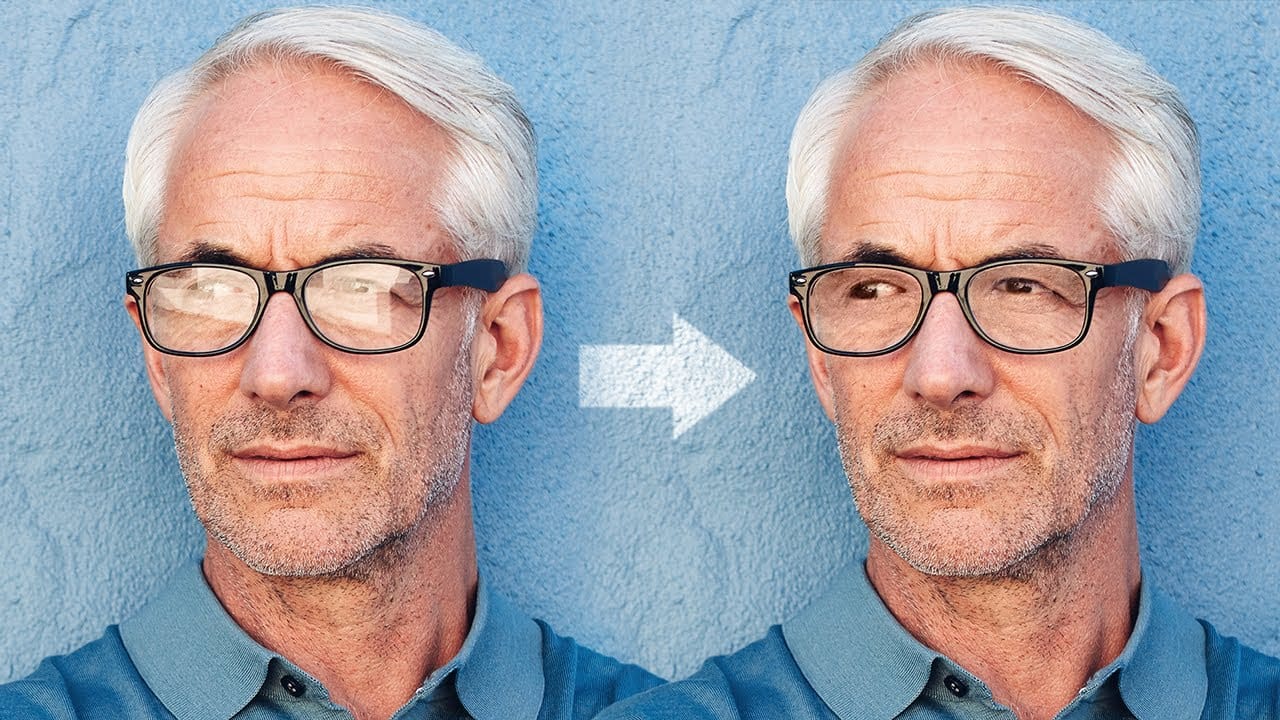
How to Remove Reflections and Glare from Glasses in Photoshop Using AI
Eyeglass glare can ruin an otherwise perfect portrait, obscuring the subject's eyes with bright reflections. Photoshop's AI tools now offer powerful solutions for removing even the most stubborn reflections while preserving natural eye details.
This tutorial demonstrates proven techniques using multiple AI models and strategic masking to tackle any glare situation professionally.
Watch the Tutorial
Essential Tips for Removing Glare with AI
* Use the Rectangular Marquee Tool for selections
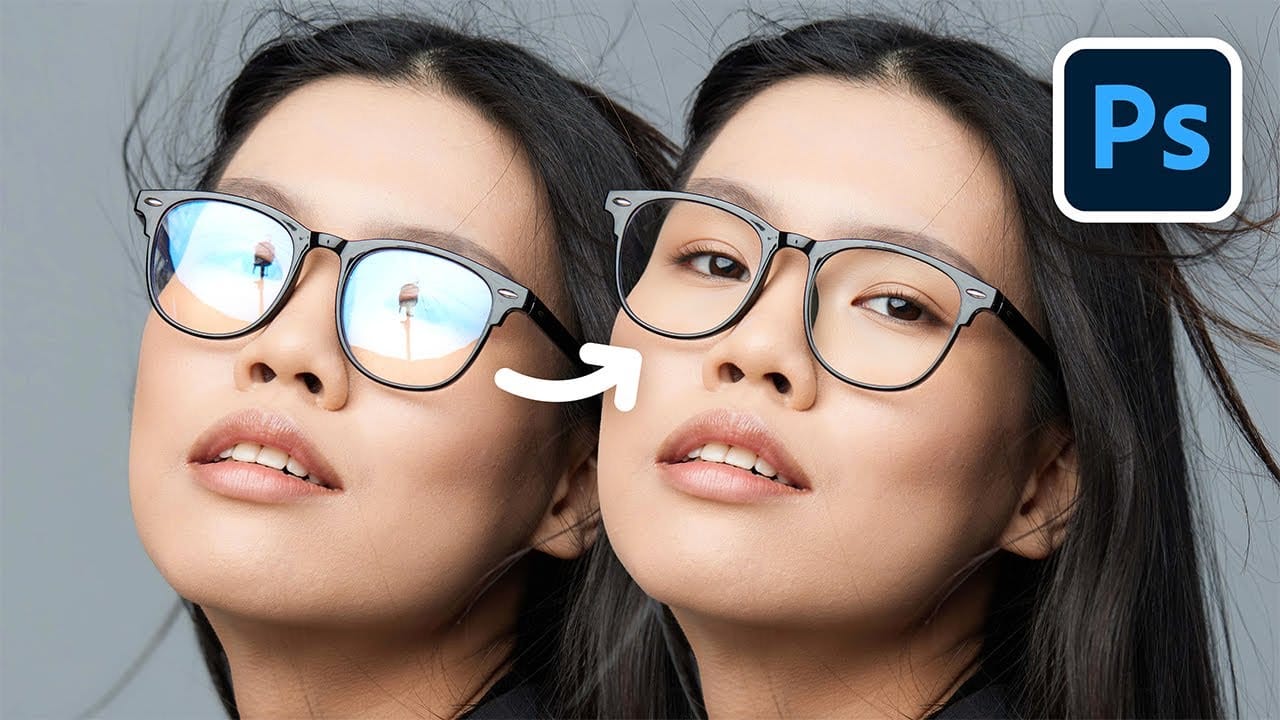
How to Remove Reflections from Photos Using Photoshop's AI Tool
Glass surfaces create some of photography's most persistent challenges. Windows, storefronts, and displays often produce unwanted reflections that obscure subjects and compromise image clarity.
Photoshop's latest AI-powered reflection removal tool addresses this common problem with automated detection and removal capabilities. This video demonstrates the complete workflow for eliminating reflections while preserving underlying image details.
Watch the Tutorial
Understanding Reflection Remov
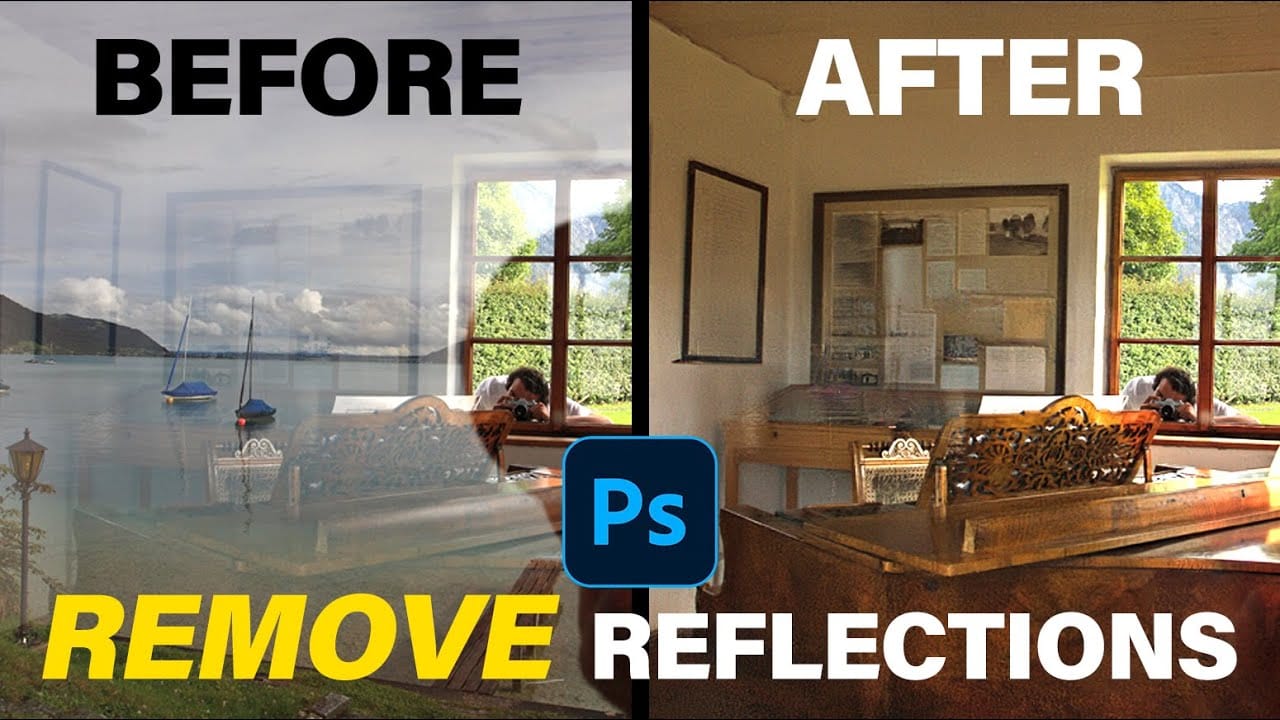
New Reflection Removal Tool in Photoshop
Capturing the perfect shot often means battling environmental challenges, and few are as persistent as unwanted reflections in windows or glass. These glare points can obscure subjects, distort details, and fundamentally compromise an image's impact.
Fortunately, Photoshop has introduced a new AI-powered feature designed to tackle this common photographic issue. This video demonstrates how to activate and effectively use this tool, showcasing its capabilities and outlining crucial workflow cons

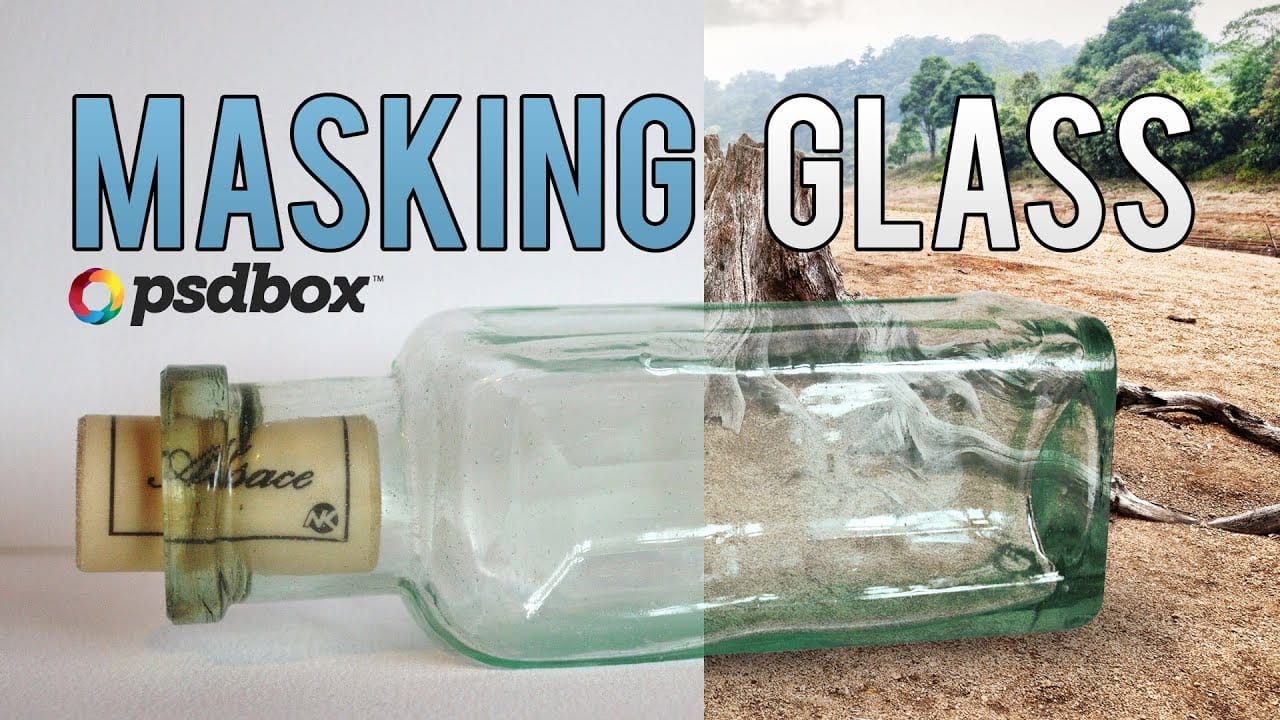
Masking Glass and Transparent Objects
In this Photoshop tutorial by PSD Box, you'll master the art of masking glass using a straightforward selection method.
The focus is on preserving the natural reflections and highlights present on the glass object, ensuring a realistic and seamless integration into new backgrounds or compositions. This technique is crucial for maintaining the transparency and depth of glass while removing its background, making it ideal for product photography or creative digital art projects.
Follow along as
How to Color, Brighten and Sharpen Eyes in Photoshop
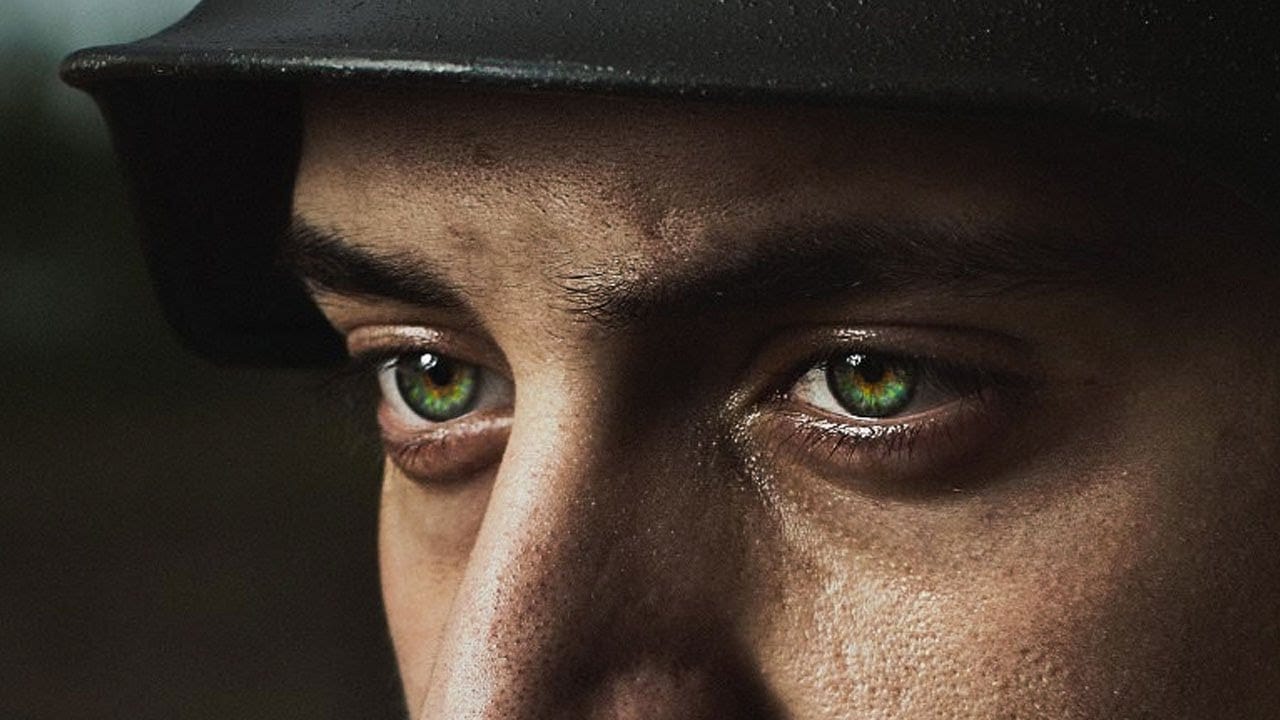
In this tutorial by Aaron Nace from Phlearn, learn how to enhance eyes in Photoshop to make them captivating and sharp.
Techniques include coloring the eyes by sampling natural hues and adjusting lightness and saturation, using blending modes like "Soft Light" or "Overlay" for a natural look, and softening edges with Gaussian Blur. Dodge and Burn techniques are used to enhance depth and light in the pupils, while selective sharpening draws attention to the eyes, making them stand out in portrai
How to make any photo look better in seconds in Photoshop
Many photographs, despite good composition, can often lack that captivating polish or depth. Achieving a professional and visually appealing aesthetic often seems like a complex or time-consuming endeavor for photographers and digital artists.
This tutorial introduces a simple yet powerful Photoshop technique, sometimes referred to as the "euro glow" or "euro tint," designed to quickly elevate the quality of any image. Readers will learn how a few clicks can add contrast, vibrance, and a subtle

How to Remove Dust and Sensor Spots Using Photoshop Tools
Dust spots and sensor particles are inevitable challenges in digital photography, appearing as dark specks that distract from otherwise clean images. Camera sensors collect dust over time, creating consistent spots that show up across multiple photos, particularly in bright sky areas or uniform backgrounds.
Both Lightroom and Photoshop offer specialized tools designed to tackle these imperfections efficiently. Understanding when to use each application's strengths can streamline your workflow a