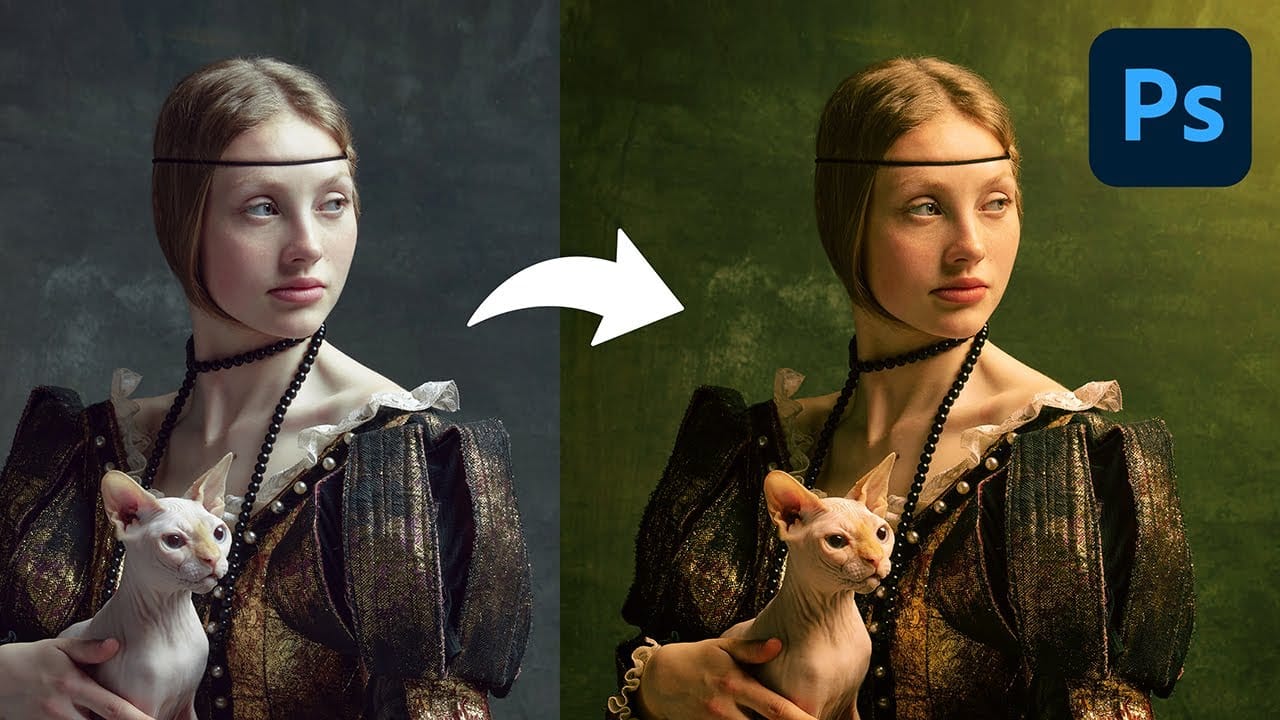
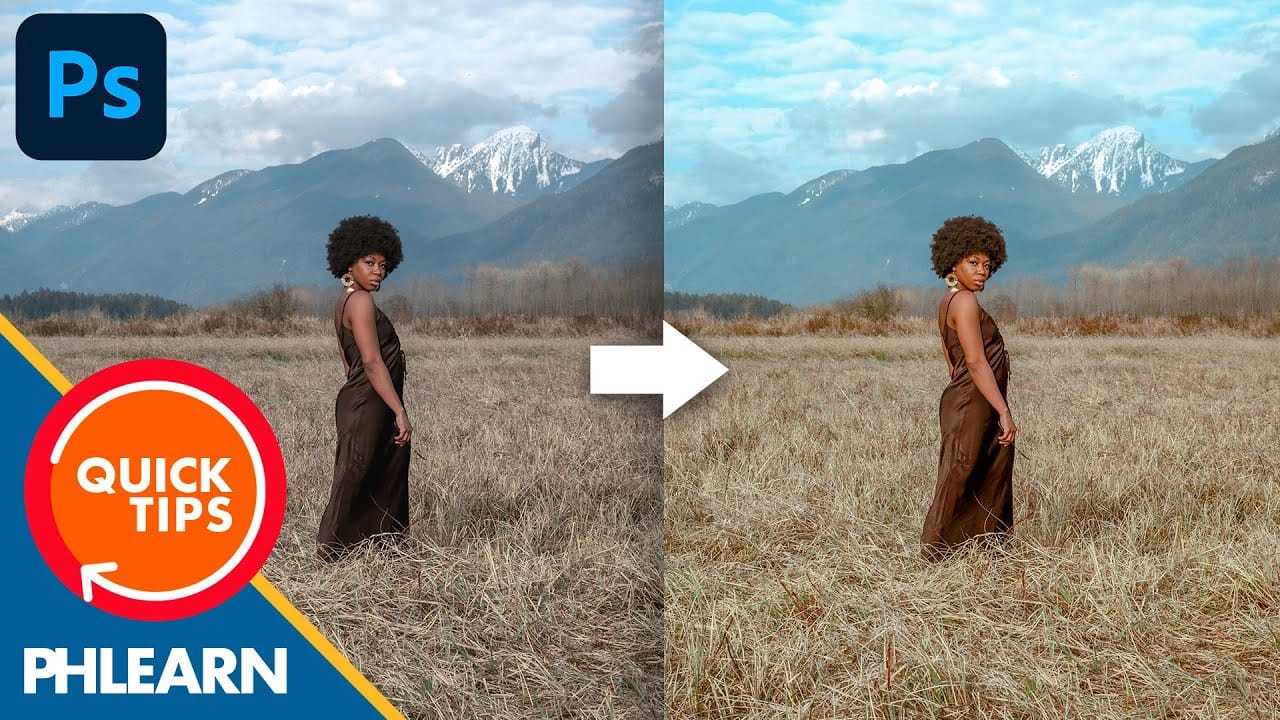
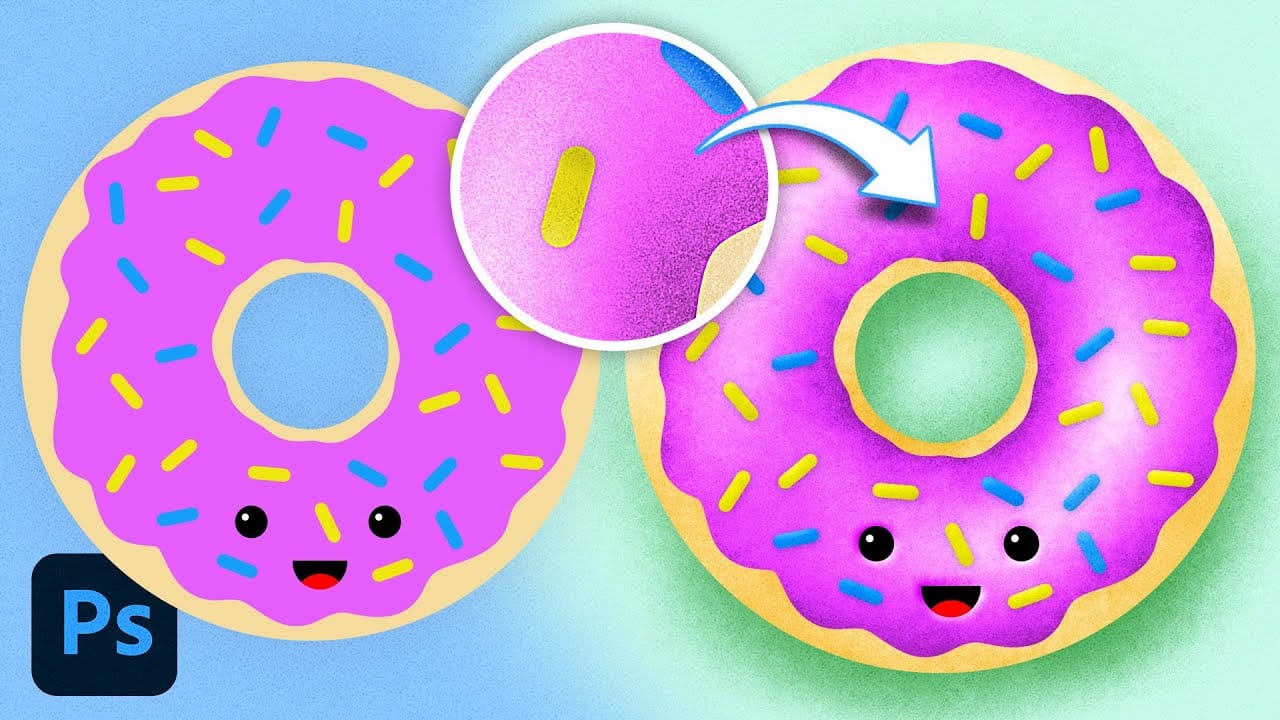
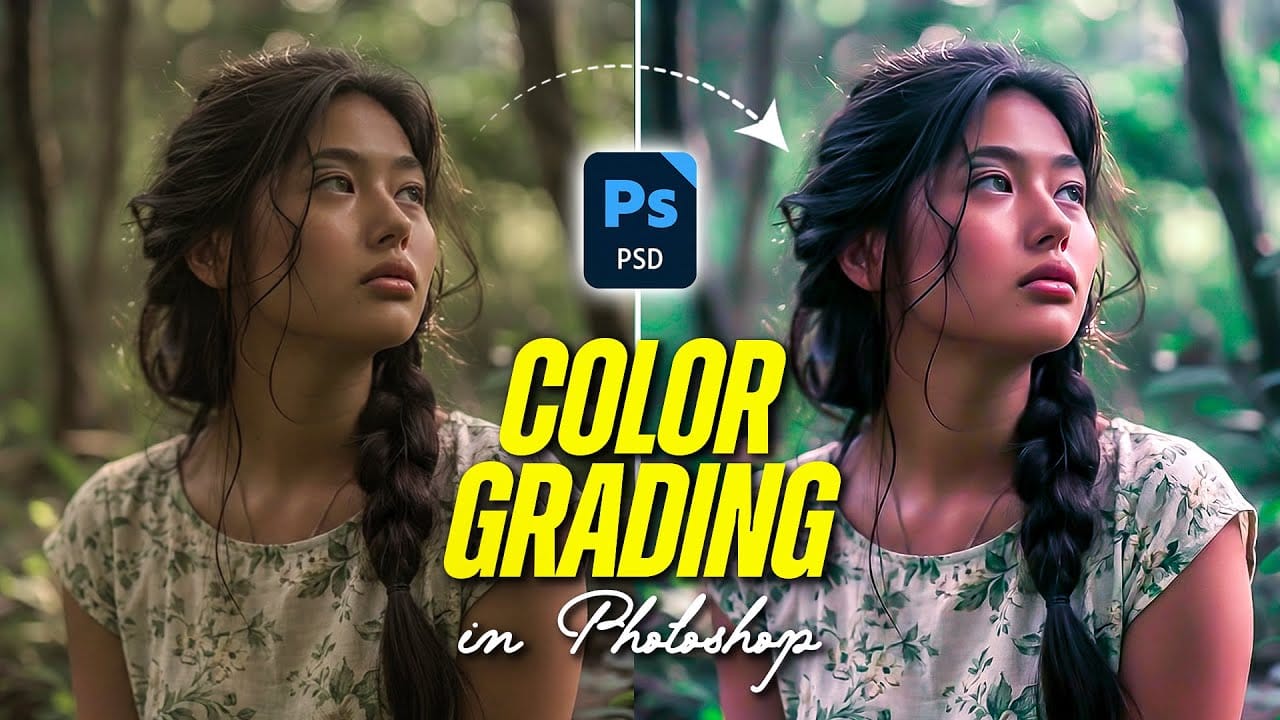
Textures offer a powerful way to color grade images beyond traditional adjustment layers. By layering colored textures with specific blend modes, you can create unique tonal shifts, add visual depth, and achieve artistic looks that standard color correction can't match.
This technique works by using the color information in textured overlays to influence your image's existing tones, similar to how traditional film photographers used colored gels and multiple exposures to create mood and atmosphere.
Watch the Video
Video by SandraD Imagery. Any links or downloads mentioned by the creator are available only on YouTube
Practical Tips
These essential techniques will help you master texture-based color grading:
- Start with multiply or soft light blend modes for natural-looking color shifts that preserve image detail
- Experiment with opacity settings between 60-90% to find the sweet spot where texture enhances without overwhelming
- Use layer masks to selectively remove texture from areas where it creates unwanted effects or color casts
- Duplicate texture layers with different blend modes to build complex, layered color treatments
- Sample colors from successful areas and paint over problem spots using a low-opacity brush for seamless blending
Related Articles and Tutorials
Explore more color grading and texture techniques to expand your creative toolkit: