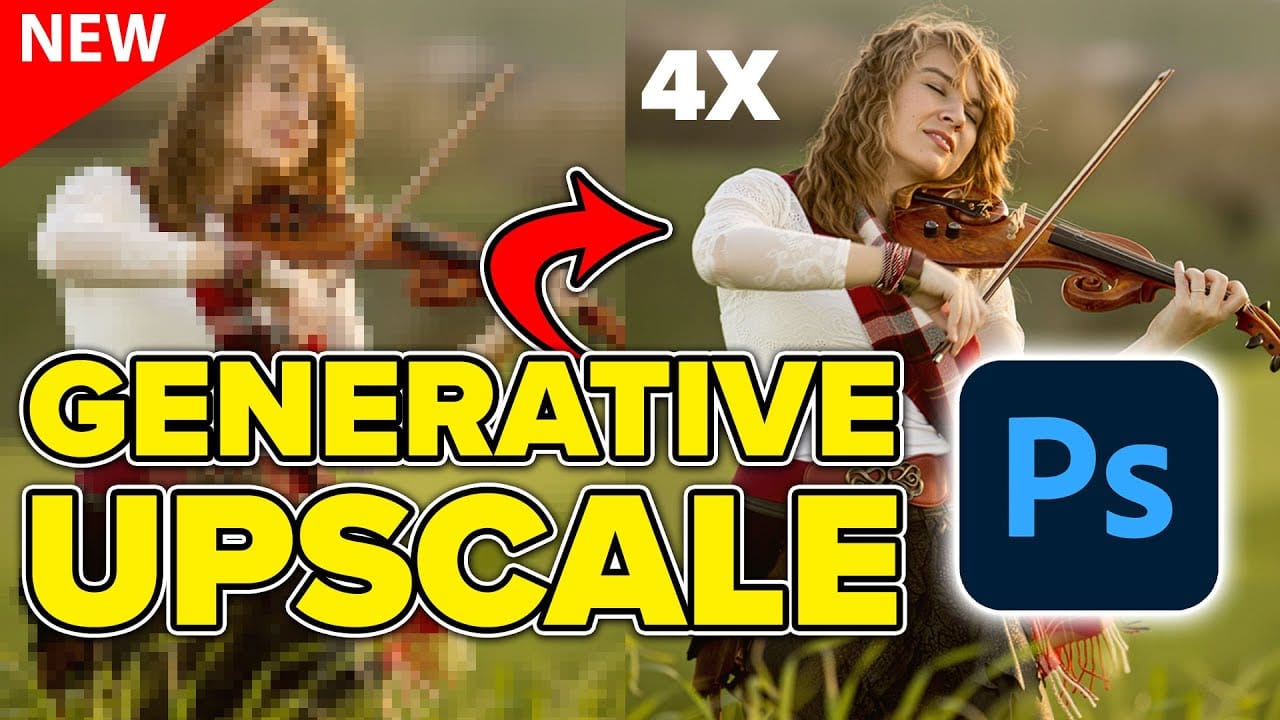
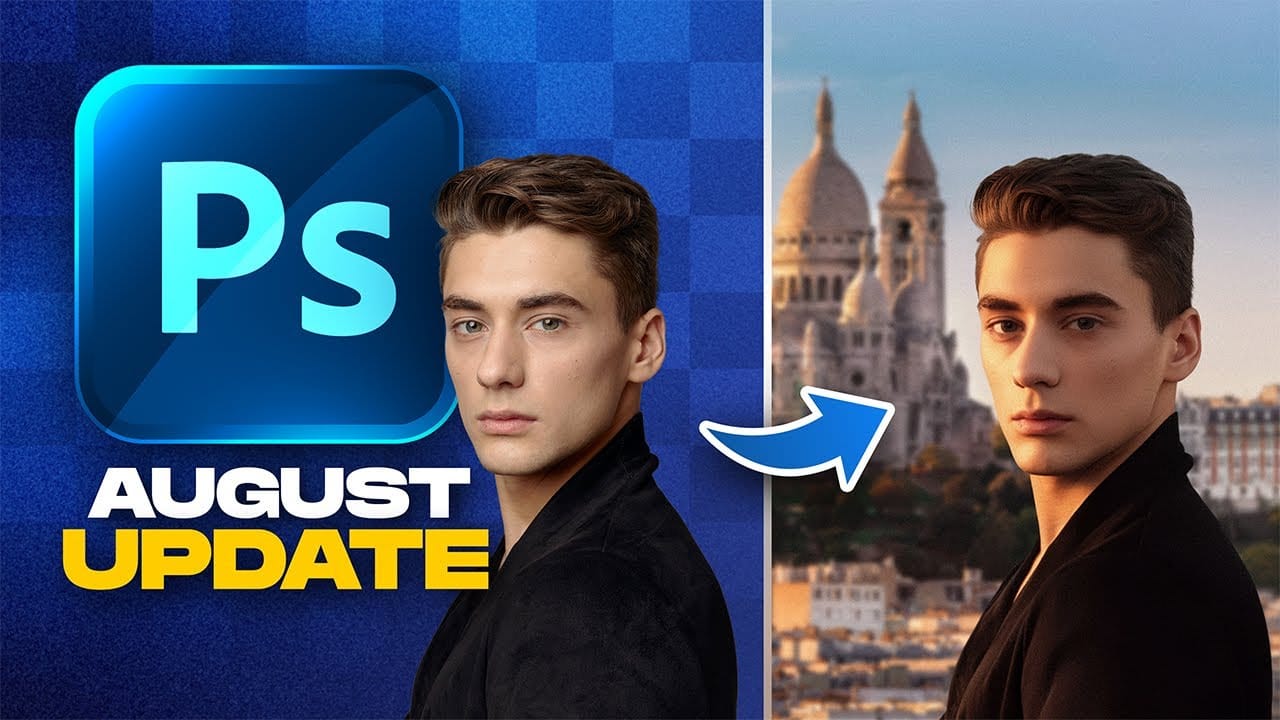
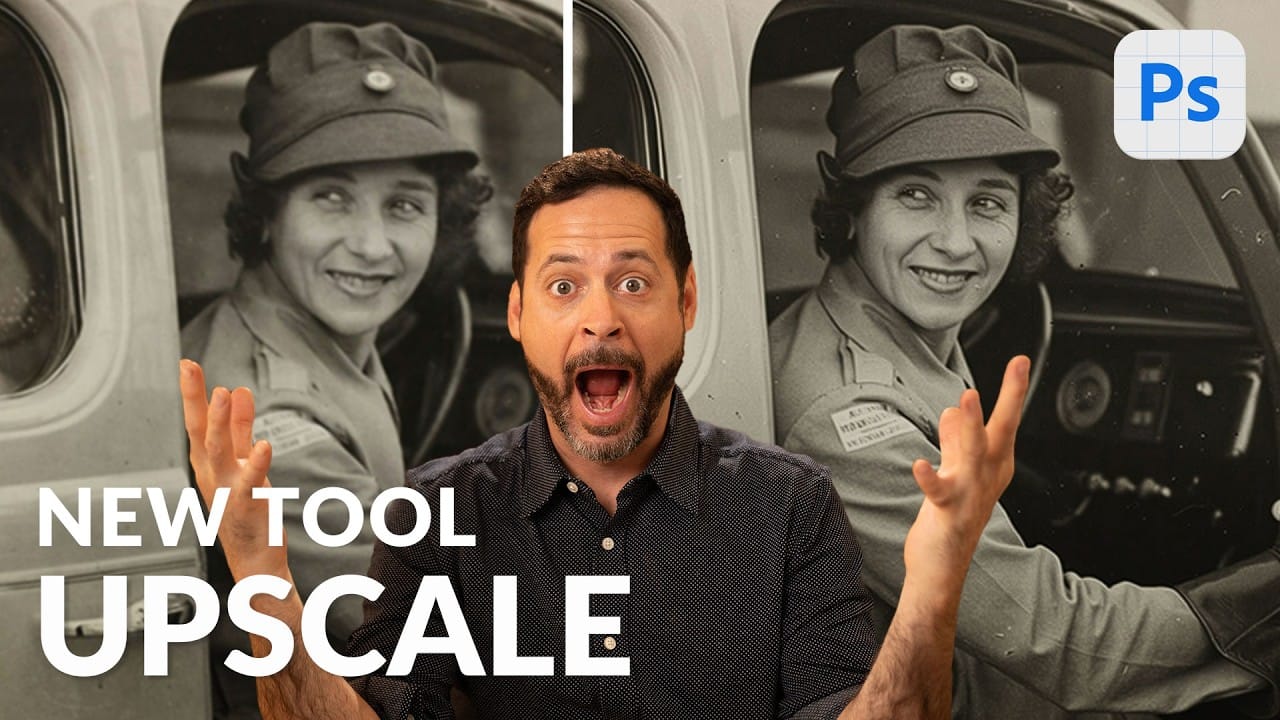
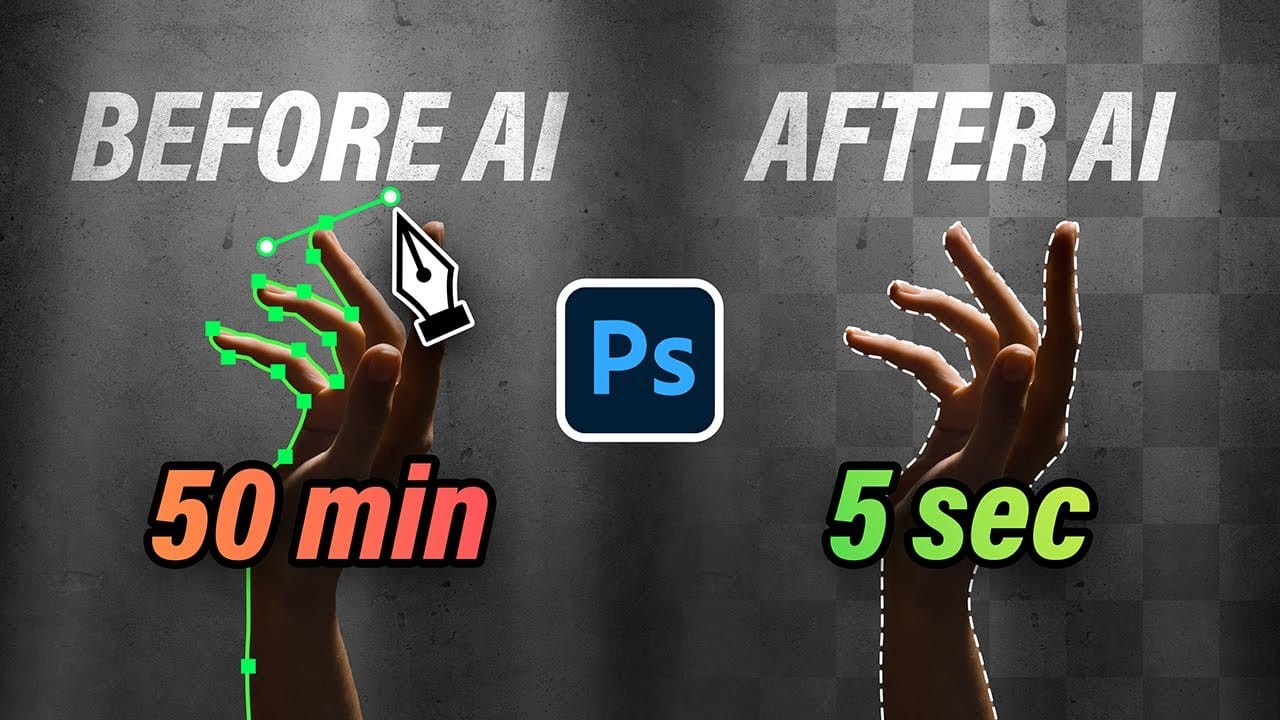
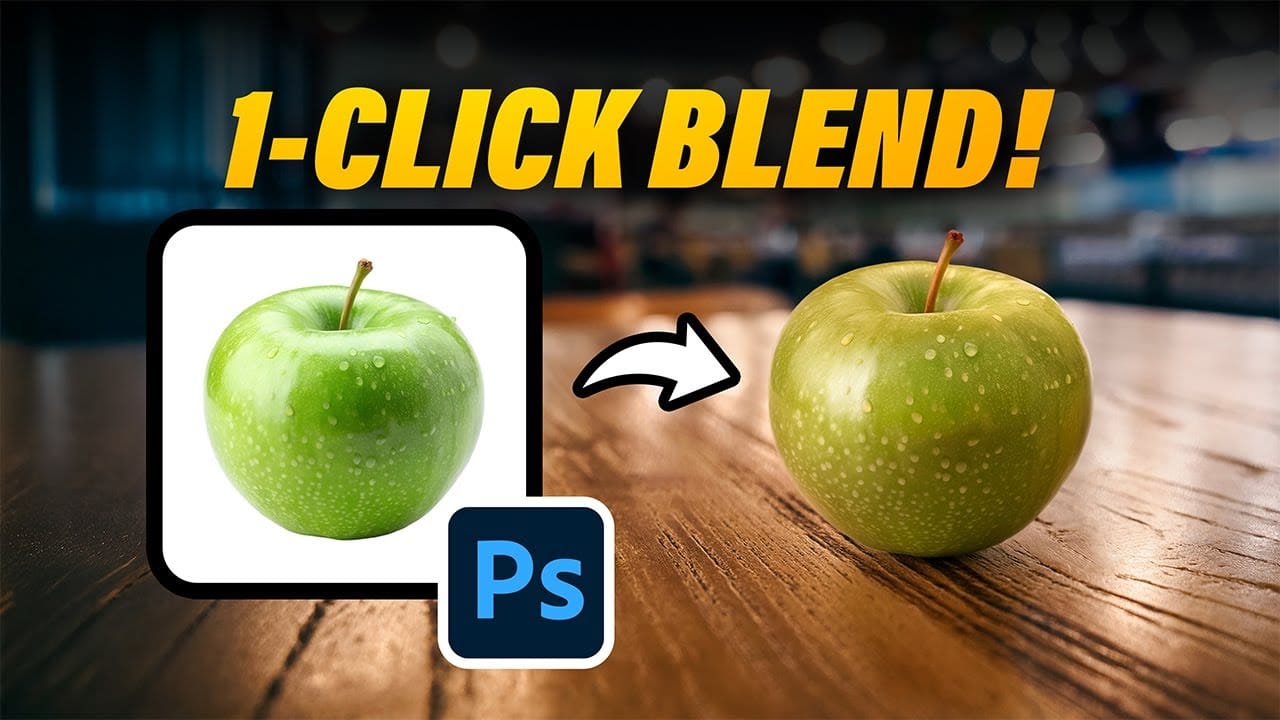
Creating realistic photo composites requires matching lighting and color between different images—a traditionally time-consuming process. Two new AI-powered tools in Photoshop solve these challenges: Harmonize automatically adjusts lighting and shadows to blend subjects seamlessly into backgrounds, while Generative Upscale enlarges small images without losing detail.
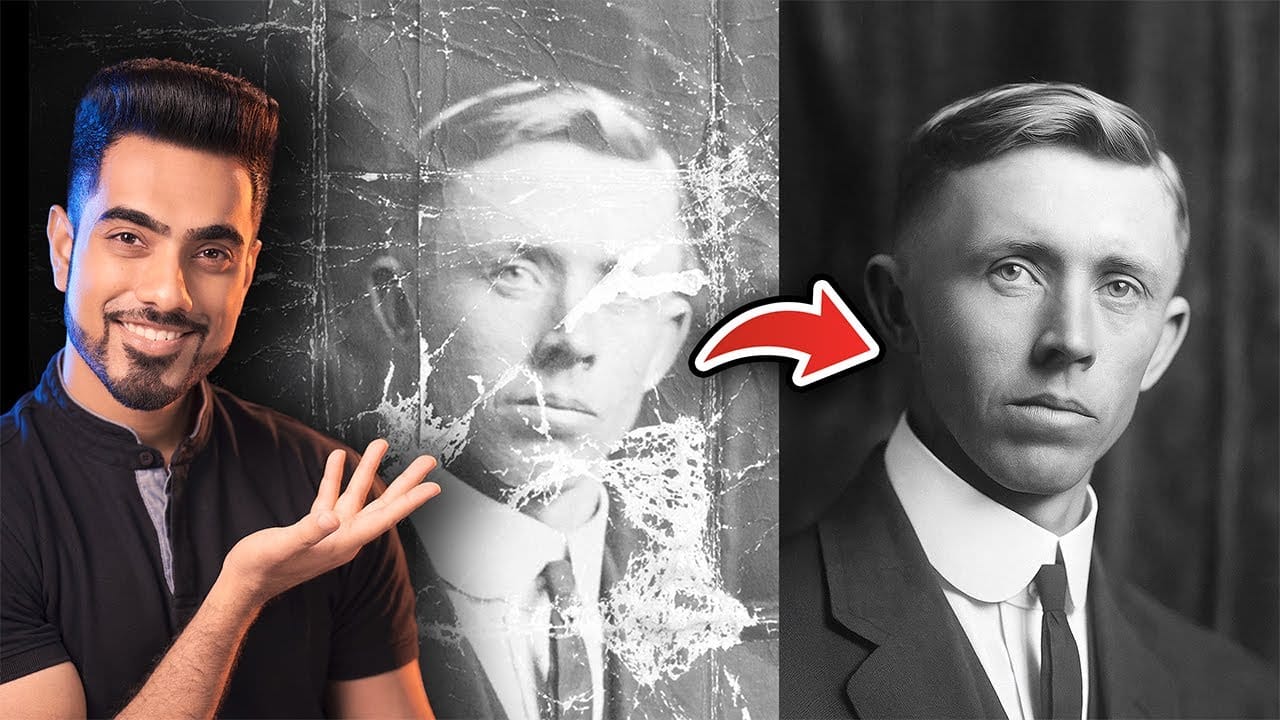
These tools work together to streamline complex editing workflows, from cutting out subjects and matching environmental lighting to enlarging old photos for high-quality prints.
Watch the Video
Video by PHLEARN. Any links or downloads mentioned by the creator are available only on YouTube
Practical Tips
Master these essential techniques for successful compositing and image enhancement:
- Use Remove Background first to create a layer mask, which automatically enables the Harmonize tool in your contextual taskbar
- Generate multiple variations with Harmonize—run it 2-3 times to get more options since the tool is still in early development
- Combine Harmonize with Generative Fill to change clothing and match environmental context for more realistic composites
- For Generative Upscale, start with images between 1,500-3,000 pixels on the long edge to stay within the 6,144-pixel output limit
- Keep both original and upscaled versions as separate layers to compare quality and make adjustments as needed
Related Articles and Tutorials
Explore more advanced techniques for AI-powered image editing and enhancement workflows.
 Enrique Flouret