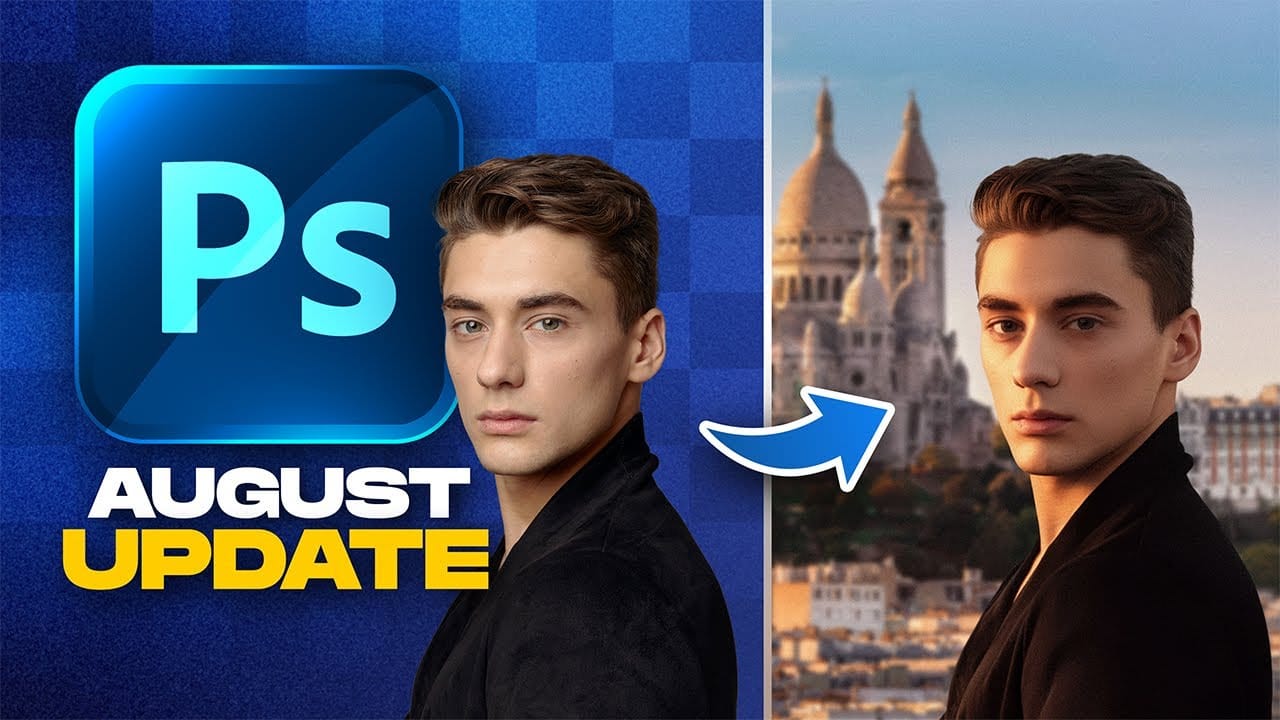
How to Use Photoshop's Auto Layer Rename Feature

How to Use Photoshop's Auto Layer Rename Feature

Messy layer names like "Layer 52 copy 4" and "Untitled 5" clutter your workspace and slow down complex projects. Photoshop's new auto-rename feature uses AI to automatically identify and name layers based on their content, from "Woman in yellow shirt" to "Yellow rounded rectangle."

This beta feature is currently available in Photoshop version 27.6 and can instantly organize entire documents, though it comes with some important limitations worth understanding before you rely on it.

Watch the Video

Video by PiXimperfect. Any links or downloads mentioned by the creator are available only on YouTube

Practical Tips

Here are key techniques for getting the most out of the auto-rename feature:

  • Rasterize smart objects before using auto-rename, as the feature only works on regular layers
  • Use the "Delete empty layers" option to clean up your document while renaming
  • Apply the feature to selected layers rather than entire documents for more control
  • Remember that adjustment layers keep their original names and won't be renamed
  • Always have internet connection available, as this feature requires online processing

Explore more techniques for organizing your workspace and streamlining your editing process.

10 little-known Photoshop features you should really learn
Photoshop's true power isn't just in its headline features—it's in the hidden gems that can transform your workflow overnight. While everyone knows about layers and the healing brush, these lesser-known capabilities can save you hours and open up creative possibilities you never knew existed. If you're a seasoned professional or an ambitious beginner, these 10 features will give you that unfair advantage that separates efficient creators from those still clicking through endless menus. 1. Ble
Photoshop January 2026 Update: 5 New Features Including Grain and Clarity Adjustment Layers
Photoshop's January 2026 update brings five significant features that streamline common editing tasks. The highlight is new adjustment layers for grain and clarity effects, eliminating the need to work in Camera Raw for these adjustments. The update also introduces an improved generative AI model with higher resolution output and enhanced reference image capabilities, plus a more effective Remove Tool for cleaner object removal. Watch the Video Practical Tips Here are key techniques for wo
Photoshop auto masks, new feature no one is talking about
Making precise selections in Photoshop has historically been one of the most time-consuming and challenging aspects of image editing. From intricate hair strands to complex tree foliage, achieving a clean mask often required significant manual effort and advanced techniques. However, recent advancements in artificial intelligence are rapidly transforming this fundamental process. The video demonstrates the groundbreaking improvements in Photoshop's auto-masking capabilities, specifically within
How to Use Photoshop's Auto Distraction Removal Tool
Removing unwanted elements from photos used to require hours of careful work with clone stamps and healing brushes. The new General Distractions feature in Photoshop's Remove Tool changes this completely by automatically detecting and eliminating distractions across 26 different categories with a single click. This AI-powered upgrade can identify everything from people and vehicles to wires, vegetation, and urban clutter, then seamlessly remove them while preserving your original image on separ
New Photoshop AI Features – Smarter, Faster, and More Efficient Tools!
Editing detailed selections, adjusting colors, and removing backgrounds in Photoshop can be tedious, especially when working with complex edges like hair or challenging objects. Manual work often stalls creative flow and makes it tough to achieve clean, professional results on tight deadlines. This article introduces essential, time-saving features in the latest Photoshop update—including advanced AI-powered selection, color, and removal tools. Learn how these updates streamline everyday editin
How to Use the New Color, Clarity, Dehaze, and Grain Adjustment Layers in Photoshop
Three powerful new adjustment layers bring Camera Raw's most popular tools directly into your layers panel. Color and Vibrance, Clarity and Dehaze, and Grain adjustments now work as standard adjustment layers with full masking capabilities and non-destructive editing. These tools eliminate the need for smart objects when applying these specific adjustments, creating cleaner workflows while maintaining the precision control photographers expect from professional editing software. Watch the Vid
Master Photoshop Adjustment Layers for Non-Destructive Editing
Fine-tuning images without destroying original pixel data transforms ordinary photos into compelling visuals. Adjustment layers provide the flexibility to experiment with colors, contrast, and tones while maintaining complete control over every edit. This comprehensive guide demonstrates how to harness Photoshop's most powerful adjustment layers for landscape photography, from basic contrast enhancements to sophisticated color grading techniques. Watch the Tutorial Understanding Non-Destruc
TOP New Features in Photoshop – May 2025 Update
Many Photoshop users frequently encounter common challenges such as time-consuming manual selections for complex objects, difficulties in achieving precise color adjustments across an image, or struggling with inconsistent results when removing unwanted elements like reflections. These hurdles often slow down the creative process, making it frustrating to achieve a desired professional look efficiently. This guide explains how Photoshop's latest updates introduce powerful new functionalities, i
Photoshop August 2025 Update: 6 New Features Including Enhanced Remove Tool and Harmonize
Adobe continues to transform Photoshop with powerful AI-driven features that streamline complex editing tasks. The August 2025 update introduces six significant enhancements, from an improved Remove Tool that creates cleaner selections to the revolutionary Harmonize feature that automatically matches lighting and shadows across composite elements. These updates address common workflow challenges while introducing new capabilities for collaborative projects and intelligent image processing. Wa

Get tutorials & freebies delivered to you.

Subscribe to the Photoshop Roadmap newsletter, a weekly roundup of new tutorials, insights and quality downloads, trusted by 6500+ readers.

You might also like

How to Use Color Average for Color Toning in Photoshop

Color average creates a unified color tone by analyzing all the colors in your image and calculating their mathematical average. This technique adds depth and cohesion to photos, composites, and AI-generated images by applying a subtle color wash that ties all elements together. The method works particularly well for composites...

How to Remove Complex Background Elements Using AI in Photoshop

Removing complex background elements like fencing or wire mesh has traditionally been one of the most time-consuming tasks in photo editing. New AI-powered tools in Photoshop can now eliminate these distracting elements while preserving fine details in your subject. This tutorial demonstrates two practical workflows: one using the latest Firefly...

New Generative Fill Features in Photoshop Beta: Reference Images and Credit Tracking

Photoshop Beta introduces significant improvements to Generative Fill that address the most requested features from users. The updated interface now displays your generative credit balance and usage, while the new reference image capability lets you add up to eight specific images to guide AI generation with precise visual examples. These...

Essential Photoshop Tools for Beginners: Brush, Crop, and Move Tool Tutorial

Learning Photoshop tools feels overwhelming when you don't know where to start. This tutorial focuses on three essential tools that form the foundation of most Photoshop work: the brush tool for painting and retouching, the crop tool for resizing and straightening images, and the move tool for positioning...

How to Add Custom Textures to Photos in Photoshop

Adding textures to photographs can transform ordinary images into compelling artistic compositions. This technique uses multiple texture layers combined with strategic blending modes and color adjustments to create depth and visual interest. The process involves layering different texture types—color overlays, surface patterns, and lighting effects—then using masking techniques...

Using AI-Generated Images as Inspiration for Fine Art Portrait Edits

Creative blocks happen to every photographer. When you're struggling to find fresh editing ideas for your portraits, AI-generated images can serve as powerful visual references to spark new artistic directions. This comprehensive tutorial demonstrates how to transform an ordinary child portrait into a painterly masterpiece using an AI...

You’ve successfully subscribed to Photoshop Roadmap
Welcome back! You’ve successfully signed in.
Great! You’ve successfully signed up.
Success! Your email is updated.
Your link has expired
Success! Check your email for magic link to sign-in.