


Mastering beauty retouching gives you the ability to take any portrait further, fixing what the camera couldn't, refining what the light missed, correcting the natural imperfections that skin always carries, and delivering results that hold up at any size and in any context.
That range is wider than it seems. Beauty retouching serves editorial and model photography, where every detail is handled with professional precision — but it's just as relevant for a school video, a family portrait, or any moment where someone deserves to appear at their best. The techniques are the same across all of it. What changes is how far you take them, and how much precision you bring.
This guide covers the full range, organized by technique and editing goal.
Working with AI in Modern Retouching
Many traditional retouching tools now include AI-powered options, and some features are fully automated. AI can be extremely helpful for speeding up repetitive tasks or generating quick results. However, fully AI-driven edits often reduce fine control and may not produce exactly what you had in mind.
The most reliable results usually come from combining manual techniques with AI-assisted tools — using automation where it saves time, and refining the details yourself when precision matters.
Core Skin Retouching Techniques
These tutorials focus on cleaning and refining skin while keeping texture natural. They include both quick correction methods and more detailed workflows that allow precise control over tone and texture.
 Kayleigh June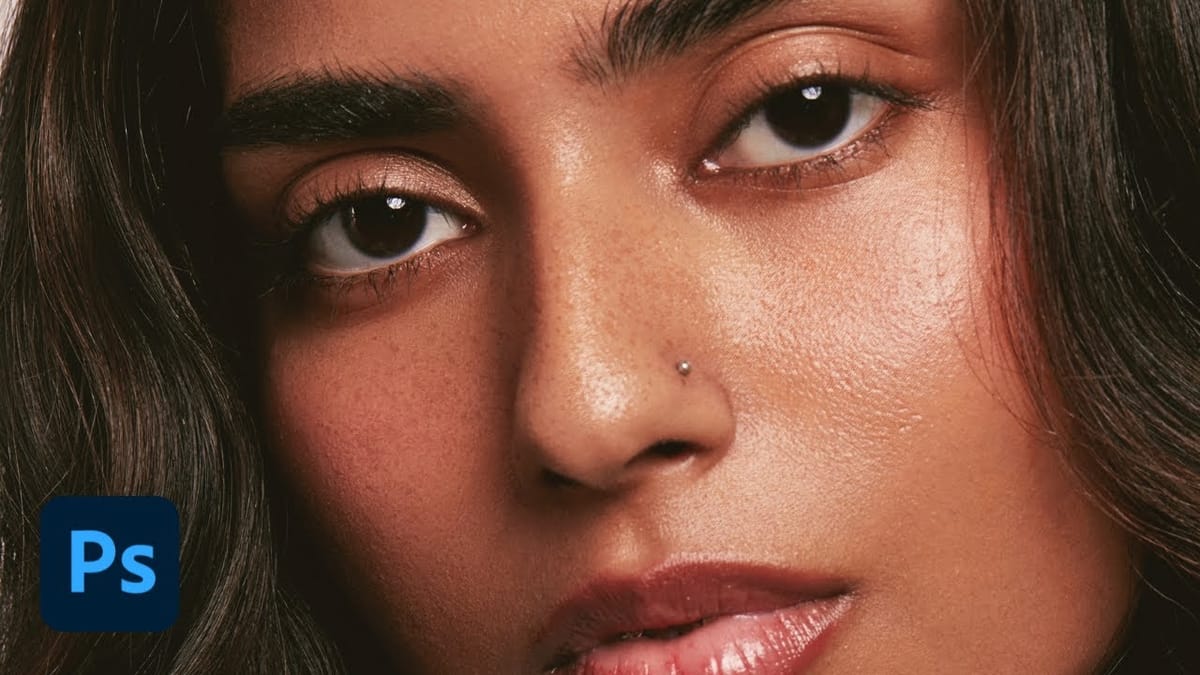
 Vera Change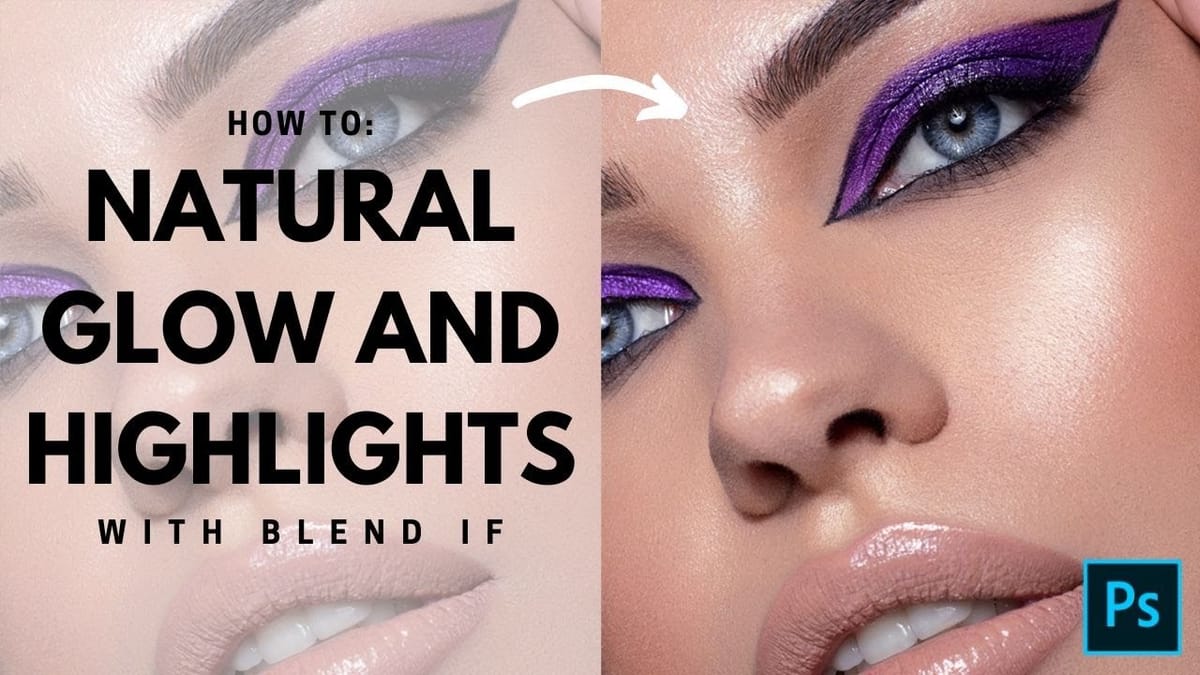
 Brendan Williams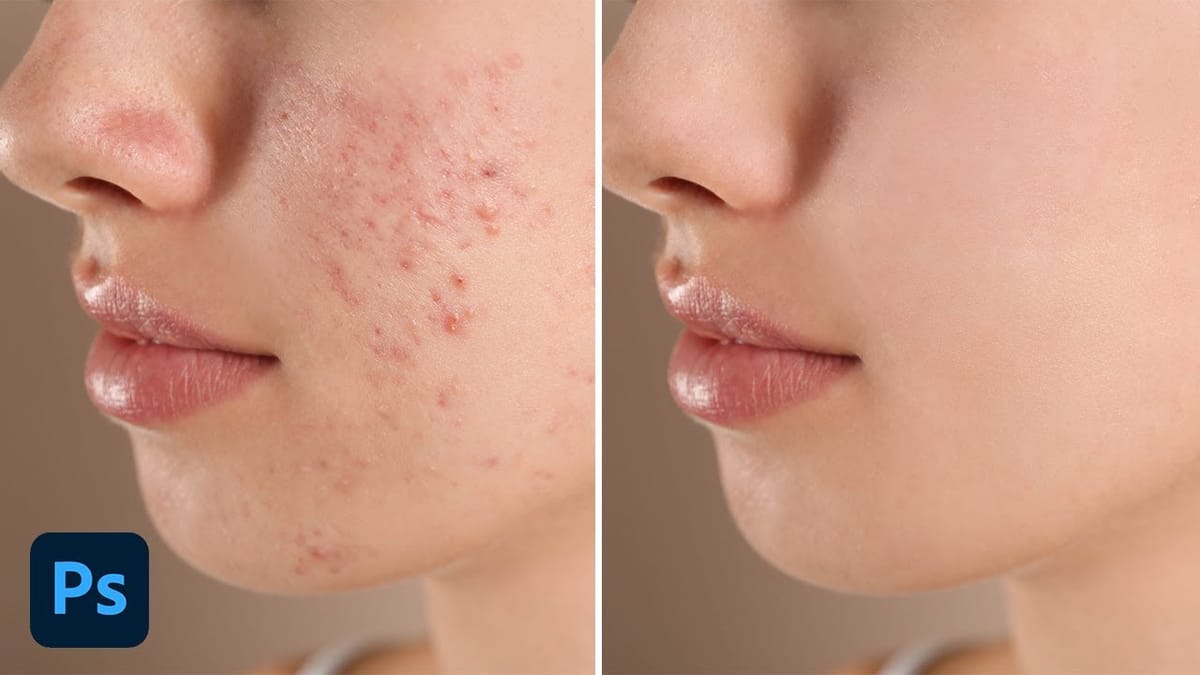
 Phlearn
 Brendan Williams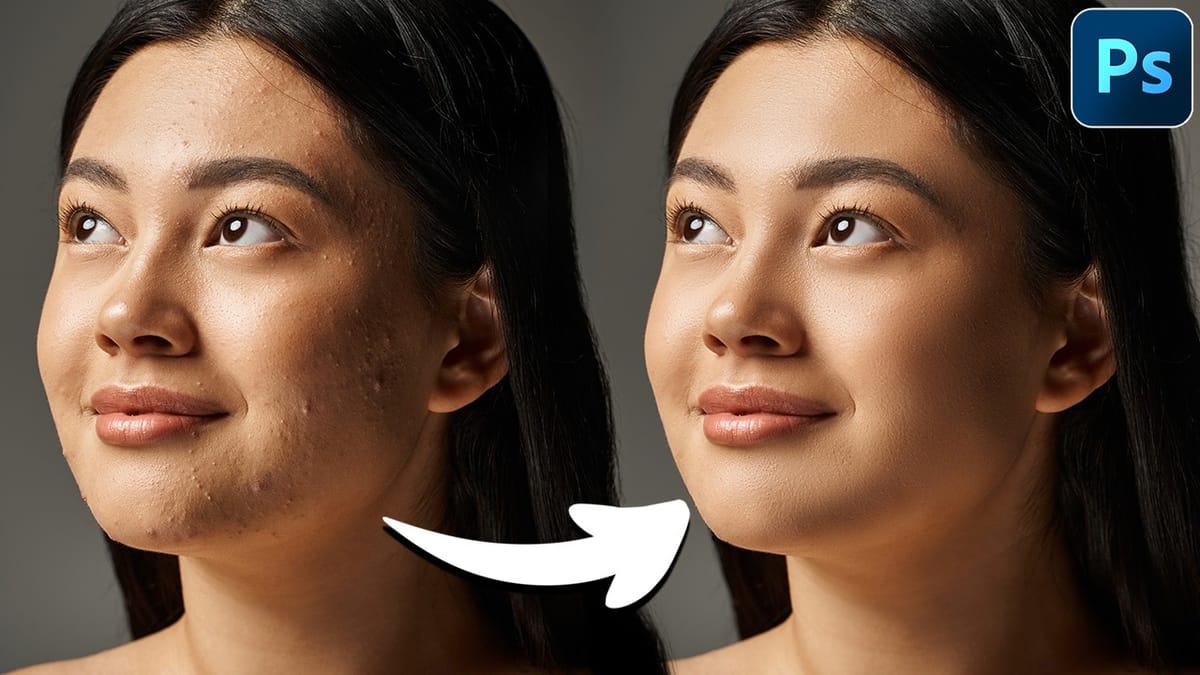
 PiXimperfect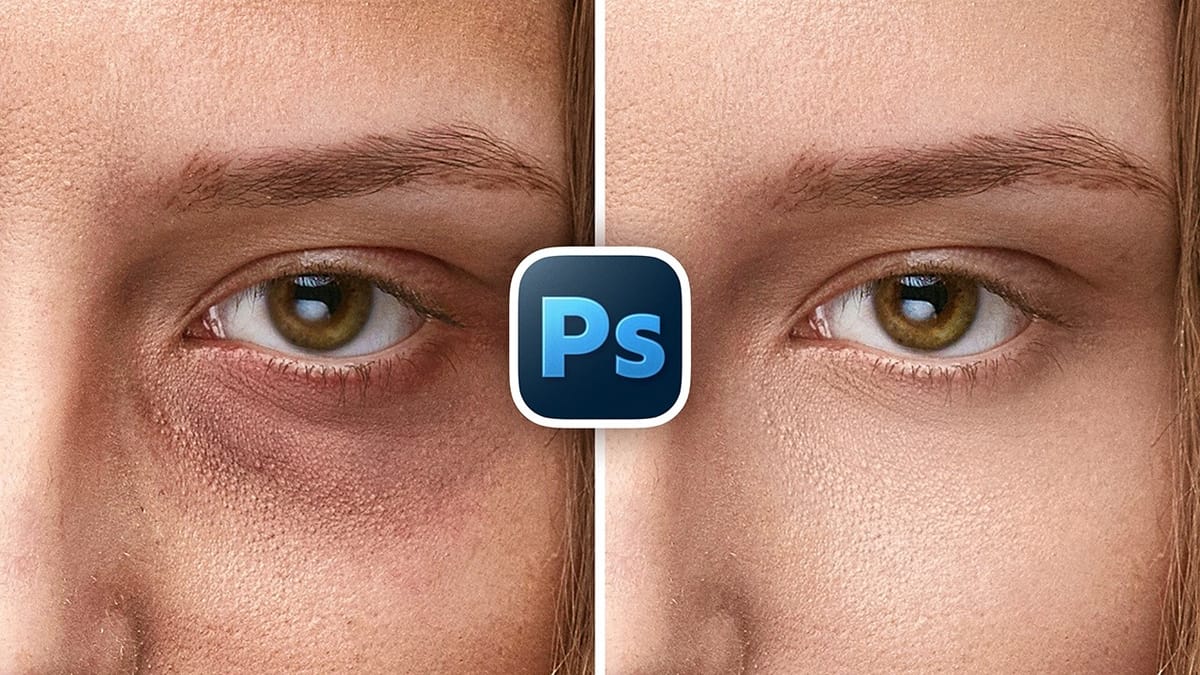
 Phlearn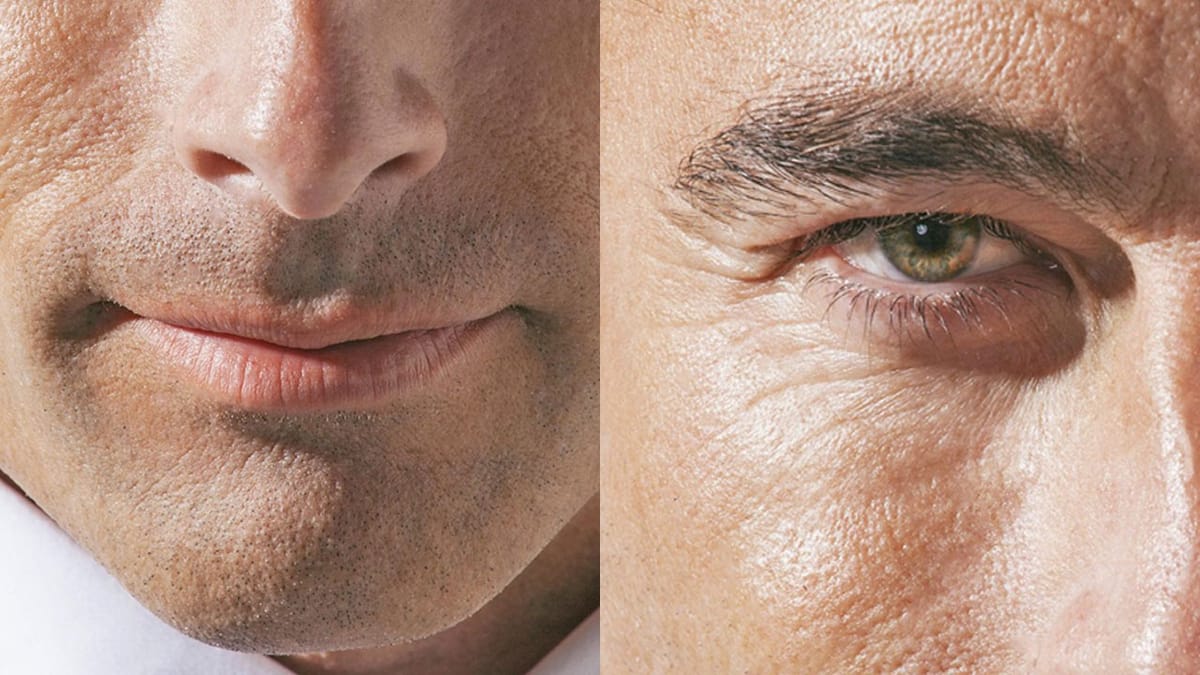
 PTC Photoshop Training Channel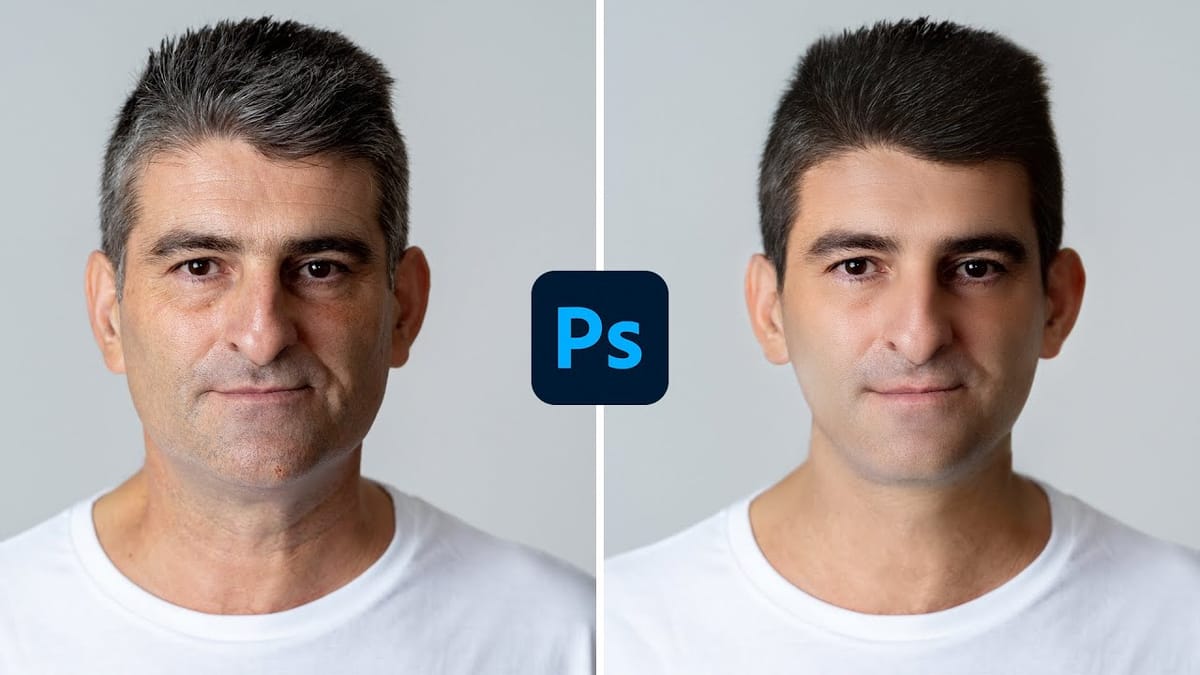
 PiXimperfect
 F64 Academy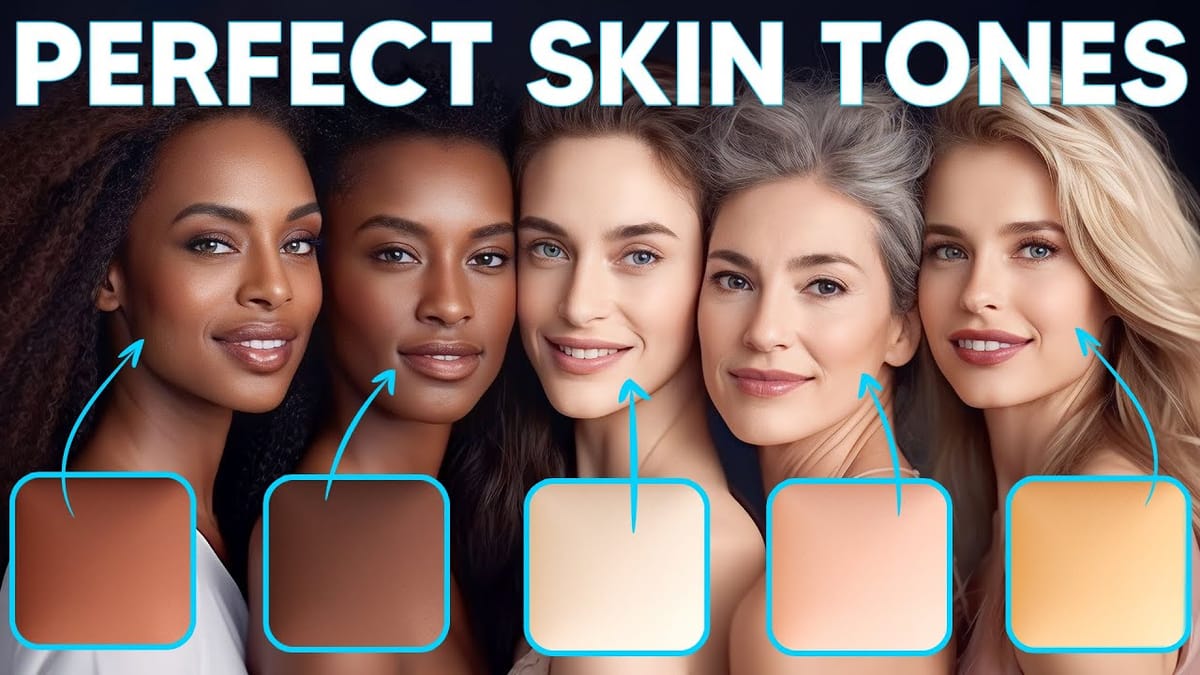
 Vera Change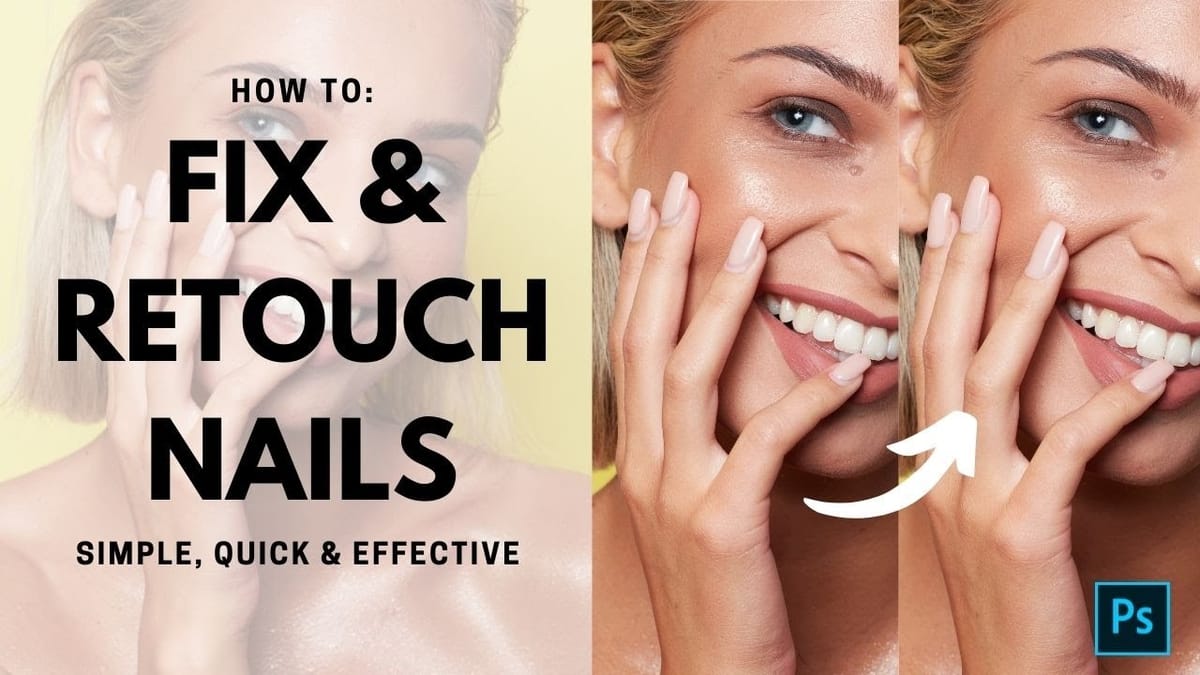
Facial Feature Enhancements
These tutorials focus on improving specific facial elements while maintaining a realistic look.
 Kayleigh June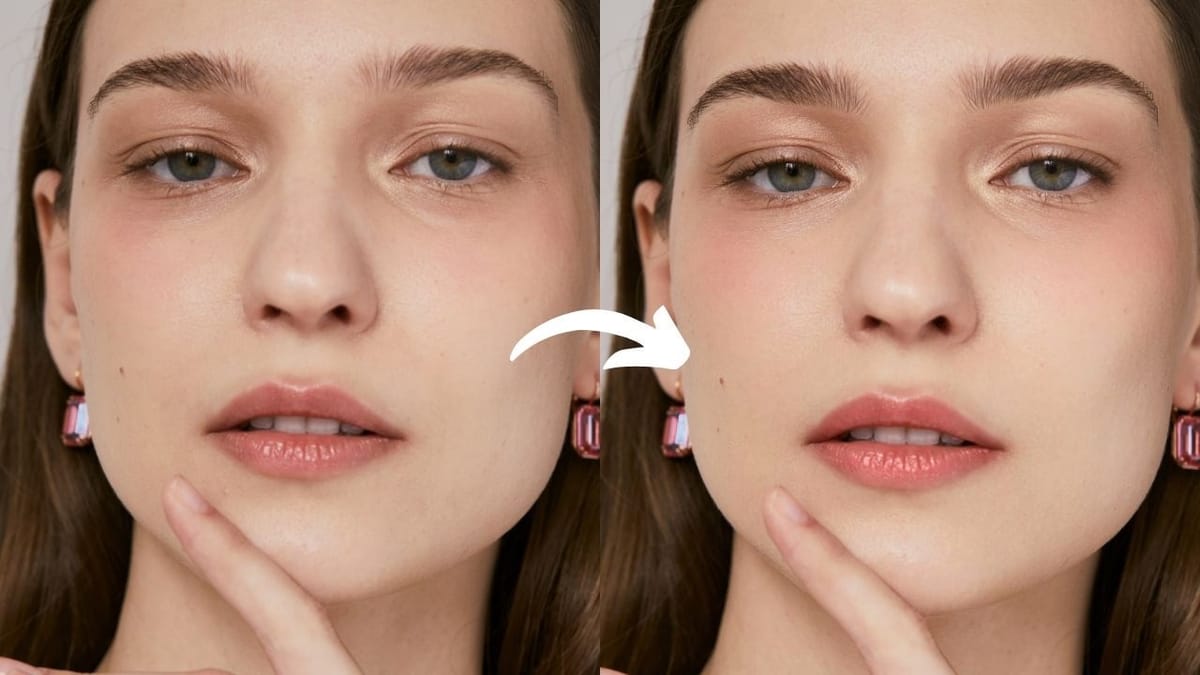
 PiXimperfect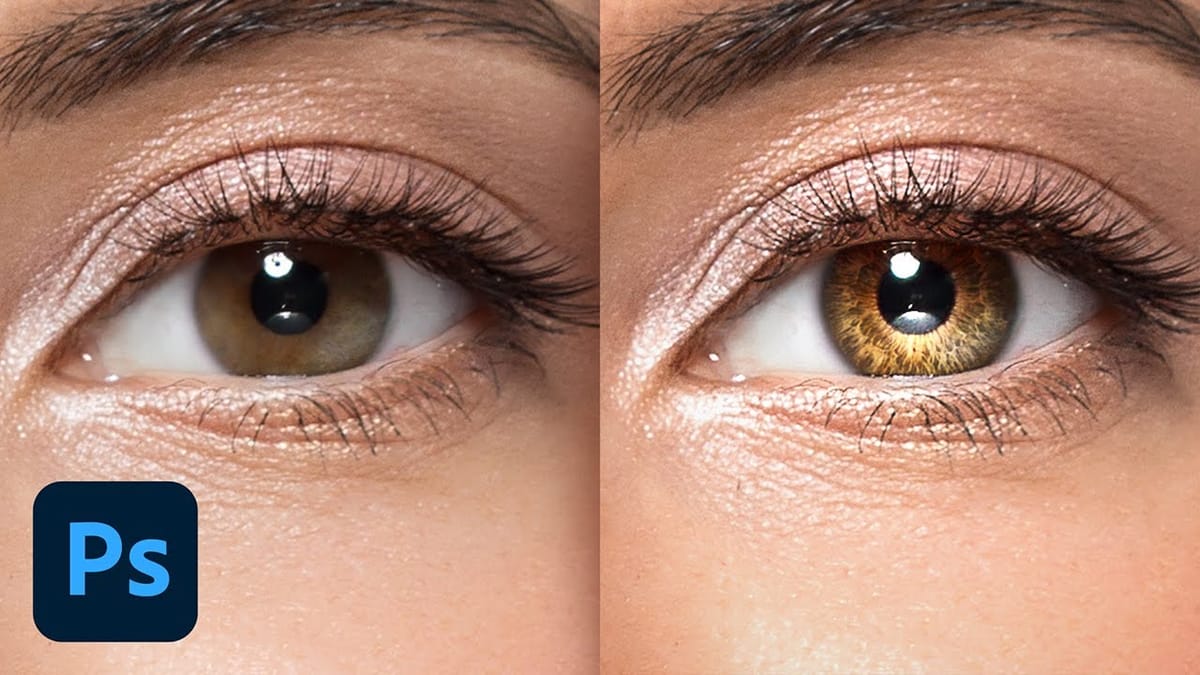
 Phlearn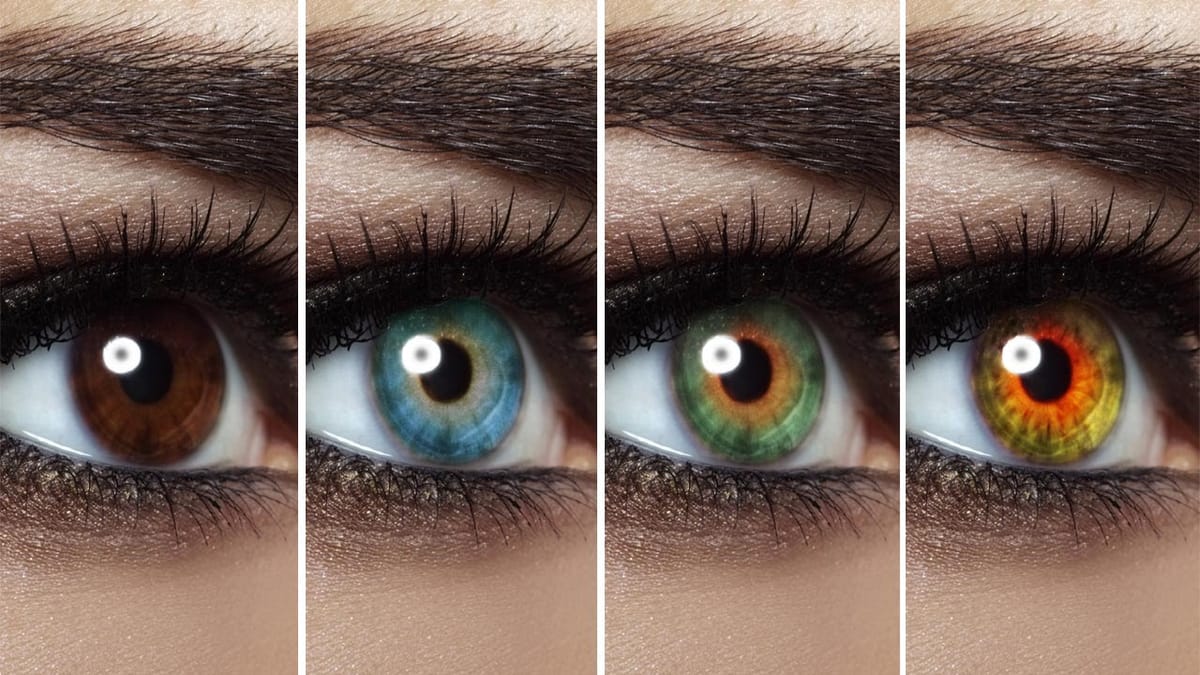
 PiXimperfect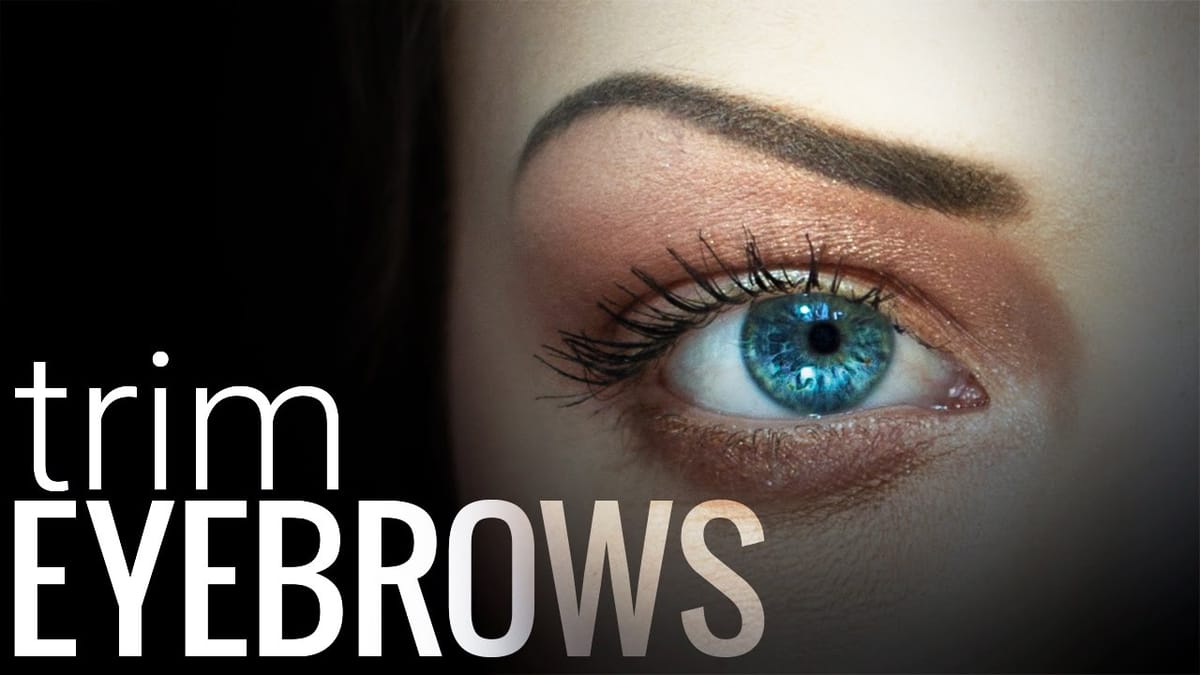
 Vera Change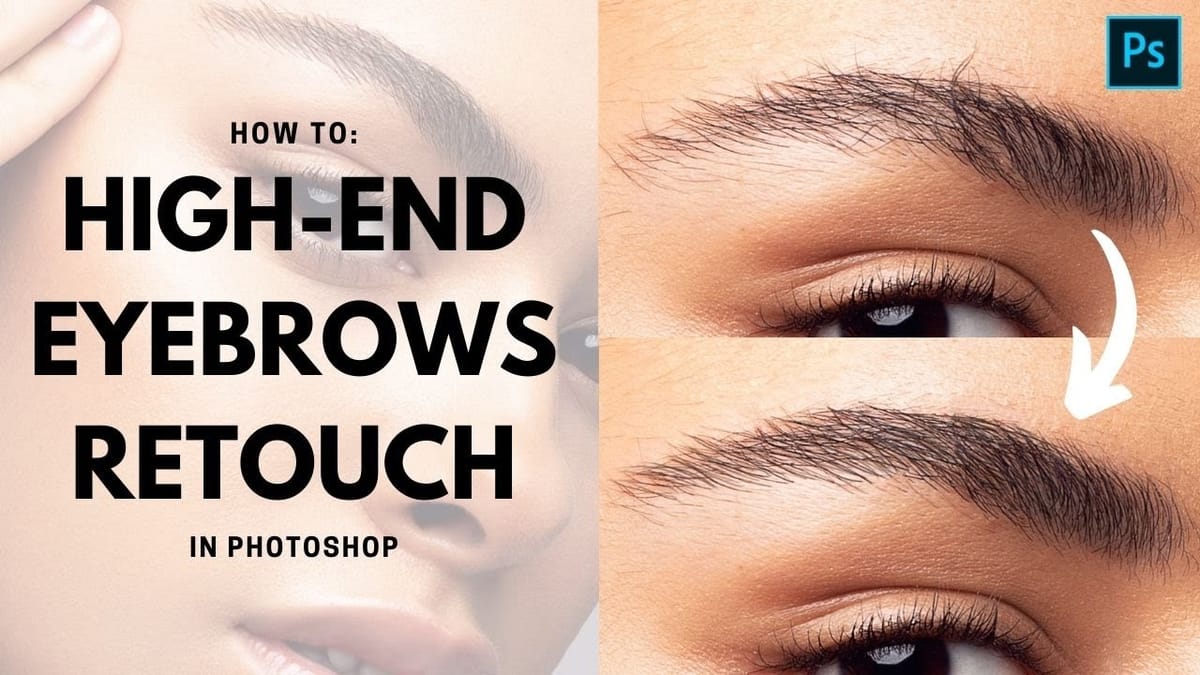
 PiXimperfect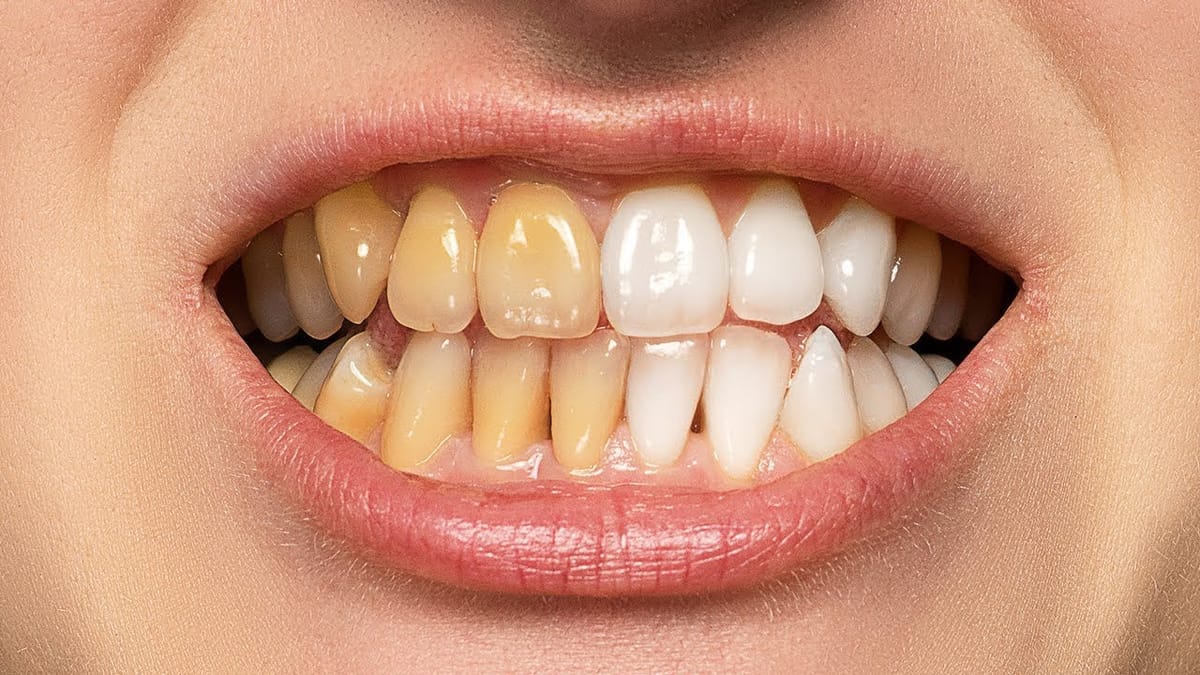
 PiXimperfect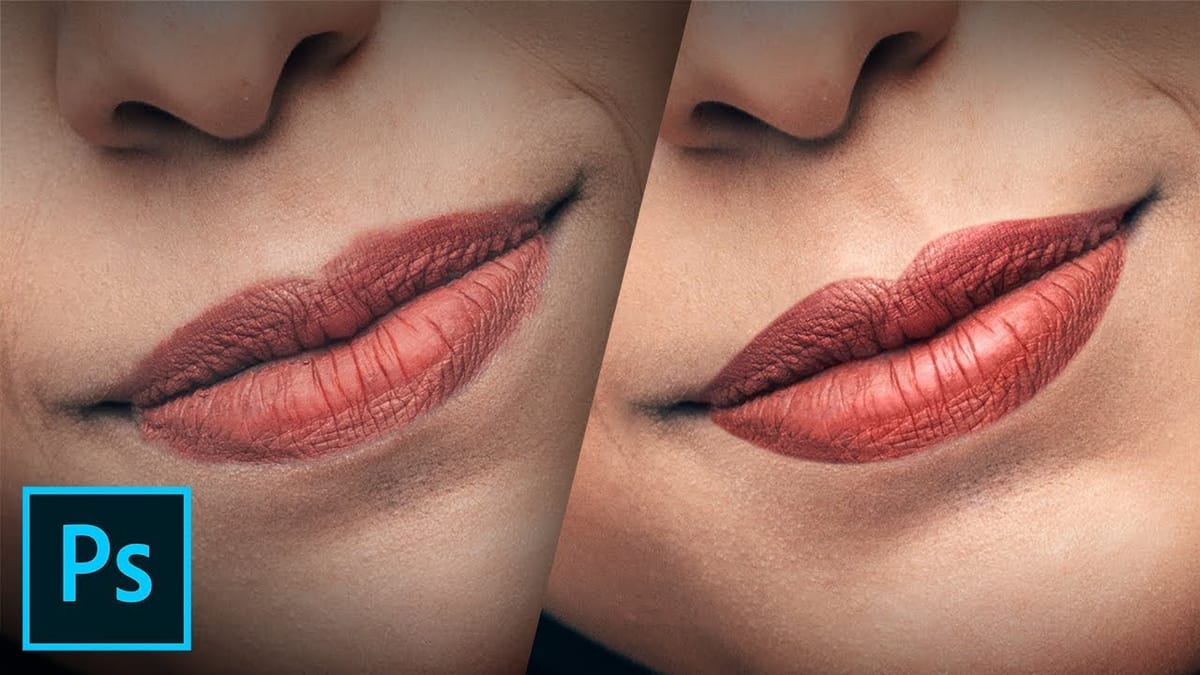
 Vera Change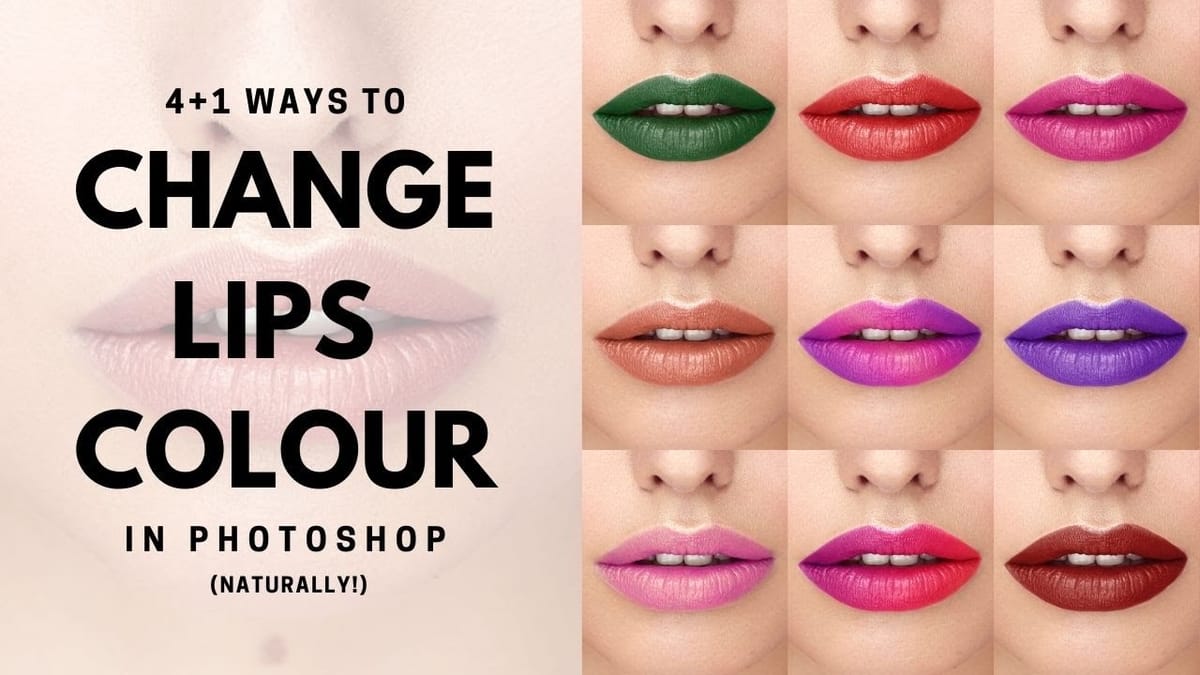
 Phlearn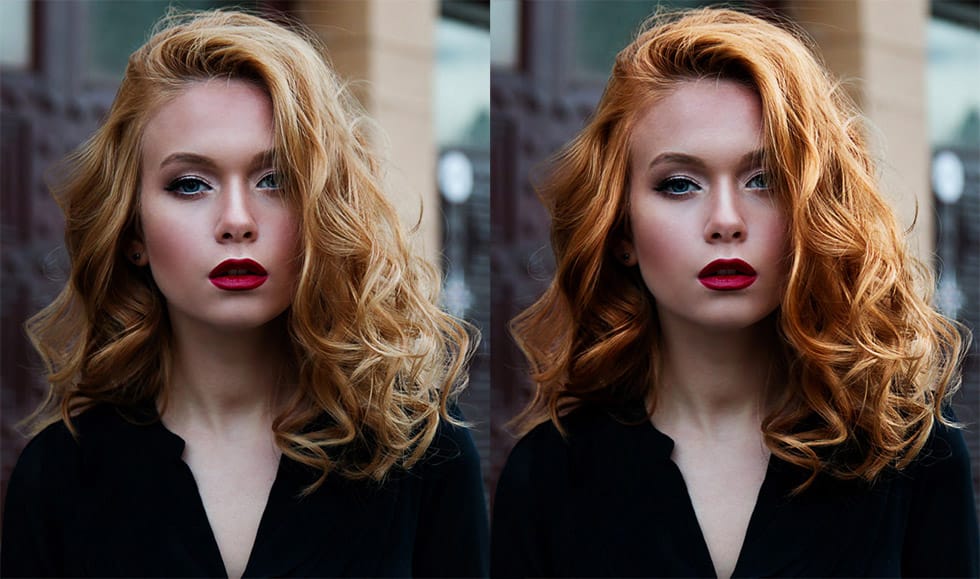
 PiXimperfect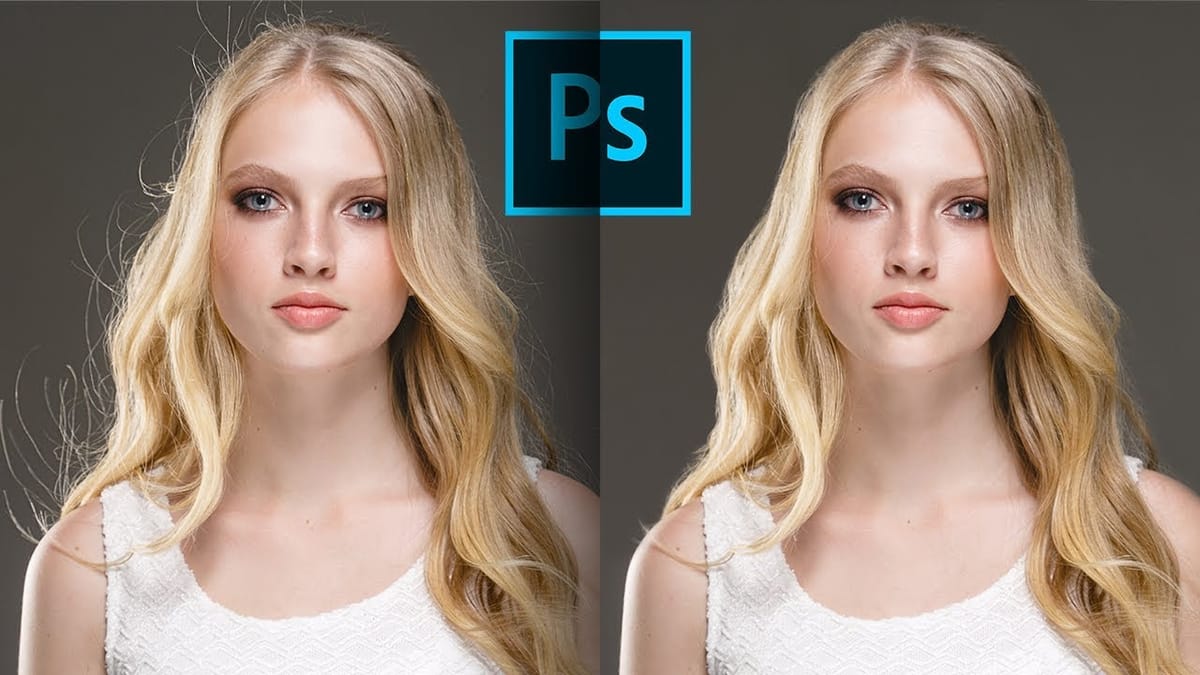
 Phlearn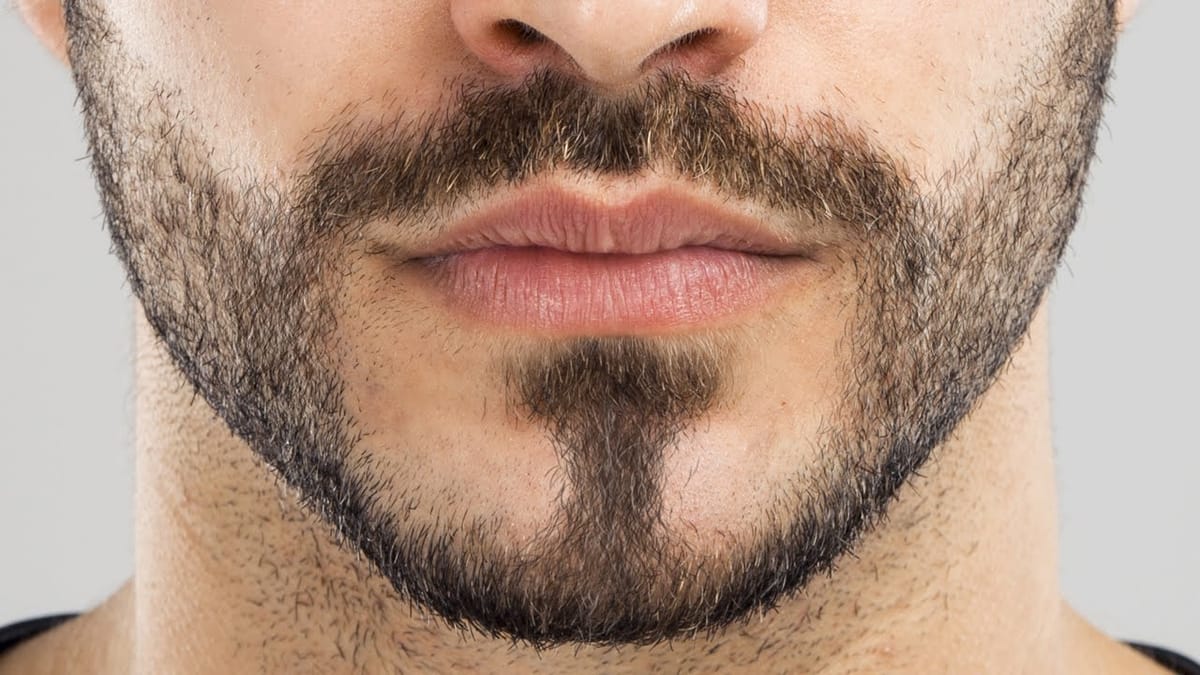
 Phlearn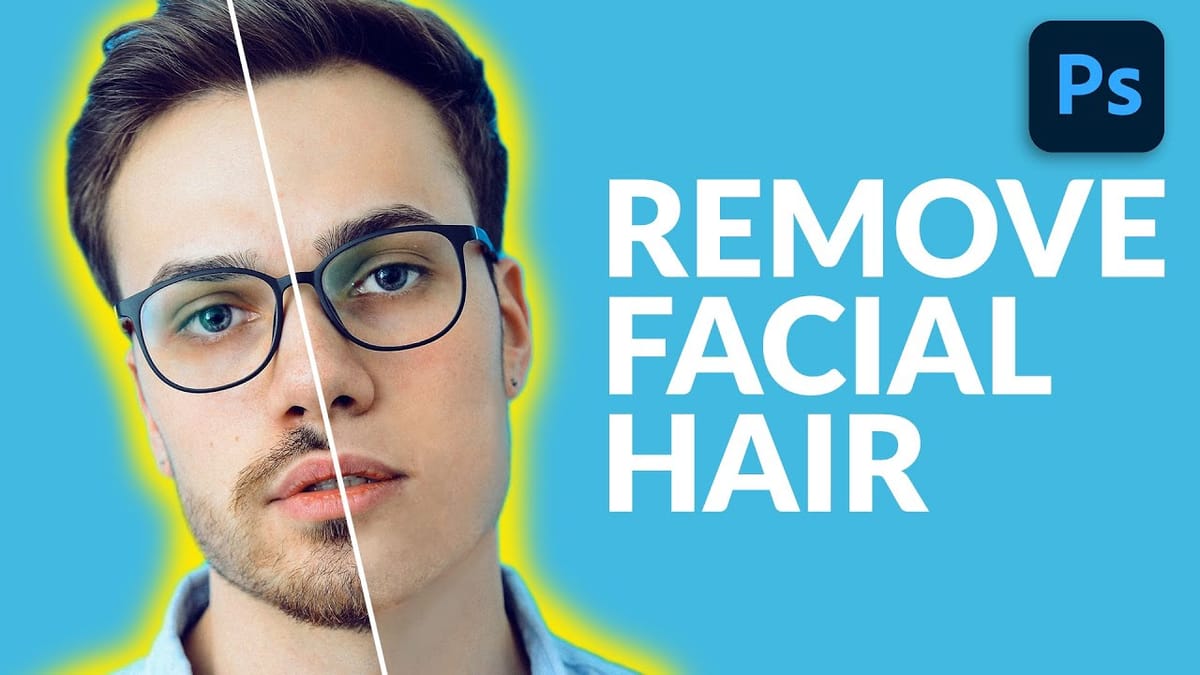
 Vera Change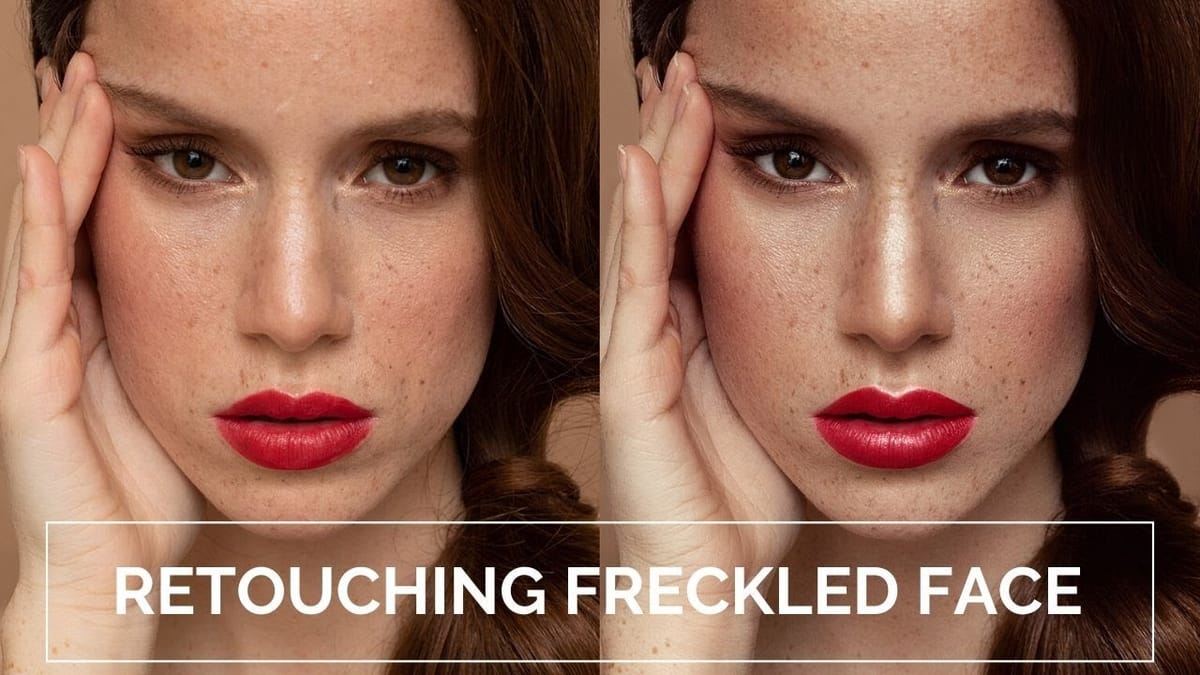
 Vera Change
 Phlearn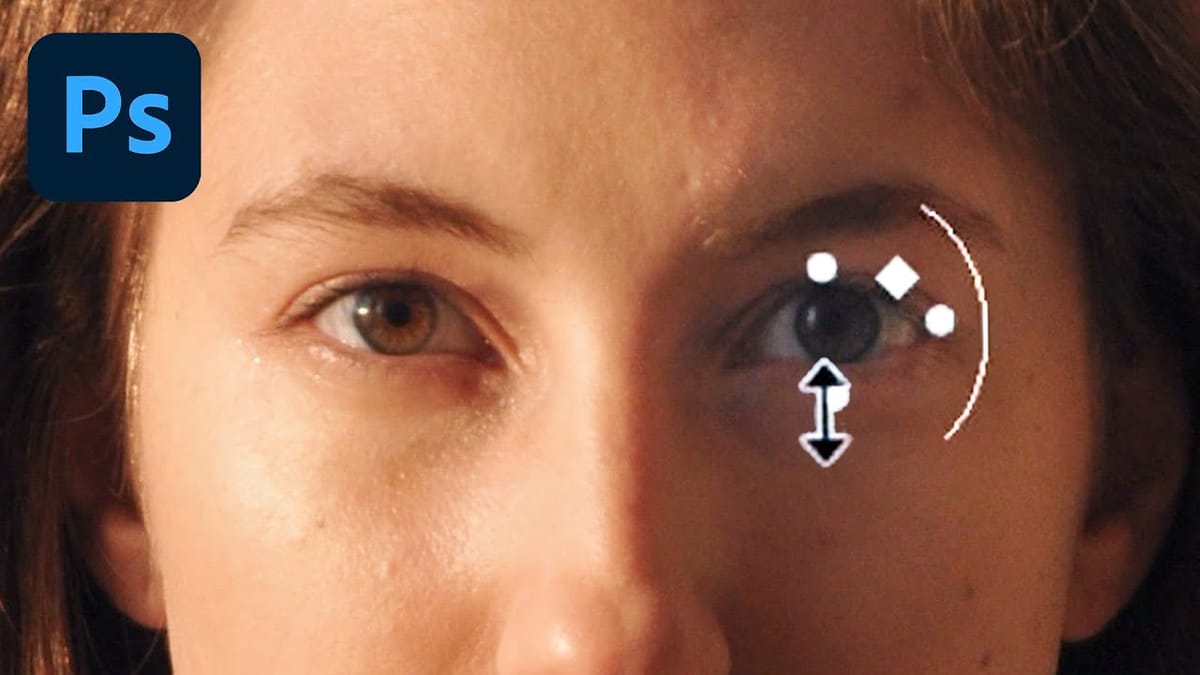
Beauty Retouching Workflows
These guides combine multiple techniques into complete portrait transformations.
 Kate Chibulia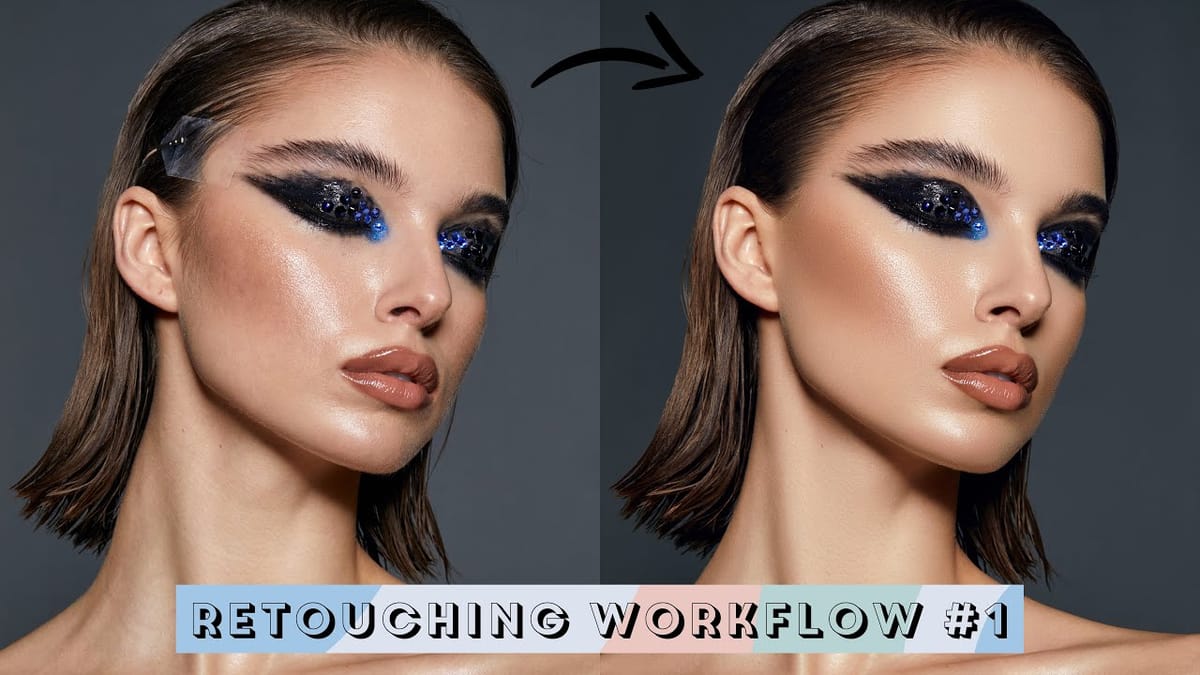
 Kate Chibulia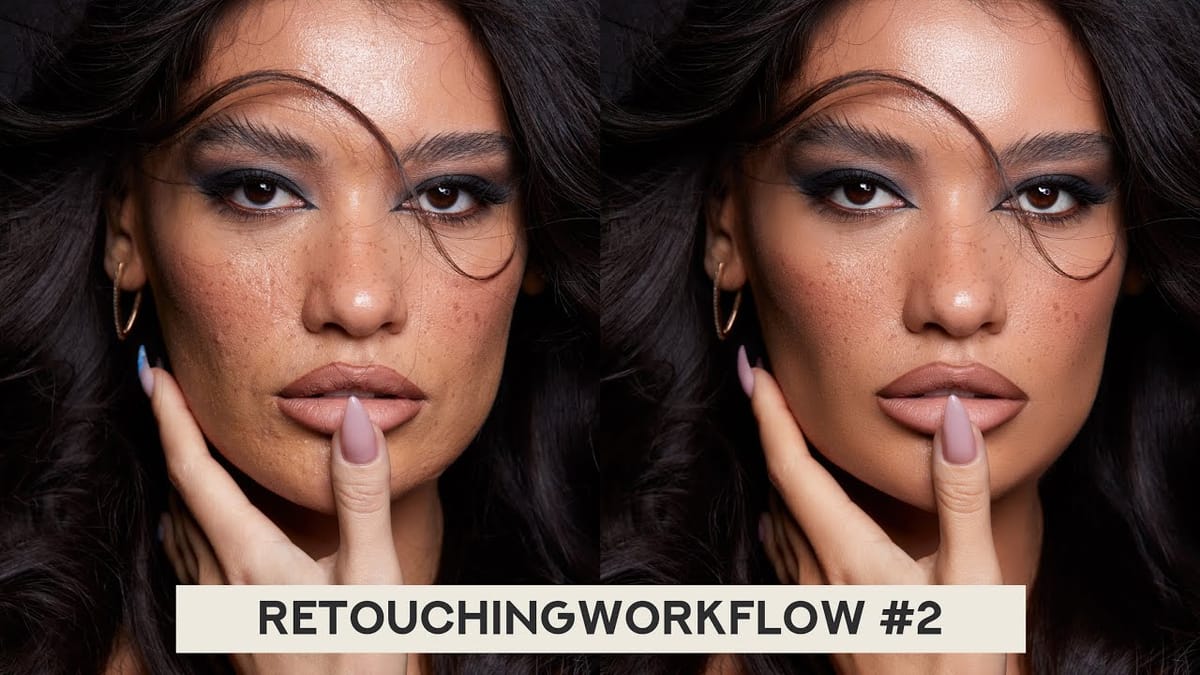
 Kate Chibulia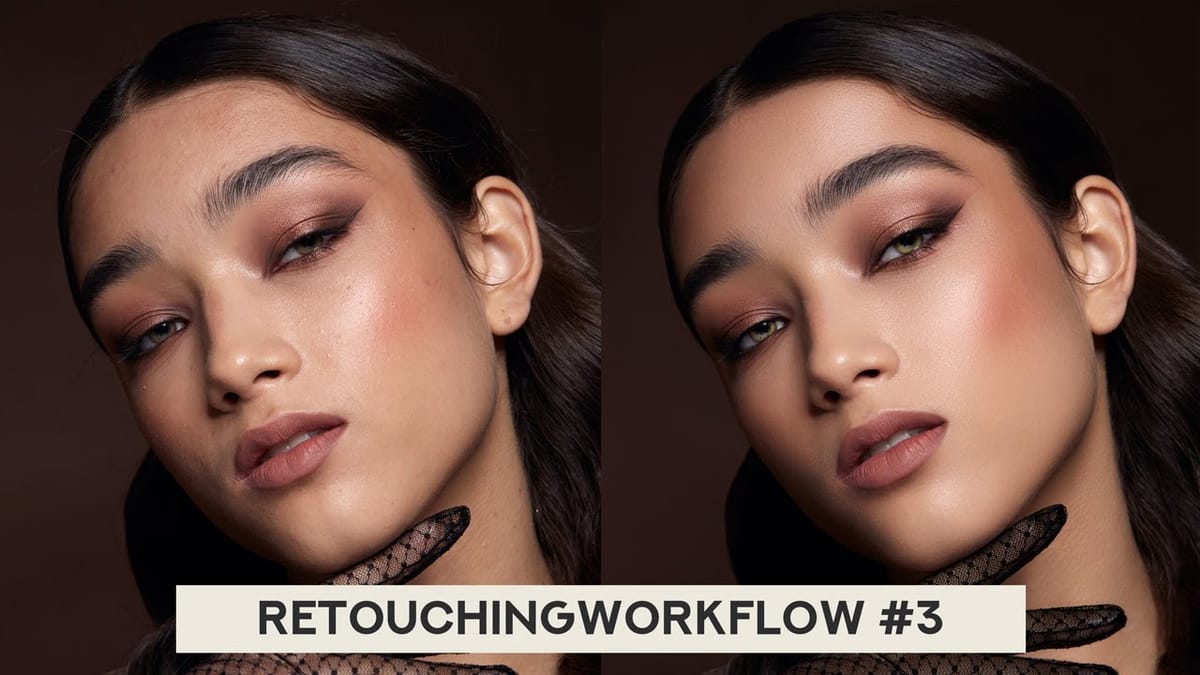
Final Thoughts on Beauty Retouching Techniques
Beauty retouching continues to evolve — AI tools are changing what's possible and how fast you can get there — but the core principles remain the same: control over texture, tone, and detail. That's what these tutorials are built on, and it's what will still be true when the tools change again.







