


Vintage tin signs capture the weathered charm of old advertising with their rusty edges, worn surfaces, and authentic aging effects. This technique transforms clean artwork into something that looks like it's been hanging in a garage or diner for decades, complete with realistic rust textures and dimensional details.
The process combines layer masking with grunge brushes, custom patterns, and strategic color grading to achieve that authentic weathered metal look that works perfectly for retro designs and vintage branding projects.
Watch the Video
Practical Tips
Here are key techniques for creating an authentic rusty tin sign effect:
- Use the "Rough" pattern from the Erodible Textures pack with Overlay blend mode at 25% opacity for realistic rust texture
- Apply torn paper brushes to layer masks with black paint to create irregular, weathered edges
- Add a sepia-toned color fill layer in Color blend mode at 20% opacity to unify the vintage look
- Create hanging holes using the Ellipse tool set to "Subtract Front Shape" on a vector mask
- Apply Bevel and Emboss with Color Dodge highlight mode to give the sign dimensional depth
Related Articles and Tutorials
Explore more vintage and weathered design techniques with these related tutorials.
Create a Fire and Rust Text Effect in Photoshop
If you're looking to add some fiery flair to your text, this tutorial has you covered. The team at TutsPlus walks you through the process of creating a striking fire and rust text effect in Photoshop.
First, you'll learn how to style and texture a rusty, weathered look for your text. This involves using various tools and techniques to achieve an authentic, gritty appearance. Once the base is set, the tutorial then demonstrates how to incorporate flames using the Flame filter, as well as other s

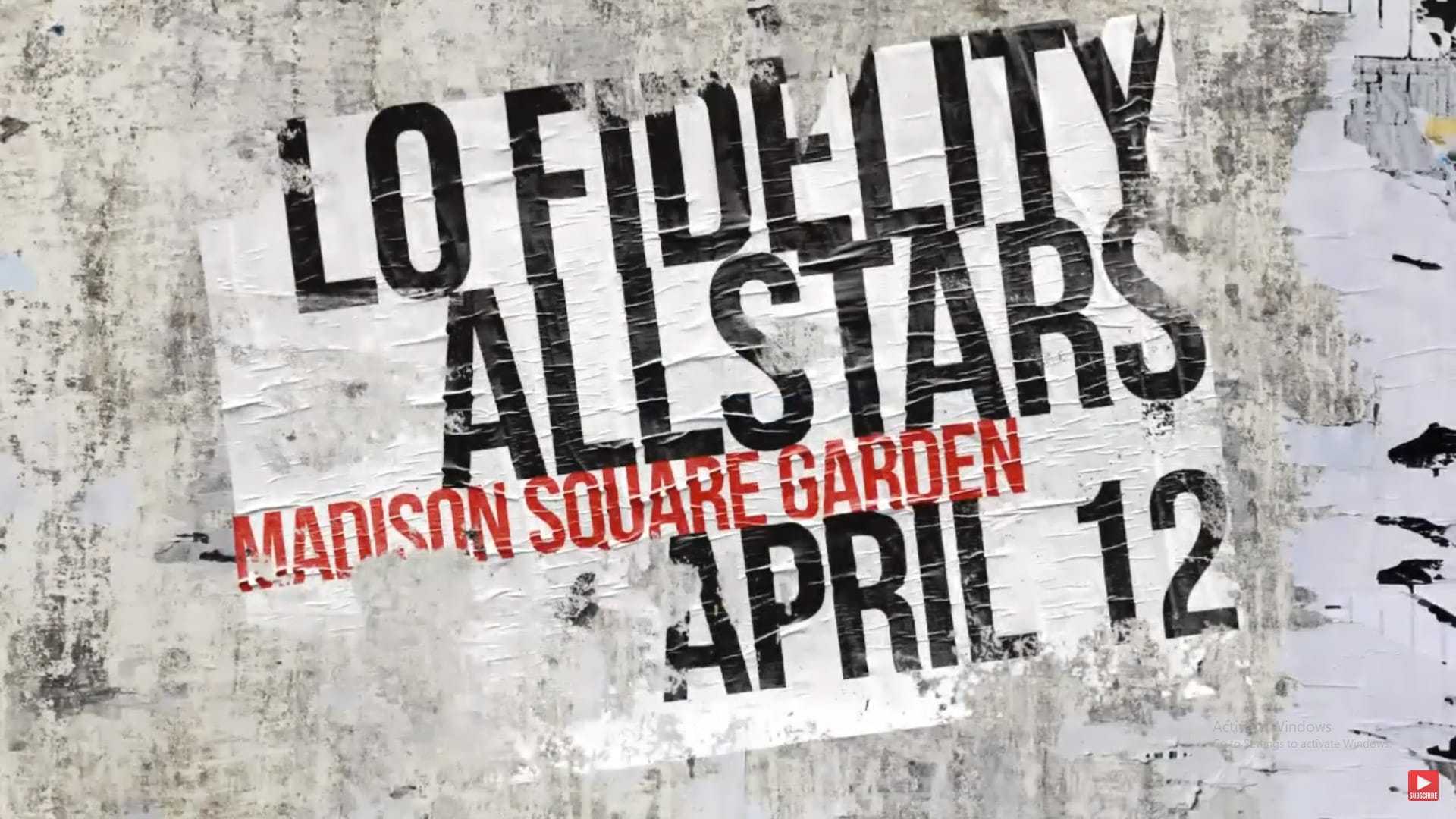
Create a Ripped and Worn Out Poster on a Wall in Photoshop
Vintage posters tell a story through their faded colors and torn edges. This weathered aesthetic adds a layer of history and authenticity to any design, transforming a clean graphic into something with tangible grit and character. Achieving this look digitally requires more than just adding a texture; it involves mimicking how paper and ink break down over time. This tutorial guides you through the essential Photoshop techniques, from creating realistic distortions to using grunge brushes, to cr
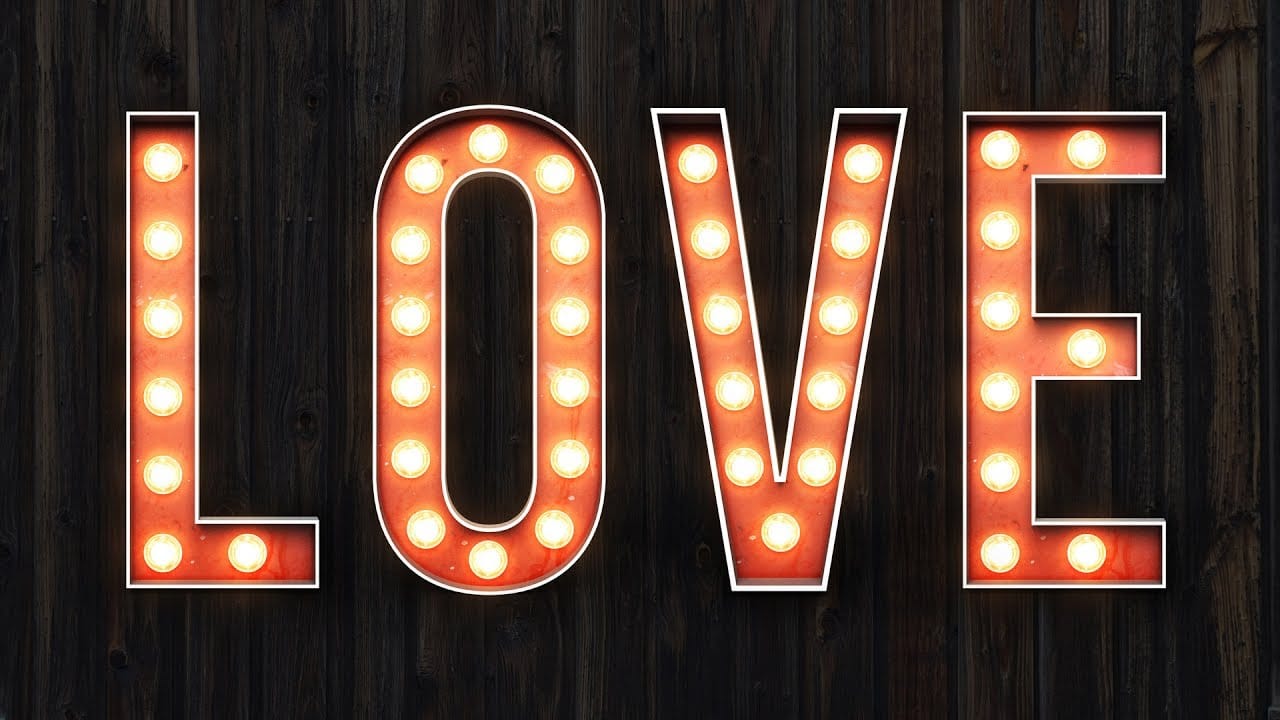
Create a colorful vintage marquee bulb sign in Photoshop
Add a touch of vintage Broadway style to your designs by creating a stunning marquee bulb sign effect in Adobe Photoshop. This tutorial guides you through using Photoshop's 3D features, real textures, and bulb photographs to achieve realistic depth and illumination.
Watch the Full Tutorial
Practical Tips for Creating Your Marquee Sign
Achieve a professional-looking vintage marquee sign by following these key steps:
* Process each letter individually in 3D to simplify bulb placement, avoid
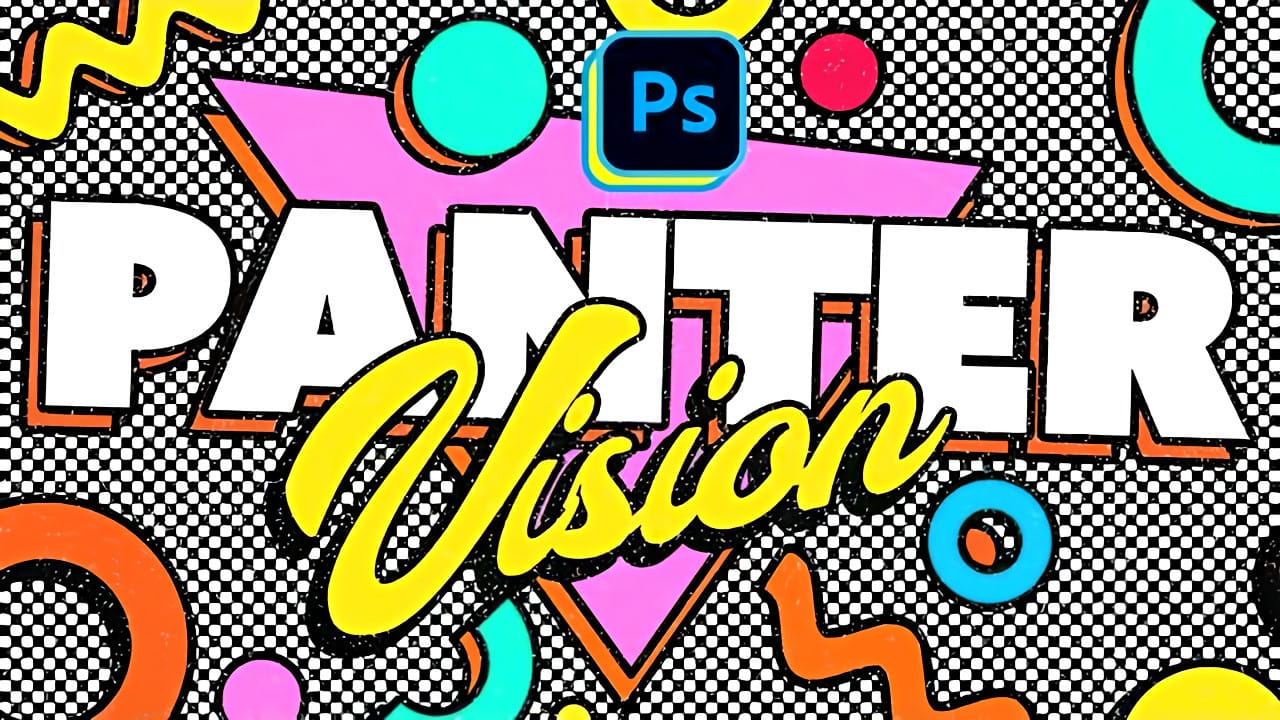
Create Colorful Retro Text Compositions in Photoshop
Retro design trends continue to captivate audiences with their bold colors and geometric shapes. This tutorial demonstrates how to build a complete vintage-inspired composition using text, geometric elements, and vibrant color schemes that capture the essence of classic graphic design.
You'll learn to combine typography with custom shapes, apply decorative strokes, and create layered drop shadows that give your design depth and visual interest.
Watch the Video
Practical Tips
Here are key t
How to Make a Scary Dungeon Wall in Photoshop
Horror and macabre art often rely on textures and effects to convey a sense of decay and dread. One of the most effective elements is the rusted chain, suggesting confinement, age, and neglect. Learning to create this effect can significantly enhance your digital art, lending an authentic and chilling feel to your projects.
This Photoshop tutorial demonstrates how to construct realistic rusted chains from scratch. By mastering these techniques, you can add a haunting touch to any visual narrati

How to Create a 3D Retro Text Effect in Adobe Photoshop
Transform your designs with a classic retro text effect in Adobe Photoshop. This tutorial guides you through creating popular vintage styles, featuring 3D appearances and decorative elements like inset faces.
Learn how to achieve these striking visuals using a combination of powerful Photoshop techniques, ensuring your text remains fully editable and dynamic.
Watch the Video
Leveraging Smart Objects and Advanced Layer Styles for Retro Aesthetics
Achieving a complex retro text effect in Pho

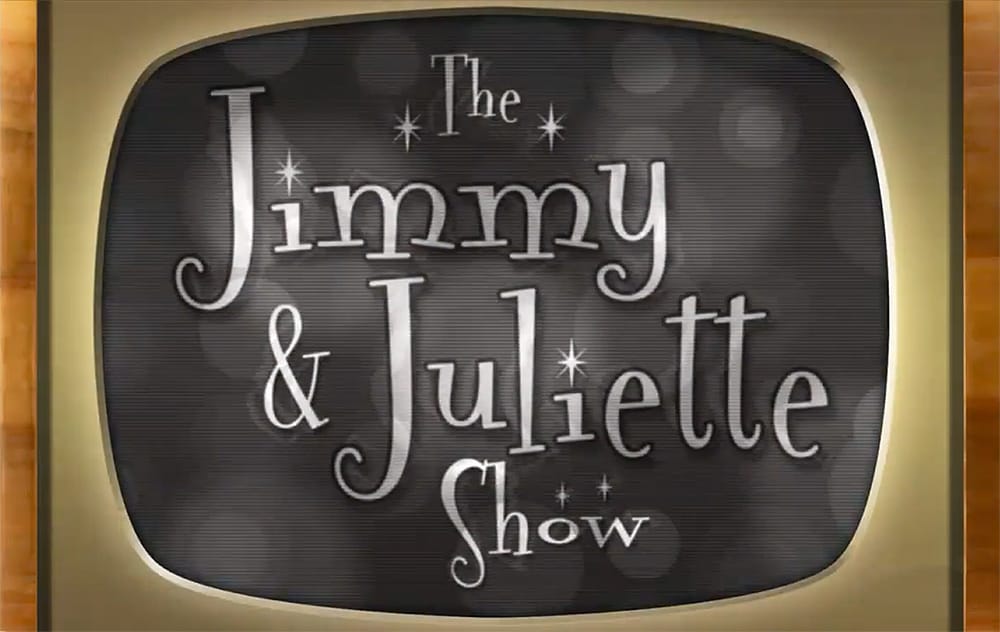
Create a 50s Retro TV Show Text Effect in Photoshop
In this Photoshop tutorial by Marty Geller from Blue Lightning TV, you will learn how to create a striking black and white 50s retro TV show text effect. This guide is designed for users at any skill level, making it accessible and easy to follow.
You'll start by adding vintage-style text, setting the stage for a nostalgic look. The tutorial walks you through incorporating scan lines and signal interference, elements that will enhance the retro feel. Each step is demonstrated clearly, ensuring
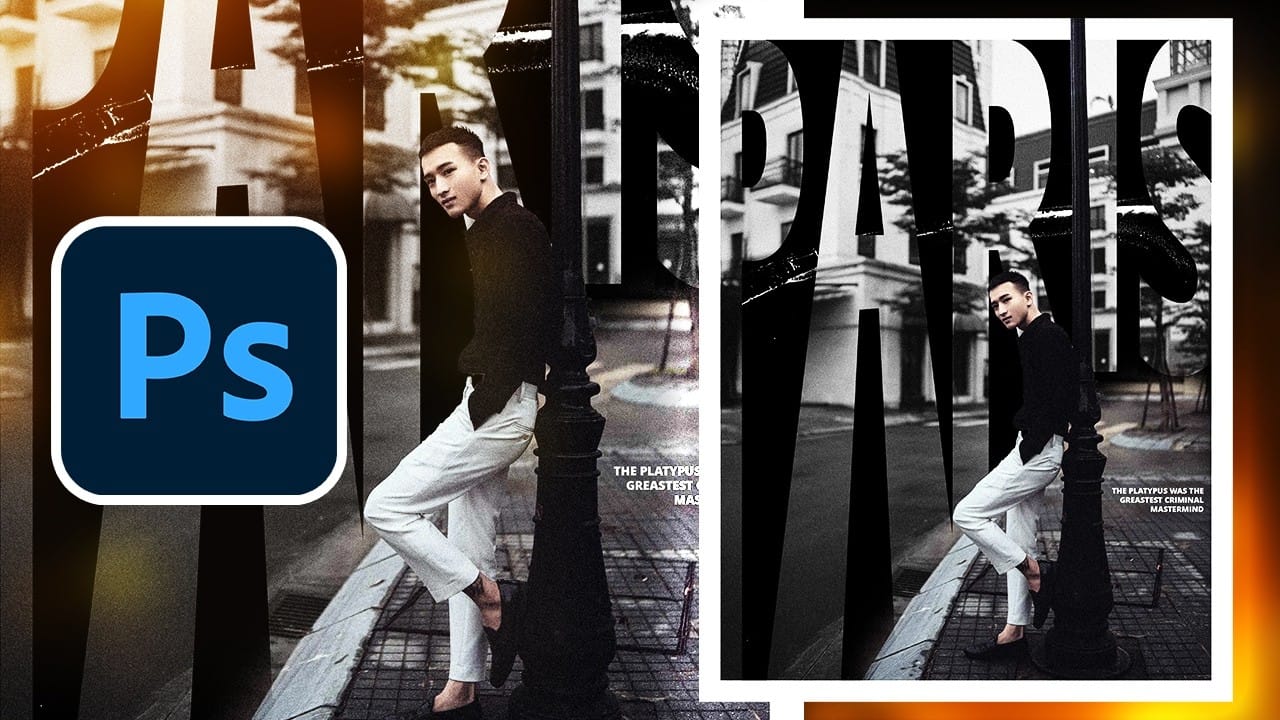
Create a Vintage Paris Poster Design in Photoshop
Vintage poster design captures the timeless appeal of classic advertising with its bold typography, dramatic imagery, and weathered textures. This aesthetic combines strong compositional elements with subtle aging effects to create designs that feel both nostalgic and contemporary.
This tutorial demonstrates how to build a stylized Paris poster using fundamental Photoshop techniques including text manipulation, layer masking, and blending modes to achieve that coveted vintage look.
Watch the
How to Create Grungy 3D Extruded Text in Photoshop
Grungy 3D text combines dimensional depth with weathered, distressed textures to create typography that feels both bold and authentically worn. This aesthetic works perfectly for vintage band posters, urban street art designs, and retro gaming graphics where clean digital text feels too polished.
This tutorial demonstrates how to build convincing 3D extrusion using manual layer duplication, then add realistic grunge textures through noise filters and distortion effects.
Watch the Tutorial
B





